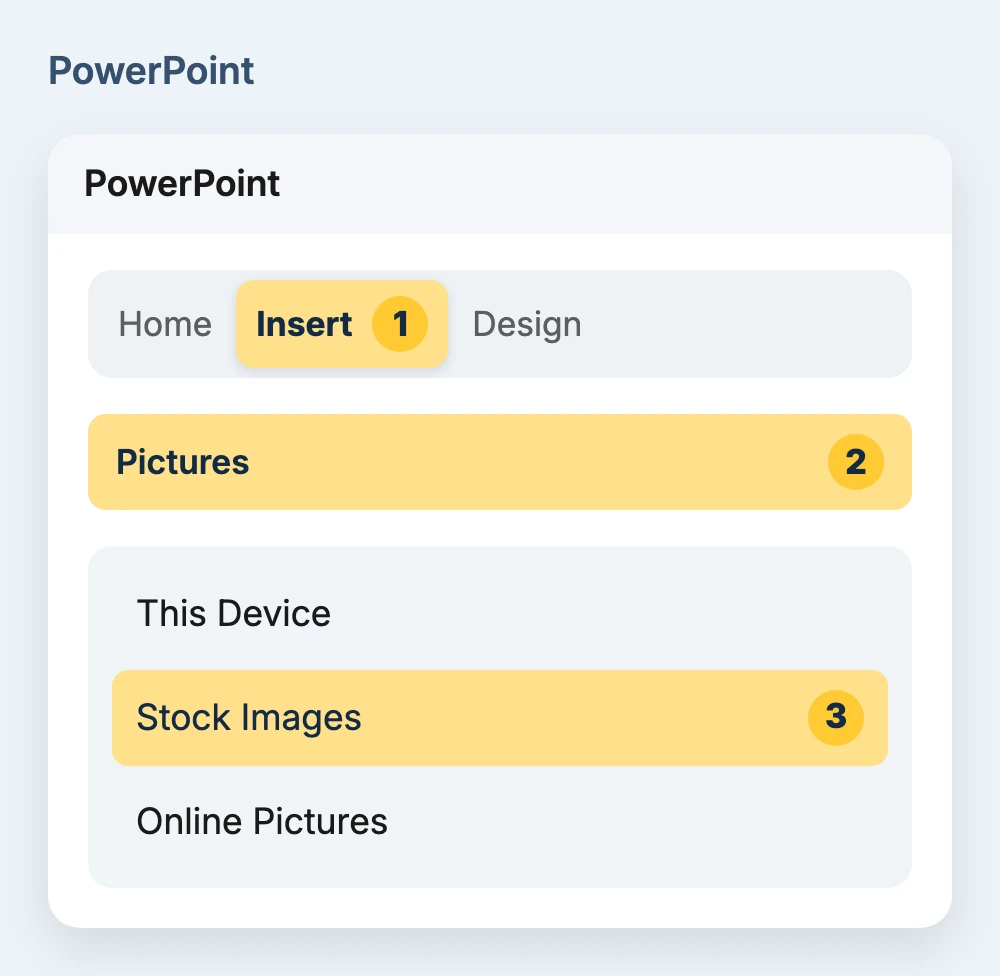
Office.com Clip Art no longer supplies pictures to PowerPoint. Use Insert > Pictures > Stock Images in Microsoft 365, or insert a picture saved on your computer to finish the slide without the retired library.
A current Online Pictures search that shows gray tiles is a different case. Check whether local pictures insert normally, then check the online feature's settings. The retired library won't come back after an outage.
In this guide
1. Replace the retired clip-art route
Open your slide in Microsoft 365 PowerPoint for Windows. Select Insert > Pictures > Stock Images. Choose an available category, select the artwork you need and insert it into the slide.
The selection includes more than traditional clip art, such as illustrations, icons and photographs. The categories you see depend on your Office product and subscription, so don't expect every older edition to show the same choices.
Microsoft's replacement clip-art instructions describe the newer artwork choices. Despite that help page's address, its instructions also cover PowerPoint and other Office apps.
When the picture appears, select it and check its crop and placement on the slide. Save the presentation, then reopen it to make sure the inserted artwork remains in place.
If Stock Images returns its own service-failed error, use the stock-image cache repair. If the command isn't offered, continue with a local image.
2. Insert a saved picture from the computer
Save a picture you own or have permission to use in an easy-to-find folder. In current PowerPoint for Windows, choose Insert > Pictures > This Device, select that file and choose Insert.
In an older edition, Insert > Pictures may open the file picker directly. Use the choice for a file on the computer, rather than the one that starts an online search.
This lets you check whether PowerPoint can insert pictures without using the online library. If a normal local picture appears, the slide can accept an image and you can finish the presentation.
I'd choose the saved file for a deadline. Spending an hour repairing an online search is unnecessary when the picture you need is already saved and inserts properly.
Try a small JPEG or PNG. Open it first to confirm it shows the picture you want. Even with an image-like filename, a download can contain a web page rather than a picture.
Keep its source and permission details with your project. For artwork needing a credit, the PowerPoint picture citation guide explains how to attach that information without crowding the slide.
If local pictures fail too, use the PowerPoint picture import checks. That broader failure needs attention before returning to online search.
3. Use the current online image search
If your edition has the option, choose Insert > Pictures > Online Pictures. Some older ribbon layouts place Online Pictures directly on the Insert tab. Search for a subject, select an image and choose Insert.
Use the Type filter for Clipart when offered. That searches current image results; it isn't a switch that reconnects the removed Office.com collection.
A successful search shows actual image thumbnails you can select. If you see a result count but only gray rectangles, the search still isn't usable.
Try a second, simple search term. If both searches show empty tiles but a local picture inserts, the problem is with online content. The slide itself can accept pictures.
Check the chosen picture's source and reuse terms before putting it in material you'll share. A license filter helps narrow the search, but the image's actual terms still decide what you can do with it.
When the command says its required service is turned off, use the privacy setting next. If it reports a different error, save that exact wording for support rather than applying an unrelated reset.
4. Enable the online service when its message says it's off
In current PowerPoint for Windows, open File > Account > Account Privacy > Manage Settings. Look for Enable optional connected experiences, enable it if your account permits it, select OK, then restart PowerPoint.
This is the documented response to the service-turned-off message in the picture insertion instructions. Turning it on lets the online feature use the service it needs.
On a work or school installation, an administrator may control that setting. Ask IT about policy if this control is absent or won't remain enabled. Don't change unrelated security controls to bypass an organization restriction.
Repeat the same search after reopening the app. If thumbnails load and you can insert a picture, the online feature is working again. If the message remains, send IT its wording and the Office version.
Leave this setting alone when local pictures are the only thing failing. Its purpose is online content, so it won't repair a damaged image file or a slide that rejects every import.
5. Understand the old gray-box fix before trying it
The original 2014 Office 2013 thread described search counts with gray tiles in PowerPoint, Word and Excel. One owner confirmed that resetting Internet Explorer's security zones to their defaults made pictures load again.
That was Tools > Internet options > Security > Reset all zones to default level. Their later reply reported success after repair, compatibility troubleshooting and disabling graphics acceleration had failed.
That fixed the owner's older installation. It won't restore Office.com Clip Art now, and you shouldn't install Internet Explorer on a current PC to try it.
On a managed legacy PC, give that result to its administrator before resetting custom security zones. They can check whether those settings still affect the app and whether changing them would remove required restrictions.
When online pictures still won't load
Send Microsoft 365 support or your IT team the PowerPoint product, version, exact error and whether a local JPEG inserts. Include whether the problem affects a blank presentation and more than one online search.
For Office 2013, plan a supported Office replacement. Its support ended in 2023. Keep using a permitted local image to finish your slide, rather than expecting a retired online collection to resume service.
The Short Version
Use Stock Images or a local picture instead of Office.com Clip Art. For current Online Pictures failures, check the service message and privacy setting. The old Internet Explorer reset can't restore the removed library.
Checked November 27, 2026.
 If you have any business, I can build it online