Print Screen can be working without creating a visible file: it may copy the screen to the clipboard or open the snipping overlay. Press it once, finish any selection, then paste into Paint with Ctrl+V before deciding the key isn't working.
If that produces nothing, compare Windows+Shift+S and check the Print Screen setting. The Keyboard settings path differs between Windows 11 and 10, and a laptop's shared function key may need its own keyboard combination.
In this guide
1. Check whether the capture is on the clipboard
Open a window you don't mind capturing, press PrtScn and watch what happens. The key can also be labeled PrtSc, PrntScrn or Print Screen, depending on the keyboard.
If the display dims and capture controls appear, drag over the area you want. An unfinished selection hasn't produced the screenshot you're trying to paste. Pressing Esc cancels that capture.
Open Paint from Start and press Ctrl+V. A pasted image shows that the screenshot worked, even if no notification appeared and no file arrived in Downloads.
Microsoft's screen-copy instructions explain the clipboard route. Save the pasted picture from Paint to create a file for an attachment or upload.
Try this immediately after the capture, before copying other text or images. A later copy can replace the screenshot on the clipboard and make a successful key press look unsuccessful.
If Paint receives the image but your email or document doesn't, keep the keyboard setting as it is. Save the picture and insert that file into the destination app instead.
2. Which action should PrtScn perform?
On Windows 11, open Start > Settings > Accessibility > Keyboard. Find the switch for using Print Screen to open screen snipping. Its wording can refer to screen snipping or screen capture.
Enable it to select an area after pressing PrtScn. Disable it for the traditional full-screen clipboard capture, then repeat the Paint check.
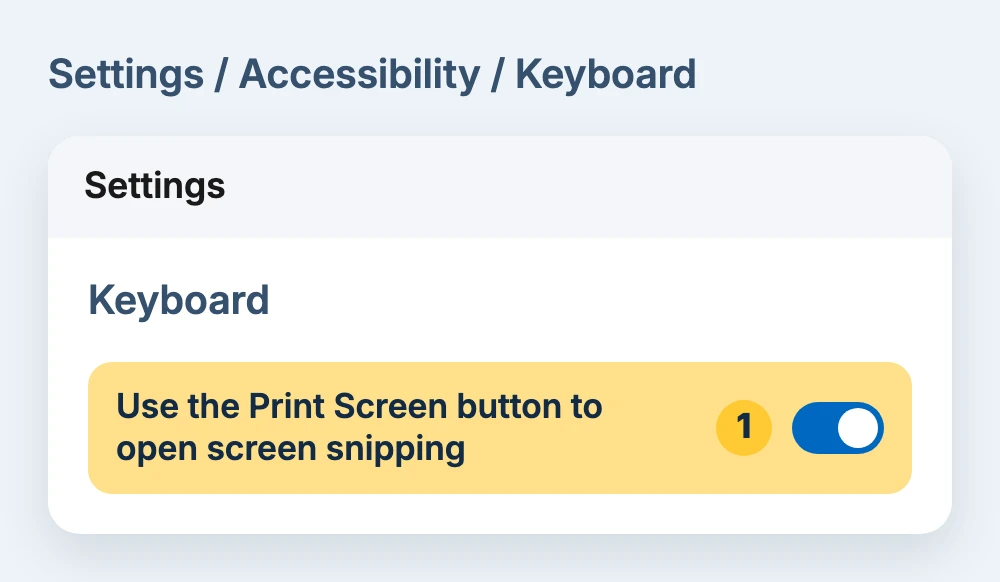
On Windows 10, open Start > Settings > Ease of Access > Keyboard. Find Print Screen shortcut and turn its switch on to open screen snipping with that key.
These settings change the key's behavior. A change from an instant clipboard copy to a shaded screen isn't a keyboard fault; Windows is waiting for you to choose the capture area.
The Windows keyboard shortcuts reference separates these two versions. Choose the instructions that match your Windows version. Windows 10 uses Ease of Access rather than Accessibility.
3. Try the capture shortcut that skips Print Screen
Press Windows+Shift+S. When the overlay appears, select the area you need, then paste it into Paint or select its notification to reach the editor.
If this works while PrtScn doesn't, Windows can still capture the screen. Check the Print Screen key, its Windows setting or software that changes what the key does.
If neither shortcut responds, open Snipping Tool from Start. Start a new capture from inside the app. If capture works inside the app, the keyboard shortcut is the part to check. If the app won't run, start there instead.
For a tool that itself fails to open or capture, use the Snipping Tool repair guide. Reinstalling a screenshot app isn't the first fix when only one physical key fails.
I'd keep using Windows+Shift+S while checking the key. It lets you finish your screenshot without changing settings in several unrelated apps.
4. Use the shortcut for the result you actually need
For a full-screen picture saved directly as a file, try Windows+PrtScn. Open File Explorer > Pictures > Screenshots to look for the result.
That is different from bare PrtScn's clipboard capture. Looking in Pictures after a clipboard-only capture sends you to a folder that wasn't used.
For just the active window, click that window and press Alt+PrtScn, then paste into Paint. Use this for one dialog without capturing everything else on the desktop.
Some keyboards have no PrtScn key. Depending on the hardware, Fn+Windows+Spacebar provides a screenshot shortcut. Try that combination on hardware without a dedicated screenshot key.
On laptops with two labels on the same key, check the keyboard manual for the Fn combination or function-lock behavior. The correct combination varies by model, so don't assume another laptop's Fn-lock shortcut applies.
If an external keyboard's Print Screen works on the same PC, give the laptop maker that comparison. It helps distinguish the built-in keyboard's mapping or hardware from a Windows-wide screenshot failure.
5. Separate a missing notification from a missing screenshot
The capture notification is a convenient way into the editor. You can still check the captured image when the banner doesn't appear. A successful paste means the image was captured even when no banner appears.
For that specific result, follow the missing Snipping Tool notification checks. They cover notification permission and Do not disturb rather than the Print Screen mapping.
In current Windows 11 Snipping Tool, captured snips can also save automatically to the Screenshots folder. Open the app's See more > Settings controls to check its save behavior and destination.
The Windows 10 tool and older app versions don't have the same automatic-save behavior. Use the app's Save command to create a file. Open the saved image afterward and check its contents.
6. Report the key or app that still fails
If app capture works and only the built-in key fails, tell the PC or keyboard maker your model and which shortcuts succeeded. Ask about that keyboard's Print Screen mapping or replacement if the key isn't registering.
If Snipping Tool itself can't capture, use Get Help from Start and describe a screenshot or Snipping Tool problem. Include whether the app opens, whether its New command works and whether Paint accepts an image.
For a work PC, send IT those results before replacing company capture tools or keyboard utilities. A specific failed command is more useful than replacing the keyboard when the capture app is the part that won't run.
The Short Version
Paste into Paint first. Choose the Print Screen behavior in your version of Keyboard settings, then compare Windows+Shift+S. Use Windows+PrtScn for a saved full-screen file and troubleshoot a missing banner separately.
Checked November 27, 2026.
 If you have any business, I can build it online