Slack notifications can disappear when macOS blocks banners, a Focus silences them, or Slack pauses delivery on a schedule. Start with System Settings > Notifications > Slack, then check your workspace's notification choices.
A missing banner, a silent banner, and an unread badge are different problems. Check which part is missing so you don't change a working message setting when the problem is where your Mac plays sound.
In this guide
1. Allow Slack banners in macOS
Open the Apple menu > System Settings > Notifications, then select Slack. Turn on Allow notifications and choose a visible alert style. If alerts only go to Notification Center, you can miss them while working in another app.
On older macOS versions, the app is called System Preferences. Open Notifications, or Notifications & Focus where that name appears, and choose Slack. Use Banners or Alerts instead of None.
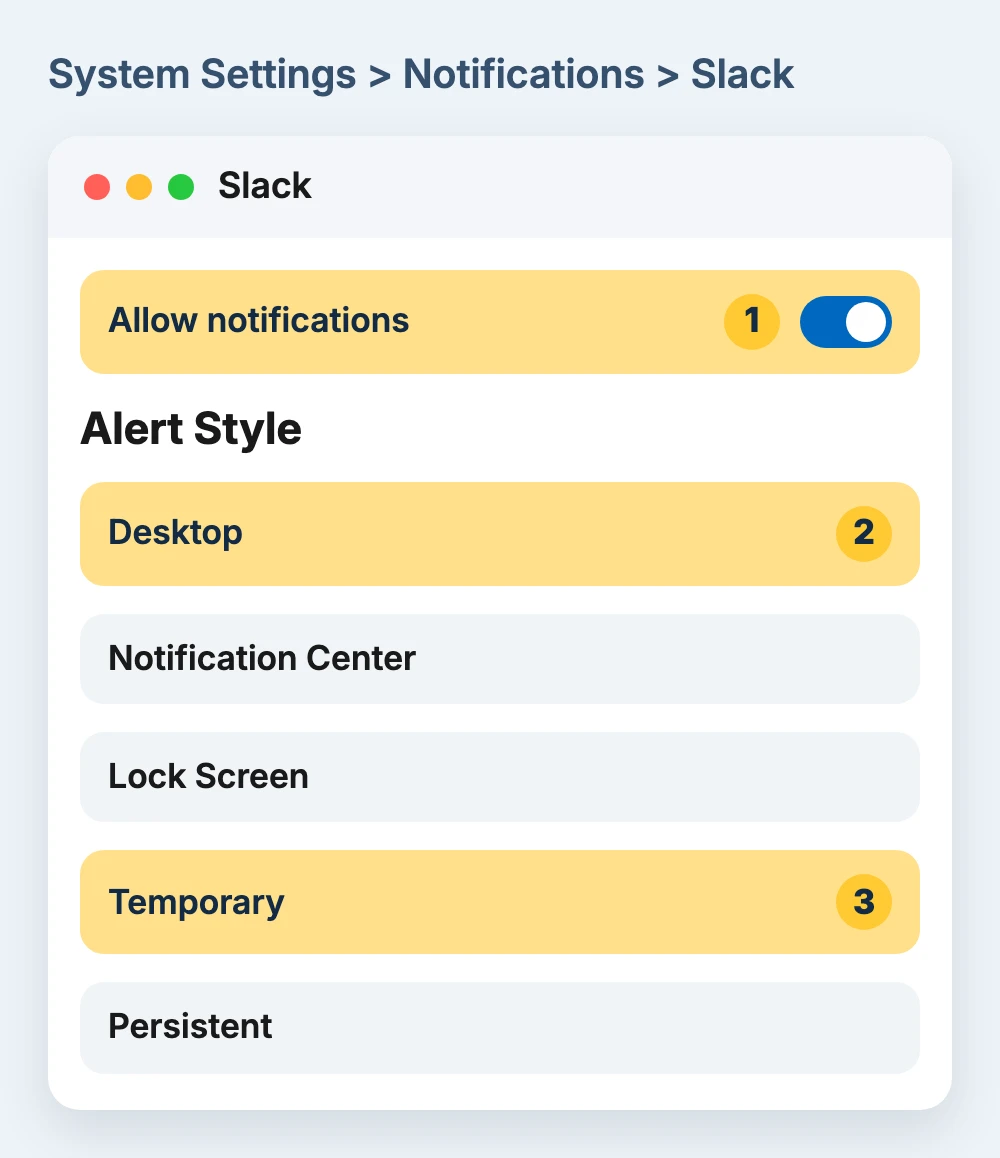
On the current layout, select Desktop under Alert Style, then choose Temporary or Persistent. Temporary alerts disappear automatically; Persistent alerts stay until dismissed.
The Mac notification settings also control previews and delivery while the display is locked. A hidden message preview doesn't necessarily mean the notification failed.
Have a colleague send you a direct message while another app is active. Look for its banner and the message inside Slack. If Slack never receives the message, check its connection before changing banner preferences.
If Slack isn't in the list, check whether Slack is running as the installed Mac app. A workspace open in a browser uses that browser's notification permissions, covered under Browser alerts and the support report.
2. Check Focus and paused notifications separately
Open Control Center from the Mac's menu bar and check Focus. Turn off the active Focus briefly, then repeat the direct-message check. Older versions may show Do Not Disturb as the control itself.
If that restores banners, open System Settings > Focus and inspect the active Focus and its schedule. Allow the notifications you need there instead of leaving every Focus disabled permanently.
For a Mac that keeps becoming quiet at a regular daily time, our Focus controls on Mac explain where the scheduled setting can keep returning.
Next, look at Slack's profile menu. A snooze symbol means Slack has paused notifications. Resume them from its pause-notification controls before testing the operating system again.
Slack's own schedule is separate from the Mac's Focus schedule. Check the days and hours set for notifications, especially when messages arrive during work but go quiet in the evening or on weekends.
If your schedule stops notifications outside work hours, Slack is following those settings. Change those hours only if you want desktop alerts during that period. Resetting the app won't change those scheduled hours.
If neither Focus nor Slack is pausing notifications, check which messages your workspace is set to announce. A new channel post and a direct message don't always have the same notification rules.
3. Turn on the message types you expect to see
Click your profile picture > Preferences > Notifications in Slack. Under How to notify you, check Desktop notifications. Mobile notifications are a separate choice and don't switch desktop banners on.
Under What to notify you about, choose Everything or Mentions and direct messages according to what you need. With the second choice, an ordinary channel message can arrive without producing a banner.
Slack's notification instructions explain these current choices. Older app versions can arrange them differently, so update the app if its layout is far behind.
Check the affected channel's notification settings if direct messages work but one channel stays quiet. Channel-specific choices can differ from your general preference; changing the whole workspace isn't necessary for one conversation.
Compare the same message type after each change. Asking for a direct message after changing a channel preference won't tell you whether that channel's alerts now work.
For multiple workspaces, repeat the check in the workspace with the problem. A working alert from a second organization doesn't mean the quiet workspace has the same settings.
I'd fix these choices before reinstalling Slack. Reinstalling an app takes longer than correcting a notification preference and can leave the same workspace rule in place when you sign back in.
4. Restore the sound for visible alerts
Open System Settings > Notifications > Slack and turn on Play sound for notification if your macOS version shows that control. On older releases its label is Play sound for notifications.
Then open System Settings > Sound > Output and choose the device you actually listen through. Check its volume and mute control. A monitor or headset can become the destination even while you're listening to the Mac speakers.
In Slack's Preferences > Notifications > Sound & appearance, check that Mute all sounds from Slack isn't selected. Check the notification sound choice as well, rather than changing the Mac's alert volume repeatedly.
If sound disappears only when an external monitor is attached, disconnect it for one comparison. If sound returns, check which output device the Mac was using.
For banners that disappear while docked, the Mac dock notification checks cover the display-sharing setting.
Once a banner and sound both work, stop changing delivery settings. The Dock badge has its own setting, so a missing badge doesn't mean your new-message notification failed again.
Browser alerts and the support report
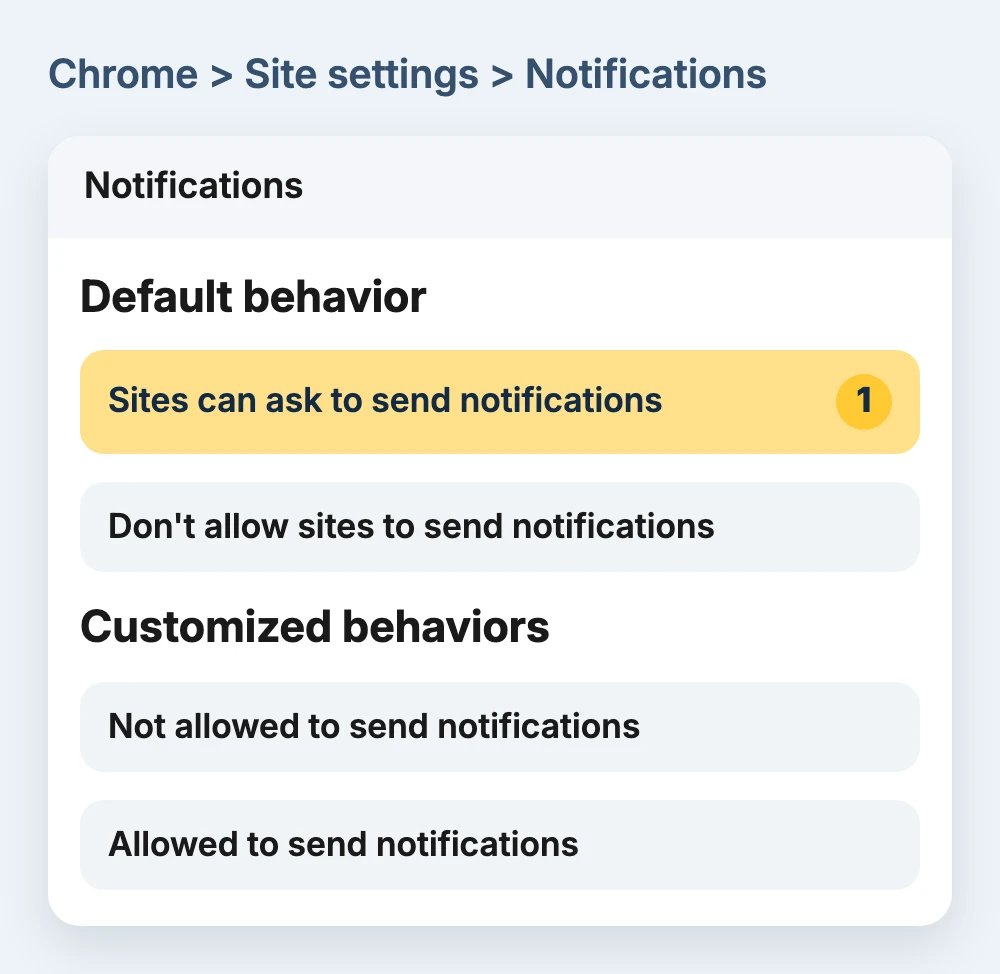
For Slack in Chrome, open Settings > Privacy and security > Site settings > Notifications. Check that sites can ask to send notifications and that your Slack workspace isn't blocked.
In Safari, use Safari > Settings > Websites > Notifications and allow the workspace. Older Safari uses Preferences instead of Settings. Keep the workspace open: browser notifications apply to workspaces you have open there.
The desktop troubleshooting steps separate browser permission problems from the Mac app. Follow the instructions for the Mac app or browser you're using.
If the installed app still receives messages without alerts, open Help > Troubleshooting > Report Issue. Include the macOS version, workspace affected, message type tested, and whether the missing part was the banner, its sound, or both.
That report attaches the app's logs for support. On a work-managed Mac, also tell IT whether other apps are silent and whether notification settings are locked. That helps IT check whether a work policy or the app is blocking alerts.
The Short Version
Allow macOS notifications for Slack, clear an active Focus or Slack pause, and check Desktop notifications in the correct workspace. Fix sound output separately when banners work. Report the exact missing alert if delivery still fails.
Checked November 27, 2026.
 If you have any business, I can build it online