HyperX offers both NGENUITY and NGENUITY Legacy, so a failed Store download doesn't leave you without an official installer. Check your device against the compatibility lists, then use the matching download on HyperX's NGENUITY page.
When the Microsoft Store itself won't open or several apps won't install, repair that Store problem separately. A successful installation followed by an empty device list needs different troubleshooting from an unfinished download.
In this guide
1. Match NGENUITY to the accessory
Open the official HyperX NGENUITY page and look for Download NGENUITY and Download NGENUITY Legacy. Check that your exact keyboard, mouse, headset or microphone is supported before choosing.
The current and Legacy apps support different devices. An older accessory can need Legacy even though the newer download is easier to notice. Match the full model name, including Wired or Wireless where shown.
Both apps are Windows software. A Mac or Linux computer can't use the Windows installer as a native app. A device with onboard memory may keep supported saved profiles, but customizing those profiles still needs a suitable Windows computer.
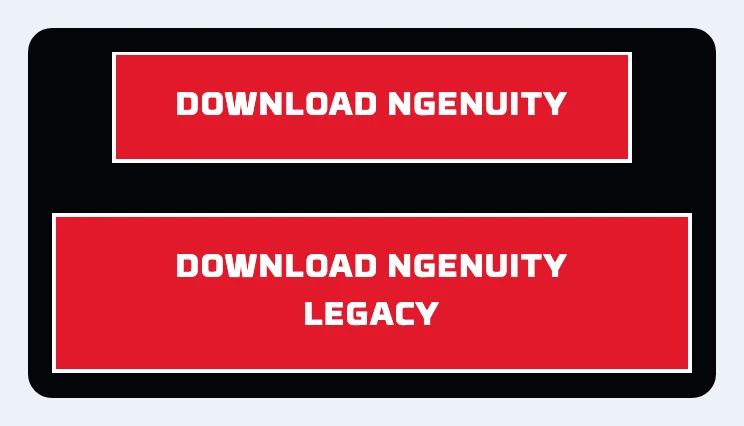
HyperX's download page lists a direct download for both versions. It also identifies the Microsoft Store as another source for NGENUITY Legacy for Windows 10/11.
Use the direct Legacy download if the Store route is the part that fails. You'll get the same supported version through a different download route. It doesn't mean the current app has suddenly gained support for a Legacy-only device.
If the official page won't load, try another updated browser or connection. Note whether you get stuck loading the page, using the download button or opening the saved installer. Those are three different places for a download to stop.
2. Reset a Microsoft Store window that won't open
Use this section when Microsoft Store doesn't open properly, rather than when a HyperX installer has already downloaded. Press Windows + R, type wsreset.exe, and select OK.
A blank command window opens briefly. When it closes, Microsoft Store should open automatically. Let that finish before trying the NGENUITY Legacy download again.
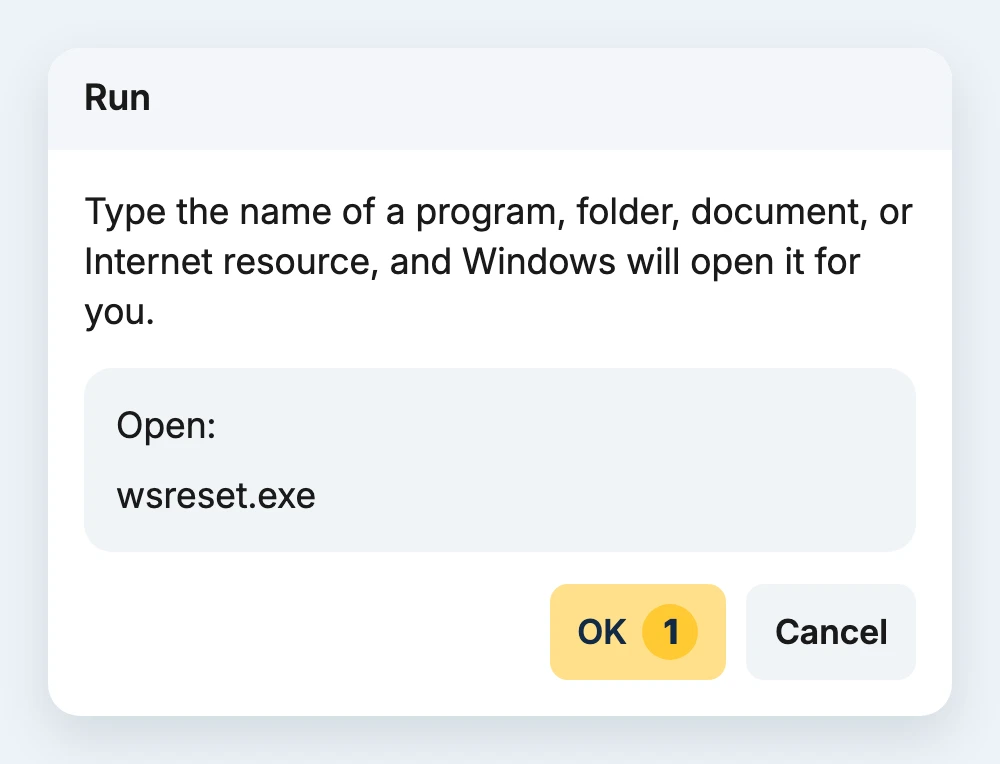
Microsoft's Store-opening repair recommends this cache reset. It clears the Store's temporary data; it doesn't replace the HyperX application's installer.
If Store now opens and Legacy installs, the problem was with the Store route. If Store still closes immediately, use the Store crash checks before spending more time on peripheral settings.
If Store opens but displays an error code, keep that exact code for the next step. A page that loads and refuses one app needs more specific help than a Store window that never appears.
3. Update the Store and check Windows
In Windows 11, open Microsoft Store > Library > Get updates. Install an offered Store update, then retry the app. In Windows 10, open the Store's See more menu, choose Downloads and updates, then Get updates.
For Windows updates, Windows 11 uses Settings > Windows Update > Check for updates. Windows 10 uses Settings > Update & Security > Windows Update > Check for updates. Complete the restart requested by the update.
Don't interrupt another app installation to test the same download repeatedly. Let the queue finish or show its actual error, then compare whether another free Store app can install.
If other apps also fail, keep troubleshooting Windows and Store. If only NGENUITY Legacy fails, try its official direct installer and give support the Store error. That narrows down the problem without removing working software.
Also check the PC's date, time and region when Store still won't load correctly. Open Settings > Time & language and correct an obviously wrong clock or region, then try Store again.
A PC controlled by a workplace or school may have software-installation restrictions. If the message names an administrator, ask IT to approve the official package instead of weakening security to force installation.
4. Handle a saved installer that won't run
If the file has finished downloading but won't open, focus on the installer rather than the download. Open the saved file and record what Windows says, including whether it asks for administrator approval or reports an unsupported system.
Download again from the official page if the transfer was interrupted or the saved file is incomplete. Avoid unofficial mirrors promising a repaired build; the publisher's package keeps the version and support route clear.
On a managed PC, give IT the package name, download address and the message that blocks it. If installation needs approval, the administrator has to grant it. Clearing your browser cache won't help.
If a Store error specifically shows 0x80131500, follow the steps for that error. Use those steps when you see that code, rather than trying every Store repair after the download has already finished.
5. Stop download repairs once the app opens
When NGENUITY launches, the download and installation are complete. If your accessory isn't listed, return to the compatibility lists and confirm you installed the matching app version for that exact model.
Check the connection method in the accessory's instructions as well. Even within one product family, the available controls can differ by model and connection type.
I'd keep the downloaded package until the software opens successfully, then record which version you used. That tells support which software edition you tried and where it stopped working.
If neither official route works, contact HyperX Support with the full model name, Windows version, chosen NGENUITY edition and exact error. Say whether the download fails, installation stops or the installed app can't see the device.
For failures affecting several Store apps after the cache reset and updates, use Microsoft support's Store-app troubleshooting route. Include the comparison with another app and whether the official HyperX installer works outside Store.
The Short Version
Match your accessory to NGENUITY or Legacy first. Try the official direct download when Store fails. Reset a broken Store with wsreset.exe, update it, and stop download troubleshooting once the app opens.
Checked November 27, 2026.
 If you have any business, I can build it online