An Elgato USB 3.0 device that keeps restarting your PC should connect directly to a compatible port with the required data cable. Remove any hub or dock first. Check whether Windows reboots or just the capture preview reconnects.
Watch what disappears when it happens. If the desktop keeps running, check the capture connection or app. A Windows startup screen, fresh login, or stop-code message means the whole PC crashed, so check Windows too.
In this guide
1. Start with a direct USB connection
Turn the PC off, then unplug the capture device. Reconnect it directly to a computer port, without extension cables, adapters or docking stations. Start the PC, then open the capture app.
Check the model on your device's label. USB 3.0 describes the connection, not the Elgato model. An HD60 S+, HD60 X and 4K X don't all have identical bandwidth requirements. Match both the port and cable to your model's requirements.
Elgato's USB troubleshooting procedure recommends a direct connection, another suitable port and a certified cable. A USB-C plug alone doesn't tell you the cable's data speed.
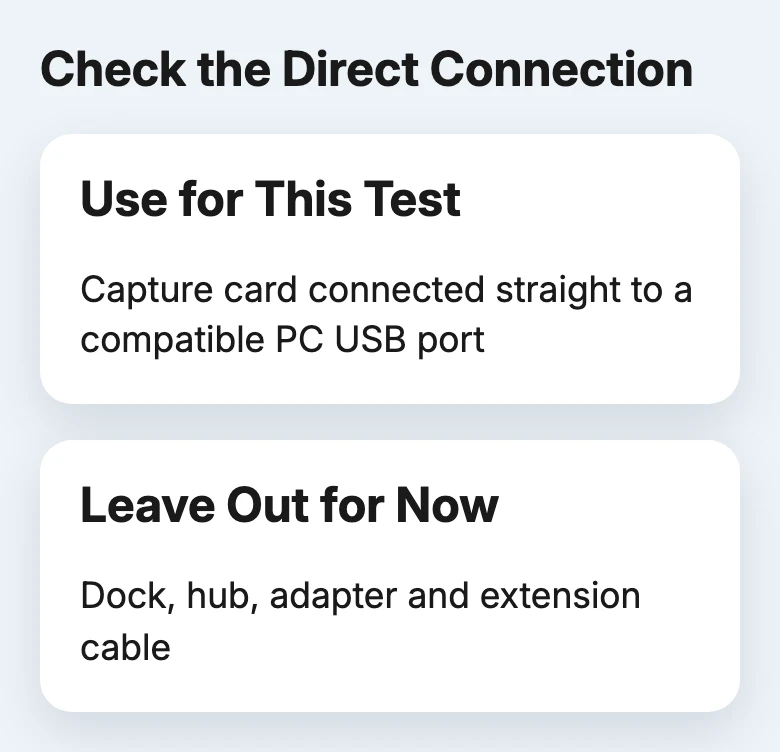
Try the supplied cable if it's available. Then compare another cable rated for the required speed. Try the replacement cable first, then a different port in a separate test. Note which change stops the failure.
If the direct connection stays stable and the dock connection fails, keep the card connected directly while checking the dock's specifications and updates. If Windows still restarts, leave the simpler connection in place and continue.
2. Check whether the PC restarts without the device
With the Elgato unplugged, try the task that has been making your PC restart. Also note when it failed with the card connected: on plugging it in, opening the capture app, starting recording or after a while.
A PC that also restarts with the capture device unplugged needs broader attention. Follow the Windows stop-code checks, especially if the error identifies a driver file.
Write down that stop code and any filename before the screen clears. The stop-error background can be black on newer Windows 11 versions, or blue on older ones. The color doesn't decide which component failed.
If only the preview vanishes while your desktop and other apps keep working, stay with USB and capture-software checks. A black connected TV with a working preview needs the separate Elgato HDMI passthrough checks.
That distinction matters when describing the fault to support. A card reconnecting, an app quitting and Windows rebooting can look similar during a stream, but they leave the computer in different states.
3. Reduce competing USB devices
Remove nonessential USB accessories, leaving the keyboard, mouse and capture device connected. Reboot, then retry capture before attaching more accessories. You'll then be testing without the other USB equipment connected.
If recording now works, reconnect one accessory and test again. Continue until the problem returns. Note which accessory and port bring the problem back. That gives you a specific connection to check.
I'd check the reduced USB setup before paying for another card. A working session with the same card and cable gives you something useful to compare against the setup that keeps failing.
If you need a hub for other accessories, keep the capture device on its direct port during these checks. When the restart returns with one accessory, check that accessory's power supply, cable and manufacturer guidance next.
4. Update the PC's USB, chipset and graphics software
Get chipset and USB updates from the computer or motherboard maker for the exact model. For graphics updates, use the PC maker's supported package or the graphics manufacturer's official installer for your GPU.
On Windows 11, check Settings > Windows Update > Check for updates. On Windows 10, use Settings > Update & Security > Windows Update. Complete the updates offered for your supported setup, then reboot before trying capture again.
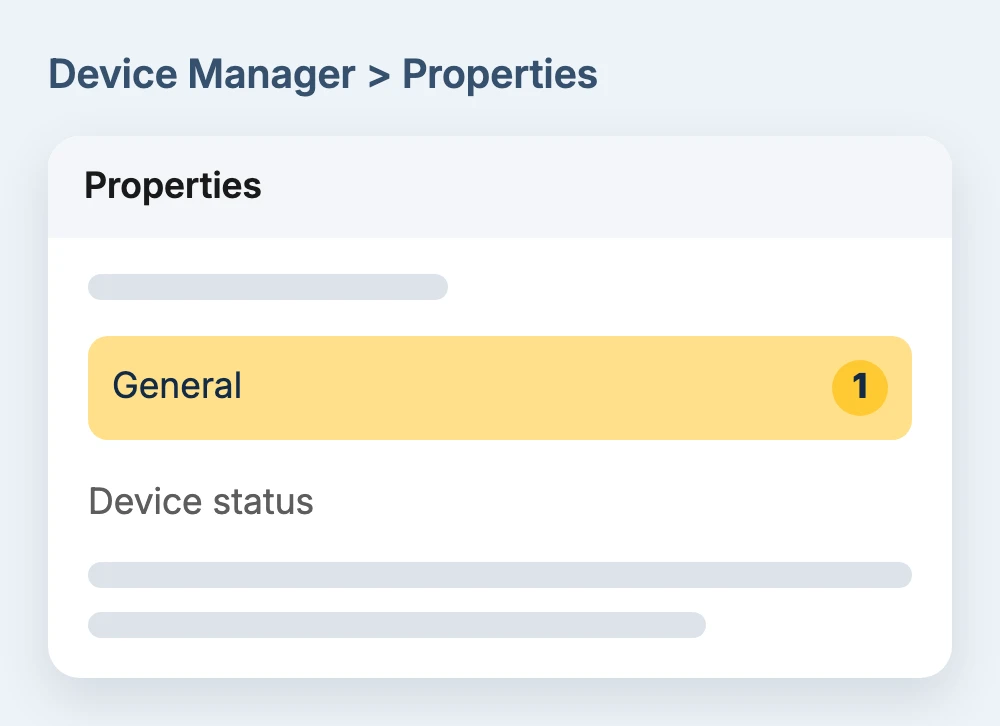
Right-click Start, choose Device Manager, and inspect the list for device warnings. Open that entry's Properties and read Device status. Give support the error code; don't uninstall every USB controller to clear one warning.
For the capture software, find the download that supports your exact device model and Windows version. An installer for another Elgato product won't fix this one simply because it shares the brand.
If the restarts began just after a driver change, note the old and new versions. Ask the PC maker whether to roll back that specific package if the current supported version keeps causing restarts.
5. Repair the capture app when Windows stays running
Use this section when the Elgato program itself quits or freezes. Close other capture programs first, then try the supported stable release. Back up app settings before uninstalling or moving away from a beta version.
The capture-software crash steps include trying another computer account, updating system software and reinstalling the app. After each repair, reopen capture and check whether it stays working.
If only one Windows account fails, tell support that another account can run the same capture task. If both accounts fail, check the software they share, the device and its connection next.
A software repair can stop an app crash without explaining a full PC reboot. If the computer still restarts, return to the recorded stop code and the result with the capture device disconnected.
6. Give support a useful hardware comparison
If you have a second compatible computer, try the card there with its suitable cable. Report whether the second PC fails with this card too, or whether only your original computer crashes. Those results call for different checks.
Contact Elgato Support through its help center with your model, Windows and capture-app versions, USB connections and when it crashes. Include the stop code and results with a direct port, another cable and other accessories removed.
When the original PC restarts without the card too, ask its manufacturer to assess that system fault. For a separate direct-display failure, use the computer HDMI checks rather than changing capture settings.
The Short Version
Connect directly with a suitable data cable, compare another port, and remove competing USB devices. Update model-matched drivers. Separate a preview reconnect from an app crash or Windows reboot, then send support the matching results.
Checked November 27, 2026.
 If you have any business, I can build it online