Apple TV sign-in trouble on a computer can come from the account, a service outage, or the connection. Check the alert first: recover a locked account, or check service access when the sign-in window keeps spinning.
An authorization warning after sign-in is a separate problem. Use the account with your subscription or the one that bought those movies. Signing in with another account can work, but it won't show the same library.
In this guide
1. Match the message to the right repair
Write down the full alert before closing it. Check whether the alert rejects a password, requests a verification code, or says Cannot connect. Match your repair to that message.
If the account is disabled for security reasons, reset its password through account recovery. If it says locked or not active, use Request Access when the alert offers it. Reinstalling the TV app doesn't unlock an account.
For Your Media & Purchases account has been disabled, use Continue if offered to request reactivation. Apple explains the account access options for each of these messages.
For an ordinary password mistake, check the displayed email or phone number against the account with your subscription. Avoid repeated guesses when you're unsure of the password; use the reset option instead.
An empty library after successful sign-in is different. Check which account bought the missing title before buying it again. A subscription and an individual movie purchase are also different ways to watch.
2. Check for an outage and a working connection
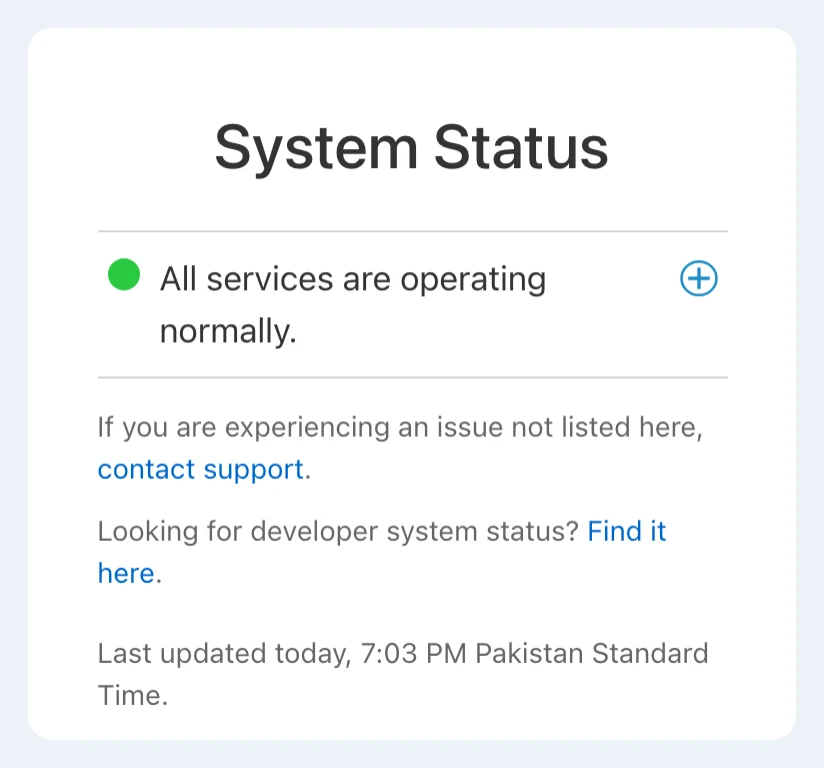
Look up Apple TV and account-service availability on the Apple System Status page. An outage can affect sign-in even while unrelated websites load. Wait for the affected service to recover before changing the app.
Open another website on the same computer. If browsing fails completely, compare a second device using that connection. When both fail, the network connection needs attention before Apple TV can sign in.
If only the computer has trouble, compare another connection, such as a phone hotspot. A successful sign-in there points toward the original network, VPN, or security software rather than a forgotten password.
Temporarily disconnect your personal VPN for that comparison. On a managed computer, ask IT whether Apple services are accessible from your computer. Don't remove company security software to get through the sign-in window.
Check the computer's date and time too. On a Mac, open System Settings > General > Date & Time. On Windows 11, use Settings > Time & language > Date & time and correct an inaccurate clock.
3. Use the TV app's own sign-in control
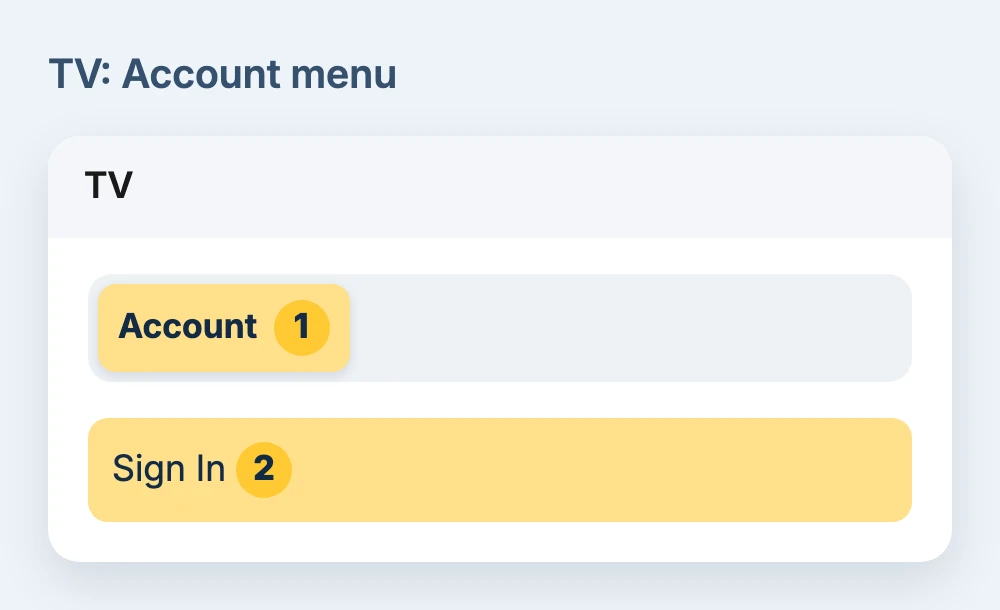
On Windows, open Apple TV and select the lower sidebar's Sign In option. Select Sign In again in its pop-up menu. Enter the Apple Account details associated with your subscription or purchases.
On a Mac, open TV and choose Account > Sign In from the menu bar. Signing into the Mac's main settings doesn't replace checking which account the TV app uses for media.
Keep a trusted phone or device nearby. If prompted, type the six-digit code received on a trusted device or through your trusted number. Type that code into the verification field shown during sign-in.
If that code never arrives, use the option on the verification screen to have it sent another way. Use a trusted number you can access. Creating a second account won't give it the first account's purchases.
If you can't receive account verification at all, follow the separate advice for Apple Account verification failures. Resolve that before repeating the TV app login.
4. Separate computer authorization from sign-in
A computer that signs in but refuses a purchased movie may need authorization. Authorization lets the computer play protected purchases. It won't fix a rejected account password.
On a Mac, open Account > Authorize This Computer in TV. Some versions put that command in an Authorizations submenu. Use the movie buyer's account at that prompt.
On Windows, select your name in the lower sidebar, then choose Authorize Machine. Enter the account details when asked. Use the PC app's labels; its account controls differ from the Mac's menu bar.
The purchase-authorization limit is five computers per account. If the limit is reached, deauthorize a computer you no longer use. Authorizing the same computer again won't increase that limit.
A Deauthorize All option can remove old authorizations, but it affects your other computers too and can only be used once a year. Use the computer authorization instructions before choosing it.
5. Update the app and the computer
On Windows, open Microsoft Store > Library and look for an Apple TV update. Install an available update, close the app, then reopen it. Check Windows Update for unfinished operating-system updates too.
On a Mac, install available macOS updates through System Settings > General > Software Update. The TV app comes with macOS. Save your open work before an update that requires a restart.
Try signing in once after the update. If the same error remains, keep the exact wording and note whether the verification-code screen ever appears. The screen where it stops tells support which part of sign-in needs checking.
For 0x80131500 during an app update, use the Microsoft Store connection repair for that error. Finish the update before trying the TV app again.
Get account or app support with the useful details
Use Apple Support's Apple Account help for a locked account, missing verification access, or a recovery request. Use Apple TV support when the account signs in elsewhere but the computer app still fails.
Give support the operating system, TV app version, full alert, and results on another connection. Say whether sign-in works but playback fails. That helps them distinguish an authorization warning from a password problem.
Keep using your existing account while support checks access to your purchases and subscriptions. A new account starts a different library and complicates recovery of the original purchases.
The Short Version
Match the alert first. Recover a locked account, check service status and the connection, then sign in through the TV app. Use computer authorization only when sign-in works but purchased content asks for it.
Checked November 27, 2026.
 If you have any business, I can build it online