Missing verification emails usually call for a mailbox check before resetting the laptop. Open your email provider's website first. A code that's there but missing from Outlook is an app problem; if it's absent there too, check delivery.
Keep the page asking for your code open while you check mail in another tab or window. Requesting more codes before finding the first message can make it harder to know which one belongs to the current sign-in attempt.
In this guide
1. Check the mailbox on the web
Sign in to your email provider in a browser and confirm the full address on the account menu. Compare it with the verification screen's destination. The display name can look familiar even when you're in the wrong mailbox for this code.
Compare the web inbox with the laptop's mail app. If the message appears online, open it there and finish verification. The sender delivered it, so changing Wi-Fi settings or requesting another message won't help.
If ordinary messages are also missing from Outlook, work through the Outlook inbox checks. That guide covers Focused Inbox, rules and other reasons received mail can be hidden from the view you're reading.
If the code is absent from the provider's website, continue with the folders and destination address. This check applies on Windows and Mac alike. Your laptop's brand doesn't change which mailbox receives the message.
I'd use the web inbox to finish an urgent sign-in before repairing the desktop app. Once access is restored, you can fix the app without requesting a new code every time you test its inbox.
2. Search junk, trash and the whole mailbox
Search for the service's name or the sender address, if the service publishes one. Don't search only for the word verification: senders use different subject lines, and a message can be a sign-in link rather than a numeric code.
In Gmail on a computer, click Show search options beside the search box. Change Search from All Mail to Mail & Spam & Trash, enter the sender or other message details, then choose Search.
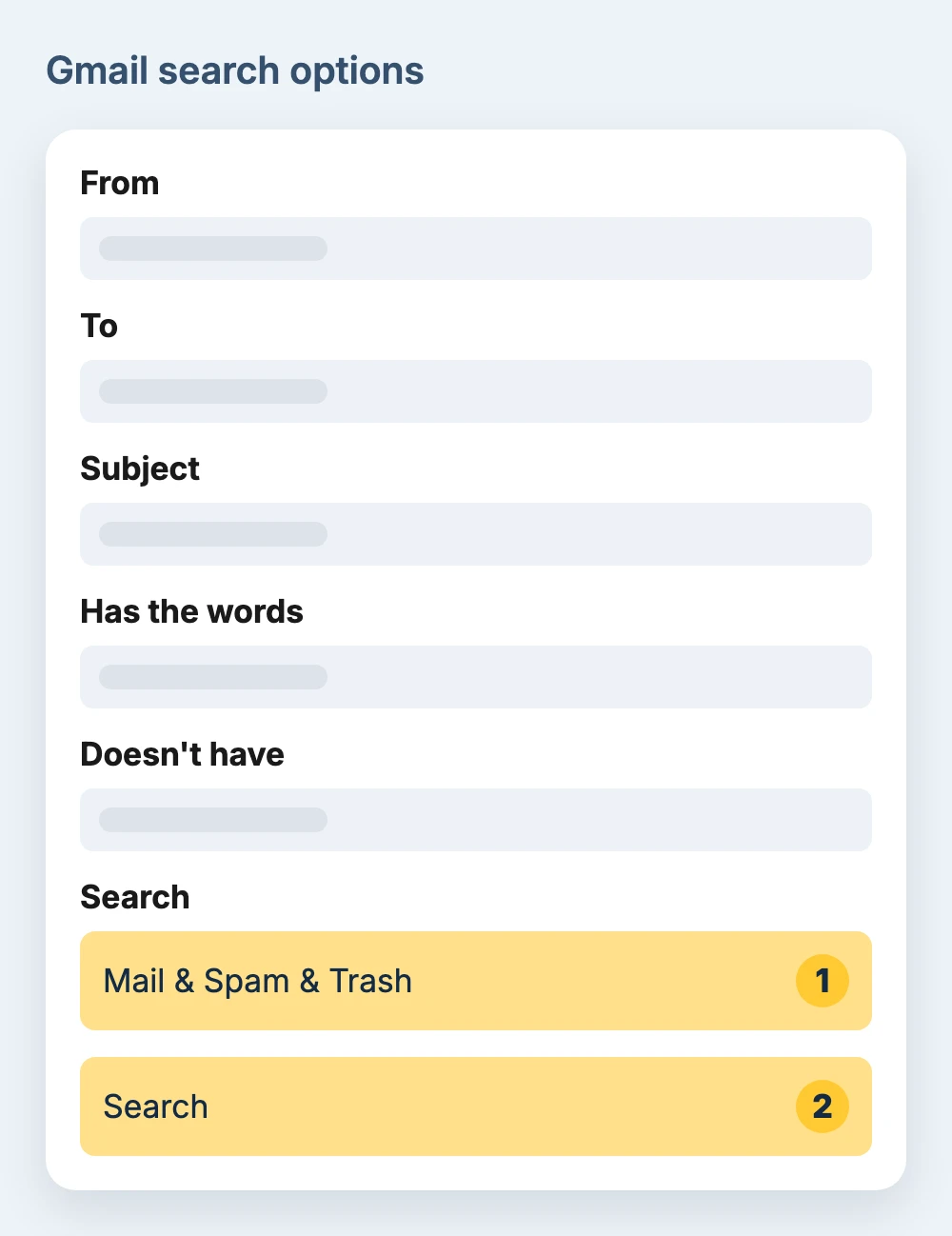
That search checks folders you won't see by looking only at Inbox. If the message is in Spam and the sender is legitimate, mark it Not spam. Move an important message out of Trash rather than leaving it where it can be deleted later.
For Outlook, inspect Junk Email and Deleted Items as well as Inbox. If Focused Inbox is enabled, check Other. An email in Other has arrived. Outlook has sorted it into a different tab; the verification service hasn't failed to send it.
Microsoft says its account codes come from @accountprotection.microsoft.com in the verification troubleshooting steps. That address rule applies to Microsoft account mail, not every website's codes.
Never forward a code to someone claiming they need it to repair delivery. Enter it only in the sign-in process you started. If the email is clearly old, return to the service and follow its instructions for requesting a current message.
3. Check the address receiving the code
Read the partly hidden destination on the verification screen. Microsoft can show only the first two characters of the email address. Compare those with your available accounts, including an old recovery mailbox you might rarely use.
A code sent to an alternate email address won't arrive in the account you're trying to sign in to. Open the alternate mailbox. This matters especially when both addresses are Outlook.com, Hotmail, Live or MSN accounts.
Signing into a second Microsoft account in the same browser session can end your session with the first. Keep the requesting page open and use a separate private session for the alternate mailbox so the accounts don't replace each other.
In Microsoft Edge on Windows, Ctrl + Shift + N opens a new InPrivate window. Sign in to the mailbox receiving the message there, then return to the original window and enter the code. On Mac, choose File > New InPrivate Window in Edge.
If you can't get into that mailbox, select another verification method already attached to the account. Depending on what you previously set up, you might be able to use your phone, authenticator or another listed email instead.
Don't replace security information casually while troubleshooting a delay. For a Microsoft account, replacing all security information can bring a 30-day waiting period. Use a working existing method before choosing that recovery route.
4. Remove filters that hide mail and check storage
When messages keep vanishing, inspect mailbox rules rather than repeatedly refreshing Inbox. In Gmail, open Settings > See all settings > Filters and Blocked Addresses. Look for filters that apply Delete it or Skip Inbox to the sender.
Edit or delete a filter that is moving legitimate verification mail. Then request a new message through the service and check where it lands. Changing a filter won't bring back a message that has already been permanently deleted.
Google's missing-email instructions also cover forwarding and mail apps that remove the server's copy. If Gmail looks different in Outlook, the Gmail folder explanation helps separate an app view from mail that's actually gone.
Check account storage too. Drive, Gmail and Photos use the same storage allowance; a full account can stop incoming mail. Remove files or buy more account storage, then ask the sender for another message once mail arrives again.
For an employer or school account, request a quarantine and delivery check from its email administrator. Give them the recipient, service name and request time. Work or school mail can be held before it reaches your laptop's junk folder.
5. Stop repeated requests when the service blocks them
If the service reports too many requests or asks for another verification method, stop pressing resend. Microsoft can block excessive requests, and repeated attempts can reset a temporary time lock rather than clear it.
For a Microsoft block, try another listed method. Waiting a day can remove some blocks. If nothing changes after 24 hours, its guidance is to give it more time, waiting as long as you can, up to a week. Other services have their own timing.
If other mail arrives but one service's codes don't, contact its account or sign-in support. Ask them to check delivery to your address, including the request time and exact error. Don't send them a working code.
For Microsoft account access, use its sign-in help and the verification page's recovery options. Support agents can't send codes or change account details to bypass verification. Repairing the laptop won't remove that restriction.
The Short Version
Start in webmail, including junk and trash. Confirm the destination, filters and storage. If only Outlook misses the message, fix its mail view. If requests are blocked, use another listed method and stop repeated resends.
Checked November 27, 2026.
 If you have any business, I can build it online