TranslucentTB 2026.4 fixes taskbar detection on build 26300.10075 and related Insider builds. Update to that release or a newer one if transparency stopped after a Windows update. Reinstalling an older copy won't add the fix.
A taskbar that turns solid only when a window is maximized can instead be following your appearance settings. And if transparency works after opening TranslucentTB manually but disappears after every restart, check startup permission.
In this guide
1. Match your Windows build to the current release
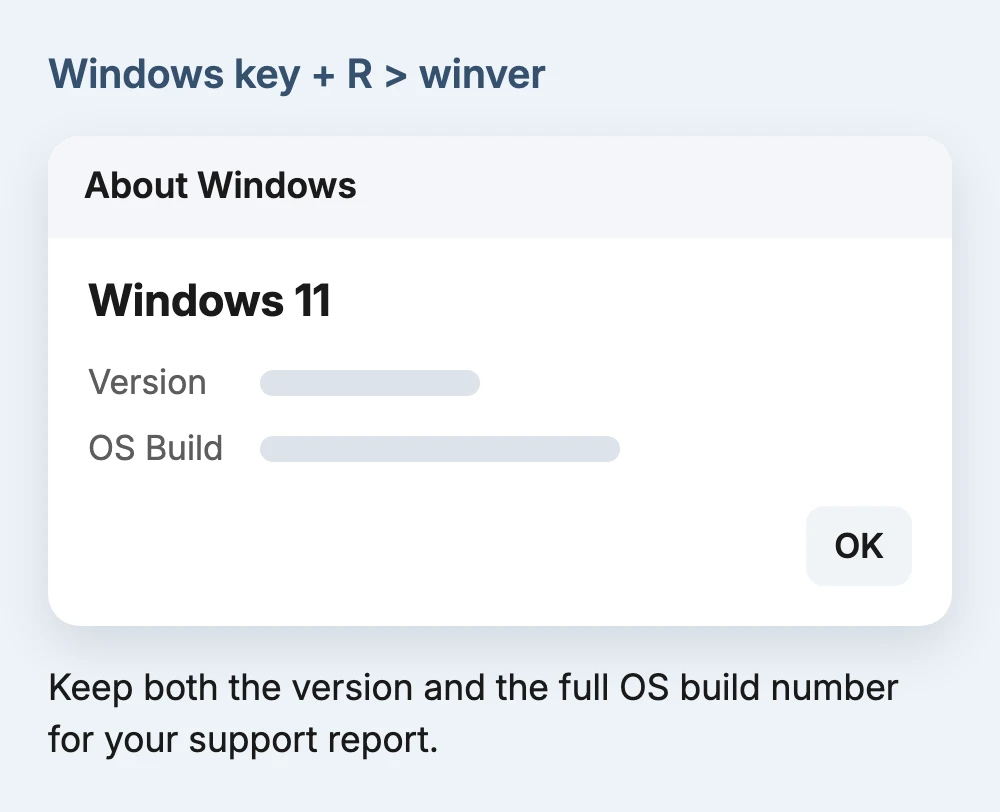
Press Windows key + R, type winver, and press Enter. Record both values labeled Version and OS Build in that dialog. Windows 11 alone isn't enough; copy all the digits of the build number.
The developer's 2026.4 release notes list the taskbar-detection fix, a white-squares fix, and changes that reduce startup errors. That release was published on November 25, 2026.
Open Microsoft Store, find TranslucentTB, and install its available update. The current English listing is TranslucentTB - Taskbar Customization Tool; other languages can retain the shorter name.
If you originally used the project's app installer or portable package, get the update from the same official source instead. Avoid opening an old portable copy after updating the installed app, since you'd be testing the wrong version.
After updating, restart Windows and open TranslucentTB again. Check the taskbar on an empty desktop before testing maximized windows or Start. If it now changes, updating has fixed that problem.
If you're on an Insider build and the current release still fails, keep that build number for the issue report. Insider taskbar changes can need a matching app fix; just saying Windows 11 won't tell the developer which taskbar you're using.
2. Choose the appearance for the state you're seeing
Open TranslucentTB's notification-area menu. Its appearance choices include Normal, Opaque, Clear, and Acrylic. Normal leaves the regular Windows appearance, while Opaque intentionally makes the background solid.
Choose Clear for the desktop state if you want a transparent taskbar there. Then open a window and maximize it. If the taskbar changes only at that point, check its appearance setting for maximized windows before assuming it crashed.
The project's feature list describes separate states for a visible window, a maximized window, Start, Search, and Task View. More than one state can be enabled.
Choose the appearance you want for each state you use, or turn off that state's special appearance. Close Start and minimize windows between comparisons so you know which condition is changing the result.
A colored taskbar isn't always a failure either. Clear can still use a tint. If the taskbar background changes when you change its appearance or color, the app is applying settings even if the result isn't your preferred look yet.
I'd check these state choices before resetting the app. A desktop that is transparent until a window opens is a useful sign that TranslucentTB is responding to a rule.
3. Use Acrylic when Blur isn't available
Don't expect Blur to appear on every Windows 11 build. The project limits that mode to Windows 10 and the original Windows 11 build 22000 family, with additional update requirements on that older Windows 11 taskbar.
Later Windows 11 taskbars
The later Windows 11 taskbar removed the old blur capability. Current TranslucentTB releases can switch an unavailable Blur choice to Acrylic instead. Reinstalling won't bring back a mode removed from that Windows taskbar.
Choose Acrylic if you want a translucent, frosted appearance with the newer Windows 11 taskbar. Choose Clear if you want the taskbar background to be transparent instead. Compare the choices against a wallpaper with visible detail.
A missing app name when hovering is a separate fault from a solid taskbar background. The taskbar hover-label checks address those missing names.
4. Restore startup permission if manual launch works
Open Settings > Apps > Startup in Windows 11. Find TranslucentTB and enable its switch. If the app offers Open at boot, check that setting too, then restart and compare the taskbar before opening the app manually.
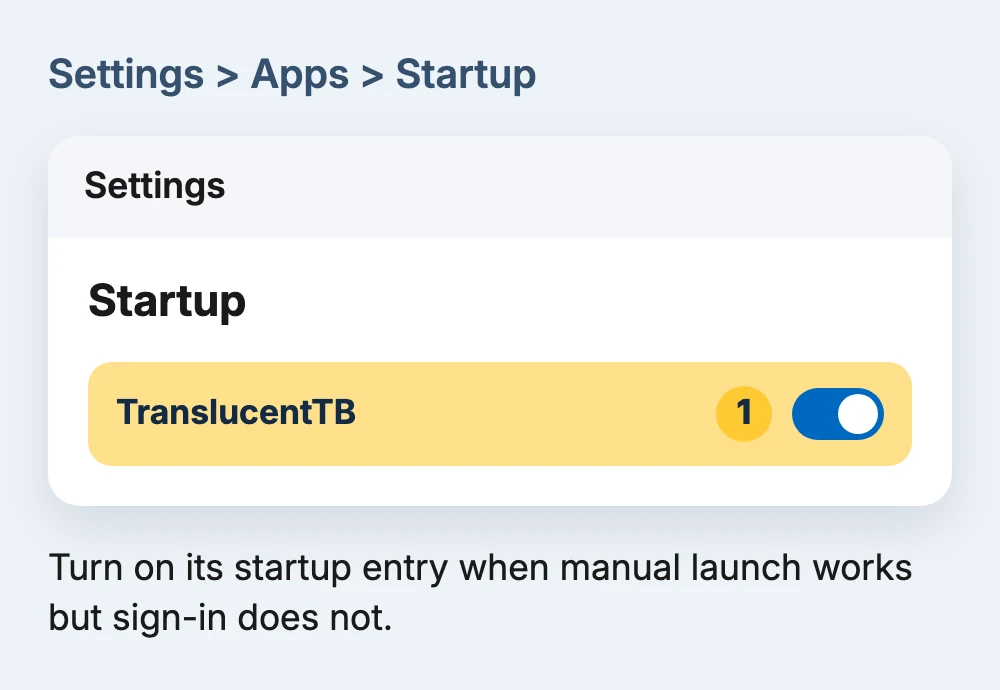
Microsoft says these startup-app controls can allow or prevent an app from starting at sign-in. The app can work when you open it yourself even though Windows has disabled it at startup.
If no TranslucentTB entry appears, check which package you're running. A portable program isn't installed in the same way as the Store app. Use a package the project supports, or follow its startup instructions for the version you chose.
For other programs with the same symptom, the missing startup-app controls guide explains the settings. Avoid enabling every disabled app while fixing this one entry.
If manual launch doesn't change the taskbar either, startup permission isn't the whole problem. Check the app version and possible conflicts next instead of repeatedly toggling the startup switch.
5. Separate a returning failure from an old fixed bug
Notice whether the taskbar stops changing after waking the PC or reconnecting a monitor. The 2026.2 notes already included changes intended to help with both events; use the current release before reporting the same symptoms.
If another taskbar tool is installed, exit it through its controls and try TranslucentTB alone. Reopen the other tool if the result stays the same.
The project lists compatibility with ExplorerPatcher and RoundedTB, so their presence doesn't mean they're causing a conflict. Note each tool's version and what happens with it closed. Don't assume all taskbar customizers are incompatible.
If Windows Explorer crashes or TranslucentTB reports an attachment error, save that exact text. Don't disable crash detection or apply an old Windows feature-toggle command simply to hide the error.
Give the developer a reproducible bug report
Search the project's GitHub issues for your full Windows build and message. If a report matches, add your app version, installation type, trigger, and other taskbar tools when posting. Otherwise, open a new issue with those details.
Mention whether the taskbar ever changes, whether the problem follows sleep or sign-in, and which appearance states fail. Those details tell the developer whether to check startup, taskbar detection, or a particular state.
The Short Version
Update to 2026.4 or newer for the recent taskbar fix. Check dynamic appearance states and use Acrylic when Blur isn't supported. Restore startup permission if manual launch works, then report remaining faults with the full Windows build.
Checked November 27, 2026.
 If you have any business, I can build it online