SteamVR's Bluetooth controls manage supported VR hardware, including base station standby and updates. For a wired VIVE setup that stopped working, reconnect the powered link box and repair its Bluetooth driver first.
A Bluetooth mouse can work even when SteamVR can't reach your VR hardware.
In this guide
1. Check which Bluetooth connection is missing
Open SteamVR on the PC and read the message in Devices > Bluetooth Settings. Check whether Bluetooth is unavailable, the driver needs updating, or the base stations simply won't enter standby. Each problem needs a different fix.
The VIVE instructions use Enable Bluetooth and Update Bluetooth Driver here. Older Steam instructions place Enable Bluetooth communication under Settings > General. Follow the controls your installed version actually shows.
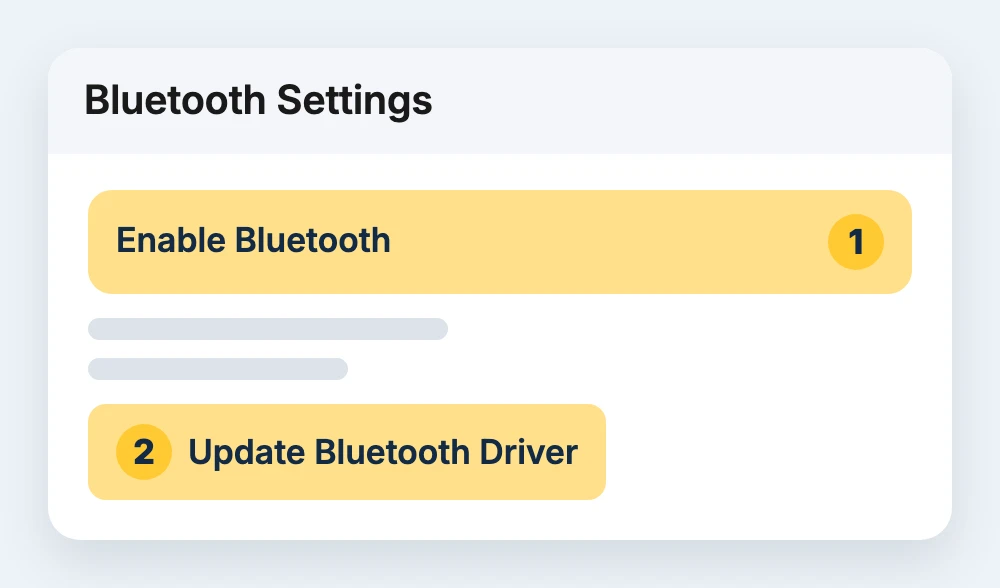
Bluetooth in this panel isn't the same control as Windows' Bluetooth switch. Check the headset model and its connection hardware before buying a generic USB Bluetooth adapter to fix a SteamVR warning.
For wired VIVE, check that the link box has power and is connected to the PC by USB. For Index, check headset power, USB, and DisplayPort. Fix a headset connection fault before trying base station controls.
A Quest connects differently through Steam Link. Use the Quest PC VR setup for that arrangement instead of adding VIVE link-box drivers to it.
If Windows itself can't connect ordinary Bluetooth accessories, test that separately using the Windows Bluetooth pairing controls. Don't treat a successful mouse connection as a repaired VR setup.
2. Reconnect and restart the hardware for your headset
Close the VR game. Before disconnecting anything, check that no device firmware update is running. Do not remove power during an update; interrupting it can leave the device with a firmware error.
On a wired VIVE setup, turn off Bluetooth communication in SteamVR. Disconnect power from both base stations and remove the power cable at the link box itself. Reconnect them, then enable Bluetooth communication again.
This is the power-cycle procedure in Steam's Bluetooth driver troubleshooting. Switching a software setting alone doesn't remove power from the link box, which is why that cable is part of the procedure.
For Index, first check all headset connections. Restart the headset through Menu > Devices > Restart headset, or restart SteamVR. The headset's own status and LEDs matter if SteamVR isn't recognizing it.
A blue Index LED means standby; no LEDs means the headset isn't getting power. If the LEDs are off, check the outlet and power connections. Reinstalling a Bluetooth driver won't restore power to the headset.
Reopen Bluetooth Settings once the hardware reconnects. If the controls now work, try the feature that failed, such as base station standby. If the same unavailable message remains, move to the driver step for your hardware.
3. Repair the VIVE Bluetooth driver
On a VIVE setup, open Devices > Bluetooth Settings. If Update Bluetooth Driver appears, select it and let installation finish. Restart the computer afterward, then launch SteamVR again and enable Bluetooth.
Restart even if the installer closes without an error. Check the connection after restarting to see whether the repair worked. Check whether SteamVR can now use Bluetooth and communicate with the base stations.
I'd try this built-in driver control before removing unrelated Bluetooth devices from Windows. It targets the component SteamVR needs and leaves your keyboard, mouse, and saved audio pairings alone.
For the older VIVE configuration covered by Steam's driver page, turn off Bluetooth communication before manually running the bundled installer. Its location inside the Steam installation is:
steamapps/common/SteamVR/tools/lighthouse/bin/win64/vivebtdriver.exe
Locate that folder in the Steam installation that contains SteamVR. Your Steam library may be on a different drive or in a different folder. Use the bundled file, rather than a driver download from an unfamiliar site.
After installation, repeat the power cycle from step 2, enable communication, and retest. If your installation lacks that file, use its driver control or ask VIVE support for the correct package.
4. Check standby separately from tracking
Base stations staying on after a session don't automatically mean Bluetooth is unavailable. The standby feature can be switched off. In that state, powered stations remain active when SteamVR closes.
For Index base station management, check SteamVR > Settings > Base Station > Power Management. Valve says this feature is off by default and recommends enabling it when you're not sharing a tracking space.
When enabled, the stations should enter standby while SteamVR isn't in use and wake when it starts. Check that behavior once after changing the setting. If the stations sleep and wake as expected, standby is working again.
Leave power management off in a shared tracking space with multiple SteamVR instances. Different sessions can try to wake or stop the same stations. Agree on how to manage station power instead of repeatedly reinstalling drivers.
Tracking failures need their own check. A base station that won't power on, a gray headset picture, and a station that won't sleep are different problems. Tell support which one you're still seeing.
If a browser window is missing inside VR, use the SteamVR desktop-view checks. Bluetooth standby settings don't choose which PC display the dashboard captures.
5. Send support the hardware and exact remaining error
Contact VIVE support for a VIVE link-box driver or Steam Support for Index hardware and base station power management. Give the headset model, SteamVR version, Windows version, and the full unavailable message.
Include whether SteamVR recognizes the headset, whether its USB connection works, and whether the failure affects firmware updates, waking, or standby. Tell support what happened after the driver installation and restart.
Ask for base station repair if it gets no power from a working outlet. For an undetected headset, ask for headset connection troubleshooting. Say which part fails so support can help you get the right repair.
The Short Version
Check the headset and link-box connection first. Repair the VIVE Bluetooth driver when that hardware is involved, then restart. For stations that only refuse to sleep, inspect standby settings before reinstalling a radio driver.
Checked November 29, 2026.
 If you have any business, I can build it online