Goodnotes needs Goodnotes Pro, Goodnotes Cloud, and the same Goodnotes account to sync between iPad and Windows. iCloud Sync connects only Apple devices; iCloud for Windows can't put this library in the Windows app.
On the iPad, open Goodnotes menu > Cloud & Backup and look for the invitation to switch. If the invitation is missing, check your plan and existing iCloud sync before reinstalling the Windows app.
In this guide
1. Check the plan and account that hold your library
Goodnotes says the Pro plan includes cross-platform library sync. Essential and Special Edition don't include it.
Essential was previously called All Platforms Yearly; Special Edition was the Apple one-time purchase.
Access to an app on several platforms isn't the same as syncing its entire library between them. An older purchase or an app installed on Windows doesn't by itself activate this sync service.
Check your plan before buying more storage or changing Apple Account settings. Those changes won't add the missing sync feature to a Goodnotes account whose plan doesn't include it.
Open the Goodnotes account details on each device and compare the account shown. Use the same sign-in provider (Apple, Google, or Microsoft) and the same email shown in Account Settings. Having the same owner on both devices isn't enough.
If one device shows a different account, note which one contains the notebooks you need before changing accounts. Creating another account won't merge two existing libraries.
For a new iPad library, the first-notebook guide covers creating and importing documents. Sync starts with the notebooks already stored in the account and library you choose.
2. Switch the iPad library to Goodnotes Cloud
Make a separate backup of important notebooks before changing the library's sync service. A sync service keeps devices in agreement, including deletions, so it shouldn't be your only recovery copy.
In Goodnotes on iPad, return to Library view and open Goodnotes menu > Cloud & Backup. If your account is eligible, select Get started and follow the migration prompts.
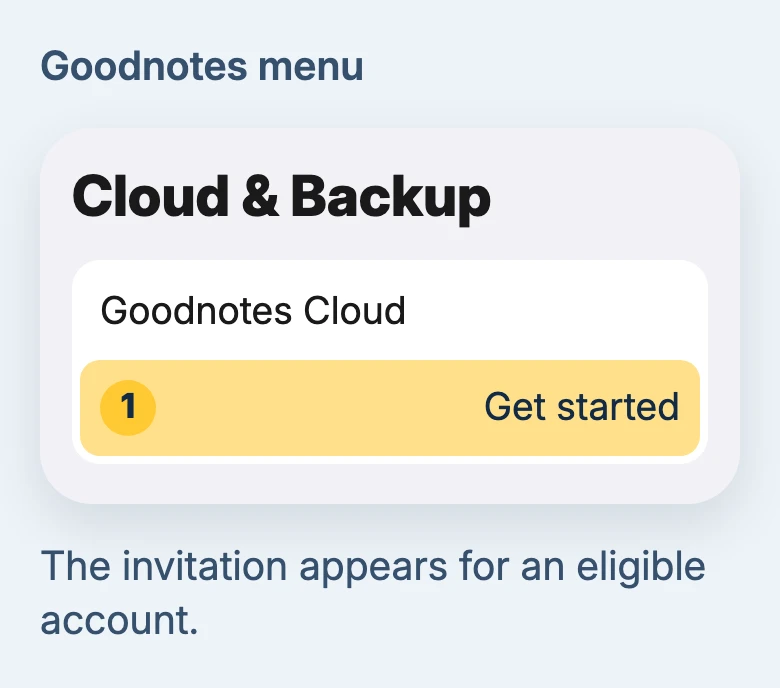
Your documents remain available while migration completes. Let the app finish its prompts before deciding that a missing notebook on Windows is a permanent loss.
Once the iPad uses Goodnotes Cloud, open Goodnotes on Windows with the same Goodnotes account. Look for an existing folder or notebook with a name you recognize.
Open that notebook and compare its recent pages. Seeing the library's folder names alone is less useful than confirming the document you actually need has reached the second device.
Goodnotes Cloud syncs folders and notebooks, but features differ between platforms. Custom templates, elements, and Marketplace stickers might look or work differently. Windows doesn't have Time Keeper or Study Sets.
3. Bring iCloud up to date if the invitation is missing
For a Pro account without the invitation, Goodnotes gives two routes: finish the existing iCloud sync or turn off Goodnotes access to iCloud. I'd finish syncing first so the library is current before migration.
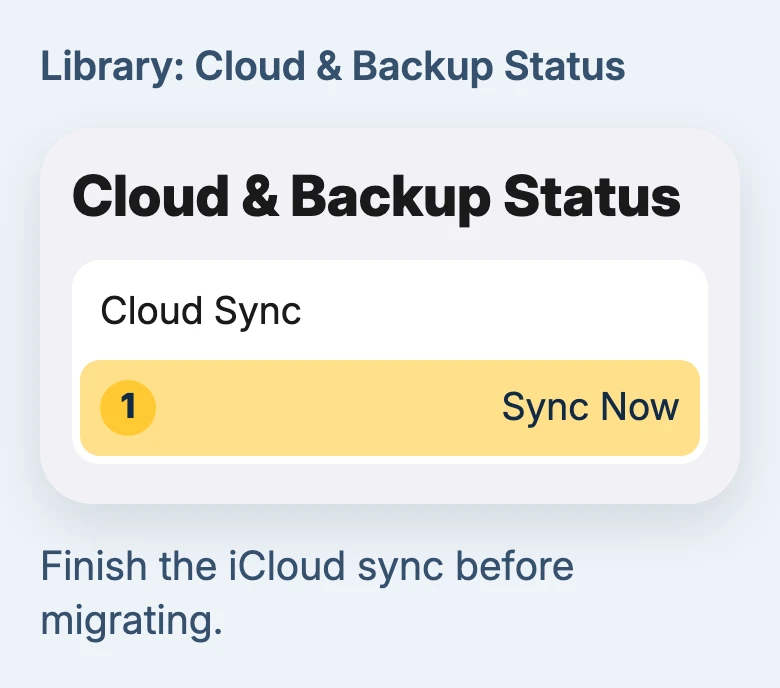
- In Library view, select Cloud & Backup Status near the top-right corner.
- Under Cloud Sync, choose Sync Now.
- Wait for iCloud Sync to finish and resolve any sync errors it reports.
- Close and reopen Goodnotes, then wait a few seconds in Library view.
- Reopen Goodnotes menu > Cloud & Backup and check for the switch option.
This brings your library on Apple devices up to date before moving it to Goodnotes Cloud. It doesn't make Windows an iCloud Sync destination.
For Apple devices that aren't syncing other data either, use the iPhone and iPad sync checks to examine the wider account connection. Those checks apply when more than Goodnotes on Windows is affected.
The other option in the instructions is iPad Settings > your profile > iCloud > See All beside Saved to iCloud, then disabling Goodnotes. Treat that as a sync-service change, not as permission to delete the app's data.
If a prompt offers to remove documents and you're unsure which library is complete, stop and send that prompt to support. Repeatedly changing switches won't tell you which device has the newest copy.
4. Handle the Cloud Sync Disabled alert
The Goodnotes Cloud Sync Disabled alert means the account uses Goodnotes Cloud, but the current device also has documents stored locally through iCloud Sync. The two libraries need attention before Cloud can sync to that device.
That alert doesn't mean you should empty your library. Keep the local notebooks available and contact support with the alert text if the migration prompts don't make the next action clear.
Explain which device contains the latest edits and whether another Apple device still uses iCloud Sync. That helps support deal with the actual library conflict rather than just the Windows installation.
An iCloud backup is also different from the Goodnotes Cloud library. Buying more Apple storage doesn't add the Goodnotes Pro feature to your account.
5. Confirm that fresh edits reach both devices
After the same notebook opens on both devices, add a small, recognizable test note on one device and let it sync. Open that page on the other device and confirm the change appears.
Then make a second test change from the other device. This checks the two directions you depend on, rather than only showing that an old copy is readable.
Use a test notebook you don't need to keep for this comparison. Don't delete a real notebook to test synchronization: a working sync service can carry that deletion to the other device too.
If you're considering switching back, Goodnotes menu > Cloud & Backup > Switch back to iCloud is the documented route. Read its warning first because switching back temporarily prevents another switch to Goodnotes Cloud.
When the same account still shows different libraries
Contact Goodnotes Support with the iPad and Windows app versions, the plan, the Goodnotes account details, and the exact alert. Include whether the Get started invitation appears and whether migration completed.
On iPad, you can export diagnostic data through Goodnotes menu > View Account > Account Settings > Export Diagnostic Data. Supply that file through the support request so the team can check what's happening with sync.
The Short Version
Use Goodnotes Pro, Goodnotes Cloud, and the same Goodnotes account on both devices. Finish iCloud sync if the migration invitation is missing. Confirm a notebook and a new edit reach Windows before relying on the shared library.
Checked November 29, 2026.
 If you have any business, I can build it online