MSVCP120.dll missing in Windows 11 means an app can't load its Visual C++ 2013 support files. Install the official 2013 package for the app's 32-bit or 64-bit version, even if a newer Visual C++ package is already installed.
The year matters: the current Visual C++ runtime, the files an app needs to run, doesn't replace every older release. A missing-file message also needs different treatment from an error that says the file exists but contains an error.
In this guide
1. Choose the 2013 package, not the newest year
Read the filename in the error before downloading anything. MSVCP120.dll belongs to Visual C++ 2013. Installing the latest v14 runtime alone won't supply that older file.
Microsoft lists the available packages in its Visual C++ runtime downloads. Find Visual Studio 2013 (VC++ 12.0), which is in the legacy versions section.
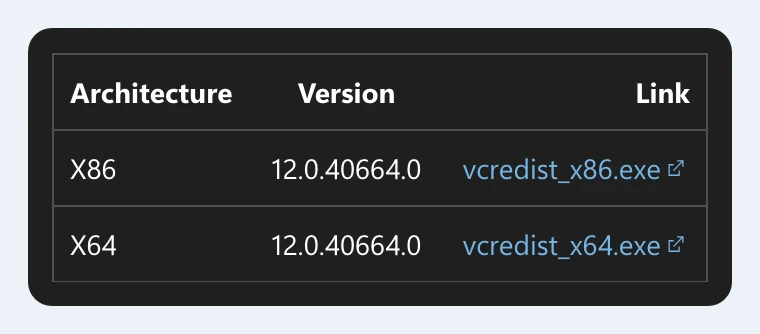
The listed English packages are vcredist_x86.exe and vcredist_x64.exe, version 12.0.40664.0. Choose from the 2013 section rather than using a download with the same filename under another year.
A PC can have several Visual C++ releases installed together. Leave those installed. Another application may still depend on a release that the failing program doesn't use.
For MSVCP110.dll, use the separate Visual C++ 2012 runtime repair. That one-digit difference changes the required package, so don't substitute its installer for this one.
Avoid loose DLL downloads placed directly in Windows folders. The runtime installer puts the matching files in place together, while copying just one file risks incompatible components.
2. Match x86 or x64 to the failing application
The package must match the application, not simply the Windows edition. A 32-bit program needs x86, including when it runs on a 64-bit Windows 11 PC. A 64-bit program needs x64.
Check the application's download page, installer name, or help information for 32-bit or 64-bit. Use the details for the copy actually installed, since some programs offer both editions under the same product name.
On an x64 Windows PC, installing both official 2013 packages covers older apps when you can't tell whether they're 32-bit or 64-bit. Each architecture has its own installer. Run both when you need both.
To check the computer itself, open Settings > System > About and read System type. If it says ARM rather than x64, ask the app developer which Windows on Arm release and runtime combination it supports.
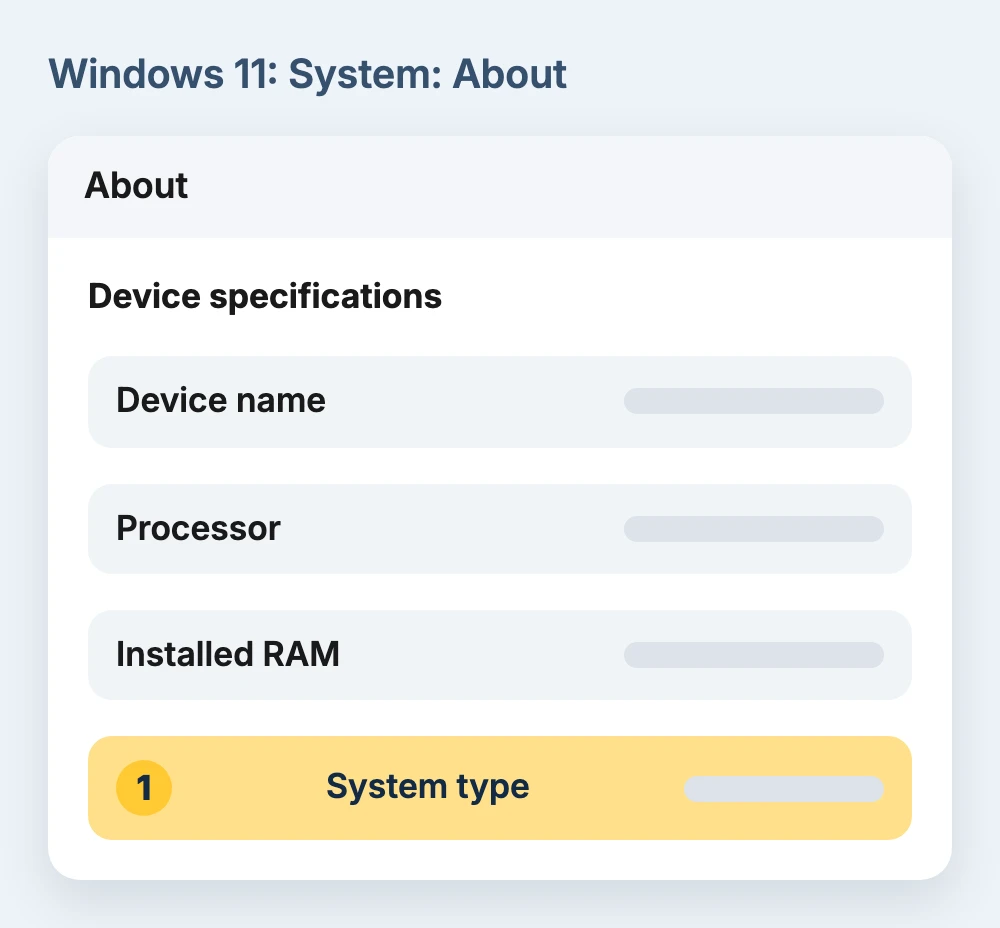
Don't choose an old ARM download just because your laptop has an Arm processor. Use the app maker's current instructions for that computer instead of guessing from the package name.
3. Complete setup and retry the affected workflow
Close the affected program and run the downloaded installer. Check that the Windows approval prompt identifies the official Microsoft package, accept its license terms, and complete the installation.
If setup requests a restart, save open documents before restarting Windows. Then launch the same program from its usual shortcut. A successful repair means it gets past the missing-file message and reaches its normal window.
Don't stop at opening the launcher if the error appeared later. Load the same project, start the same game, or repeat the same export that originally failed. A helper program may be the part that needs those runtime files.
If the installer offers Repair, use that option for an existing 2013 installation. Finish the process and try the application again. A newer runtime listed elsewhere in Installed apps doesn't repair the 2013 files.
Keep a note of any installation failure, including its exact error code. Seeing the right year in the app list doesn't mean a failed installer has repaired the files.
I'd resolve that setup error before trying unrelated Windows resets. The error tells the app developer which part of the required setup hasn't finished.
4. Repair the app when the runtime installs successfully
If both the correct package and its repair finish but the same application still fails, use that program's own repair or reinstall instructions. Start with its current installer from the developer or your game library.
Some apps include setup for their required support files. Run the repair offered by that installer or the game client's file-verification command, if available. Those commands vary by product, so follow that product's instructions.
Back up local projects, saves, presets, and license information before uninstalling an app. A repair keeps the app in place; uninstalling it can remove files or settings kept with the program.
If only a plug-in or one export produces the message, identify that component separately. The main app opening successfully doesn't mean every helper program bundled with it has the files it needs.
Give the developer both names: the main application and the plug-in, launcher, or export tool that triggers the error. Ask whether that component requires an additional 2013 package or a newer supported build.
5. Read a changed error before choosing another repair
A message saying a DLL was not found isn't the same as Bad Image, a missing entry point, or a crash after the program opens. Record the changed wording if installing the runtime changes what happens.
For a dialog headed Microsoft Visual C++ Runtime Library, follow the runtime-library error checks. Repeating a missing-file installation won't address every kind of runtime failure.
Visual Studio 2013 is no longer supported. Restoring its runtime can help an existing older application start, but it doesn't make that application current or supported on Windows 11.
If the error remains after the official installation and the app's repair, contact the software developer. Send the exact DLL message, application version, Windows system type, package architecture, and any installer error code.
Ask for a version that supports Windows 11 or the exact support package your app needs. On a work PC, send IT that information to arrange installation of the approved package without changing unrelated applications.
The Short Version
Install Visual C++ 2013 for MSVCP120.dll, matching x86 or x64 to the app. Try its original failing action again. If installation succeeds but the error remains, repair the application and ask its developer about that exact component.
Checked November 29, 2026.
 If you have any business, I can build it online