Missing Google Maps in Android Auto can come from the phone putting the app to sleep. Open Maps on the phone first, then reconnect; if Maps appears but freezes or reports a lost GPS signal, check the app and its location access instead.
A car that never opens Android Auto has a connection problem, while silent directions need an audio check. Keep the car parked while changing these settings, and use the route that matches what your display actually shows.
In this guide
1. Bring back Maps when its launcher icon is missing
Disconnect the phone from the car and open Google Maps directly on the phone. Let it reach its normal map screen. Reconnect Android Auto, open its app launcher and check whether Maps has returned.
Google's missing launcher app instructions explain that Samsung phones can temporarily disable unused apps. An app may still appear on the phone while being unavailable in the car; opening it re-enables it.
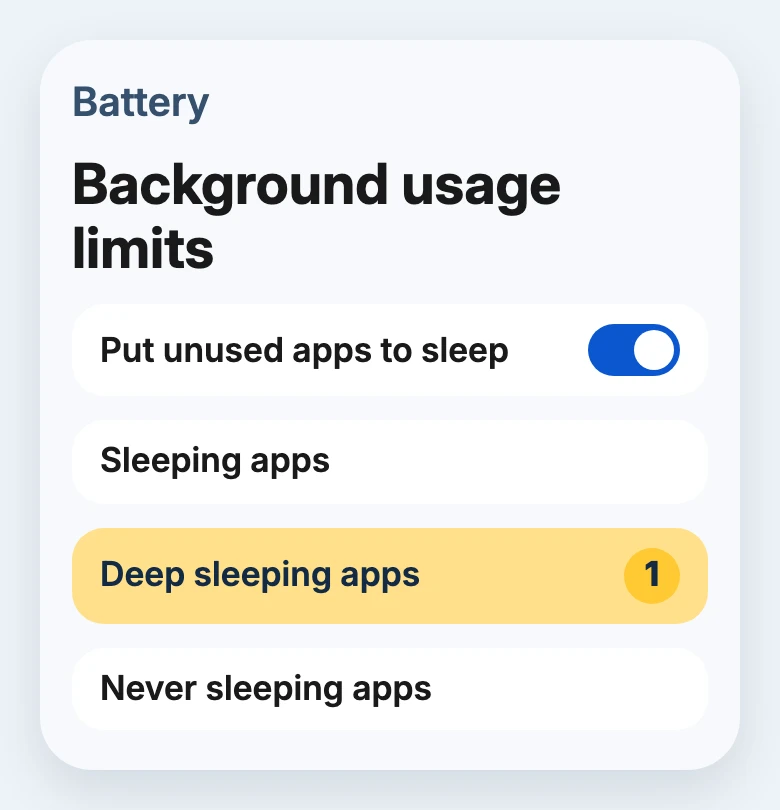
On Samsung, open Settings > Battery and device care > Battery > Background usage limits. Check Deep sleeping apps for Maps. If your version lists Battery directly in Settings, start there instead.
If Maps is in that list, tap More options > Remove apps, select Maps, then tap Remove. This removes the sleep restriction, not the Maps app or its saved places. Open Maps again and reconnect the car.
The Put unused apps to sleep switch controls automatic sleeping. If Maps disappears after long gaps between drives, review that switch or the never-sleeping list. Keep the change focused on Maps.
Other Android phones don't use Samsung's exact menu. Check your maker's battery controls if it restricts unused apps. When Maps already appears in the car, move to its displayed error instead of changing sleep settings again.
2. Repair a Maps app that closes or won't load
Try Maps on the phone with Android Auto disconnected. Search for a nearby destination and check whether the map opens. If Maps crashes on the phone too, start with the app before changing the car connection.
Open Google Play Store, find Google Maps, and install Update if offered. Reopen Maps afterward. An Open button without Update means the listing currently offers no newer release for your phone.
If the crash remains, open the phone's Settings > Apps > Maps. On a Pixel, choose Storage & cache > Clear cache. Samsung labels the page Storage, with Clear cache at the bottom.
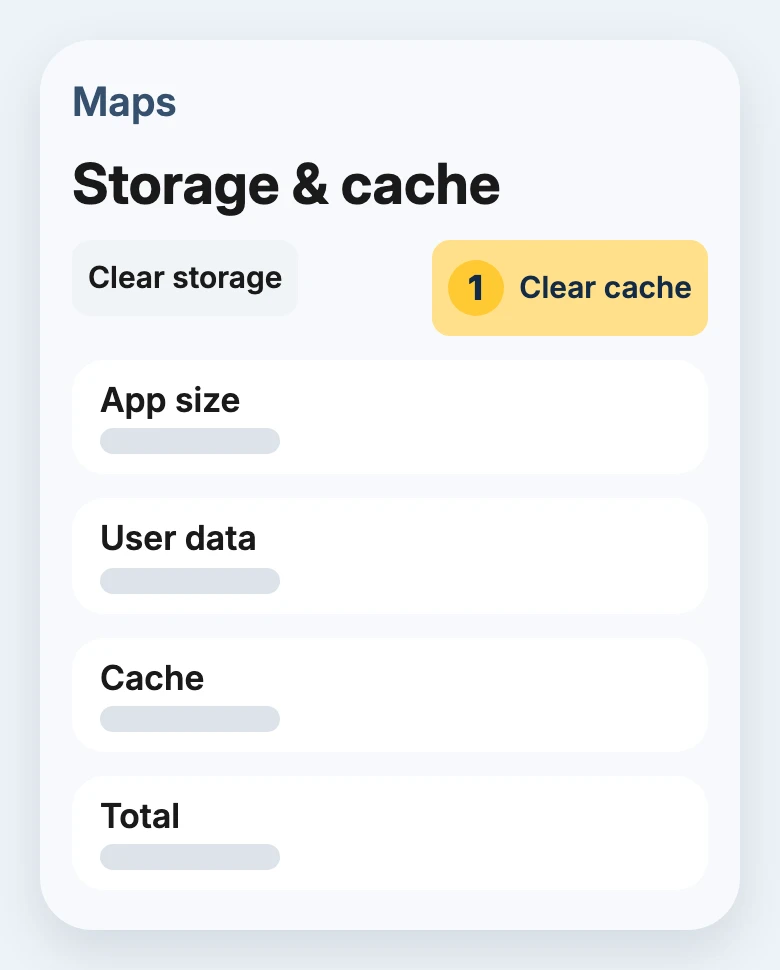
Clear cache removes temporary files. Check Maps again on the phone before reconnecting it, so you can see whether this changed the app's behavior. Leave your Android Auto settings unchanged during the Maps check.
A deeper option is Clear storage on Pixel or Clear data on Samsung. That deletes the app's local data, including downloaded offline maps, so save what you need for the trip before using it. Reopen Maps and set it up again afterward.
The Maps crash-repair steps distinguish cache from stored data. Read the confirmation screen before you continue: those two buttons don't remove the same things.
3. Fix a lost GPS signal or a position that stops moving
If Maps opens but your position freezes, check its permission: hold the Maps icon, choose App info, then Permissions > Location. Select Allow only while using the app and turn on Use precise location where offered.
A permission that asks every time or denies access can interrupt navigation. Check the phone's main Location setting too. After changing access, start a route again while parked and watch whether Maps can locate the phone.
Turn off battery saver while you check, and keep your phone charged. Some phones restrict GPS at low power, with the screen off, or while Maps runs in the background. Check whether locking the phone triggers the failure.
Take the phone out of an enclosed console and try it outdoors with unobstructed sky. A metallic window coating can block satellite reception. Check reception outside the car before blaming its dashboard display.
The GPS signal checks recommend a GPS status app if you're still unsure about reception. Another navigation app can use different location signals, so another working map doesn't tell you for certain that GPS reception is working.
The dot before navigation can come from Wi-Fi or cellular signals. Active navigation needs satellite positioning, called GPS or GNSS. If a charged phone can't receive it outdoors under clear sky, ask its maker about repair.
4. Check the car connection when Android Auto itself fails
If the car shows no Android Auto interface at all, use the Android Auto connection checks. A charge-only cable or unsupported wireless setup prevents the whole interface from opening, not just Maps.
Open another Android Auto app in the car. If none work, check the connection and receiver setup. If music works and just Maps fails, use the Maps checks rather than repeatedly replacing a working cable.
For wired use, try a known data cable in the supported car USB port. For wireless, follow the vehicle's Android Auto pairing steps. Hearing music over Bluetooth doesn't mean Android Auto has connected.
If Maps draws your location but can't load a new route, check the cellular connection and downloaded map area. The offline Android Auto preparation covers the route data that needs to be on the phone before coverage disappears.
Offline maps and a working GPS signal do different jobs. The downloaded map supplies roads; satellite reception supplies the moving position. Downloading more maps won't correct a phone that can't receive GPS.
5. Report a remaining Maps-only failure with useful details
Record the phone model, Android version, Maps version and Android Auto version. Include the car or receiver model, the wired or wireless connection type, and whether Maps works when disconnected from the car.
I'd include the exact failure in the first line: missing icon, crash, frozen position or silent directions. A report that only says Maps doesn't work leaves support to guess which part failed.
For working navigation with silent directions, use Android Auto Help's Trouble with voice commands and volume route. For a missing icon or failed map, use Send feedback about Android Auto and include the checks you've tried.
If the failure happens with one receiver but another compatible phone works on it, tell the receiver maker what happened with each phone. For missing GPS outdoors on the phone itself, request a phone-location hardware check instead.
The Short Version
Open Maps on the phone to restore a missing launcher app. Update or clear its cache for crashes, check location and battery restrictions for lost GPS, and use connection checks only when Android Auto itself fails to open.
Checked November 29, 2026.
 If you have any business, I can build it online