Select the words and choose Format > Text > Strikethrough to cross out text in Google Docs without deleting it. On a computer, Alt + Shift + 5 does the same thing in Windows or ChromeOS; on a Mac, use Command + Shift + X.
The phone apps put the control in the text-formatting panel. A line through words can also be a proposed deletion in Suggesting mode, which needs a different action if you're trying to remove it.
In this guide
Cross out only the words you select
In the open document, highlight the passage that needs Strikethrough. Choose Format > Text > Strikethrough in the document's own menu, rather than the browser's settings menu.
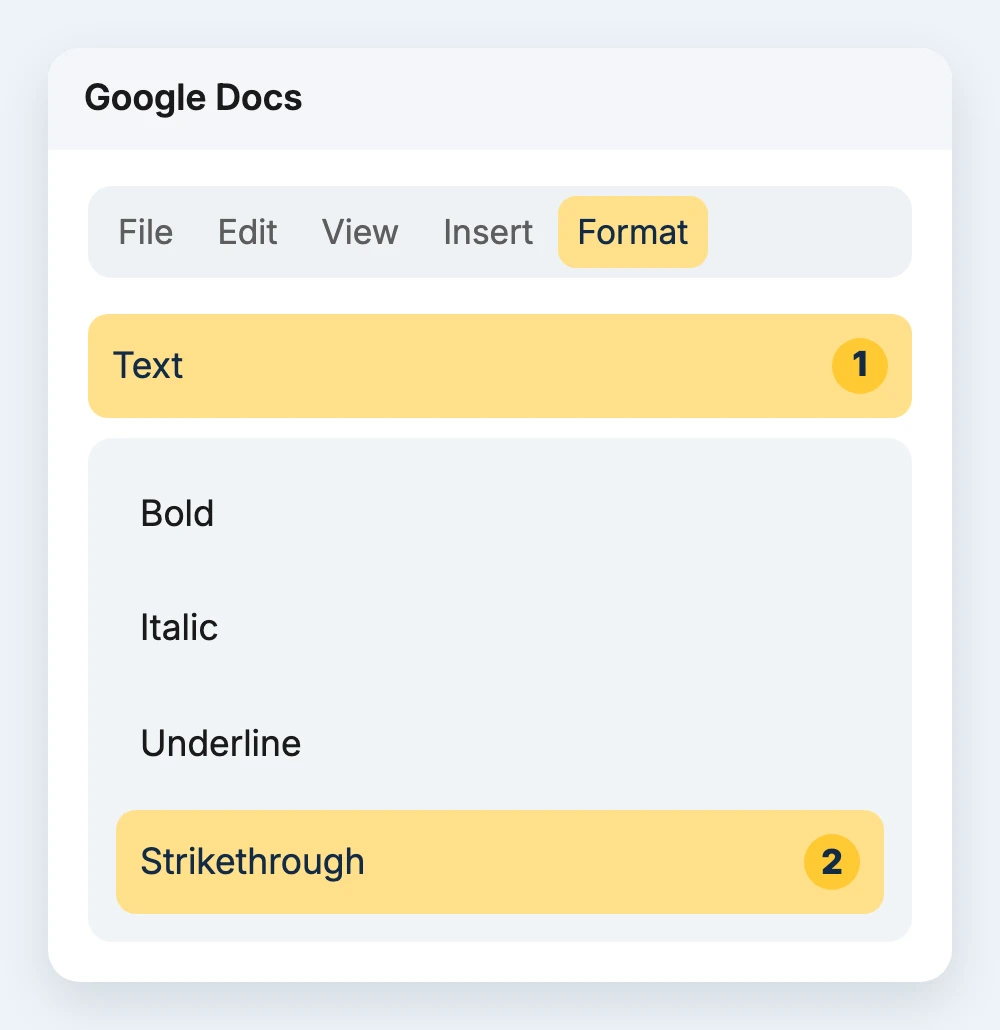
The words stay readable, with a horizontal line through their center. This is useful for showing an outdated price, a canceled item, or wording you want to keep visible while marking it as no longer current.
Select a word by double-clicking it, or drag across a longer phrase. Include the complete phrase before applying the command. Otherwise only the selected part changes, leaving an awkward mix of crossed-out and normal letters.
For an entire paragraph, select that paragraph's text first. Selecting the whole document changes far more than a single item, so only do that when you want to cross out everything.
If you can't locate that menu, use Docs' tool finder. Press Alt + / in Windows or ChromeOS, or Option + / on Mac, search for Strikethrough, and choose the matching formatting command.
Use the shortcut for your computer
With the text selected, hold the other keys in the shortcut and press its final key once. Let go, then check the selected phrase. The same shortcut toggles the formatting off when the selected text is already crossed out.
- Windows: Alt + Shift + 5.
- Chromebook: Alt + Shift + 5.
- Mac: Command + Shift + X.
The 5 in the Windows and Chromebook shortcut is the number key. On a Mac, use X rather than translating the Windows combination by swapping Alt for Option.
Shortcut behavior can depend on your keyboard layout. If a system command opens, use Format or tool finder instead. Google's shortcut guide explains the combinations.
Open the editor's shortcut list with Ctrl + / in Windows or ChromeOS, or Command + / on Mac. This list stays inside Docs, making it easier to check a command without leaving your work.
Keep the document focused when using shortcuts. Click into its text and select the words again if the browser's address bar or another panel has focus. Docs needs to receive your keystrokes for its formatting shortcuts to work.
Find Strikethrough in the Android app
Open the file in the Google Docs app and tap Edit. Highlight the passage to change, dragging the selection handles until the whole phrase is covered.
Tap Format to open the formatting controls, then choose the Text section and tap Strikethrough. The formatting applies to the selected text rather than deleting those characters.
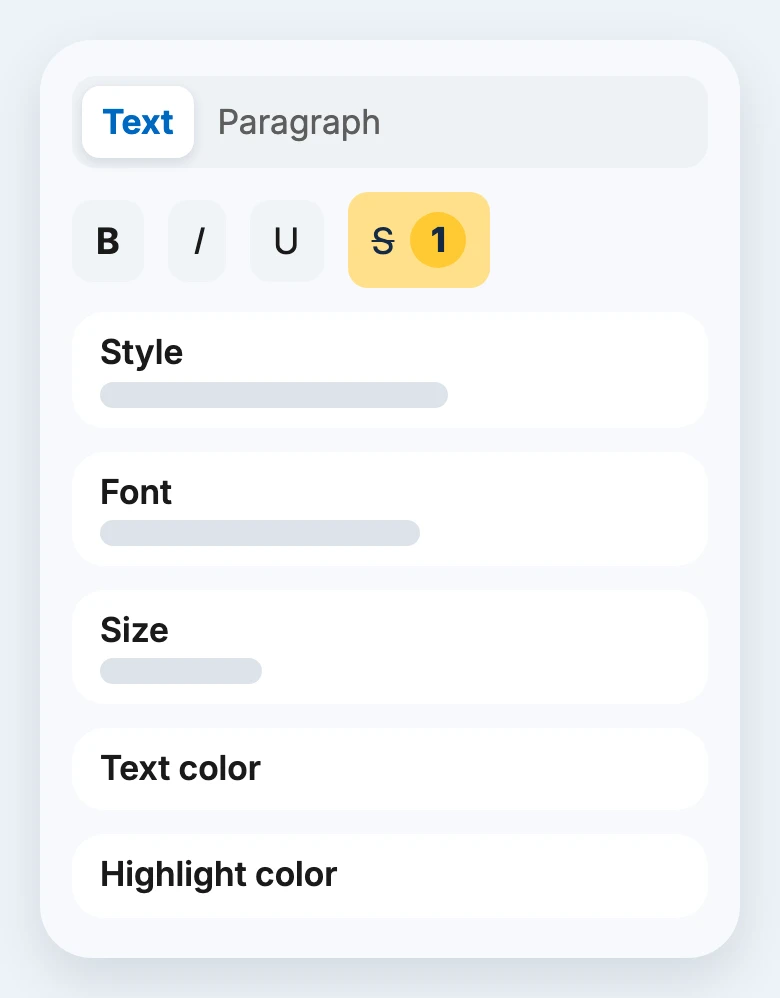
Look over the changed phrase before continuing. If a neighboring word changed as well, use Undo, adjust the selection, and apply the format again. Correcting the selection is quicker than repairing several accidental changes afterward.
If you're connecting a physical keyboard to Android, don't assume the Mac shortcut applies. Use the touch formatting panel when your connected keyboard's layout doesn't match the shortcut you expected.
Apply the effect on iPhone or iPad
In the Google Docs app, open your document, then tap Edit. Double-tap a word, then move the selection markers to cover the rest of the phrase you want crossed out.
Tap Format, open Text, and select Strikethrough. Check that the line runs through only the words you selected. Tapping a blank area afterward lets you see the result without the selection covering it.
An external iPad keyboard has its own shortcut list. The iPhone and iPad version of the Docs keyboard help lists Option + Shift + 5 for Strikethrough. That's different from Command + Shift + X in the Mac browser editor.
If you're working on an iPhone, using the app panel is usually easier than arranging an external keyboard just for this command. The result is the same text formatting inside the document.
Remove the line without resetting everything else
Select the crossed-out text and choose Strikethrough again. On a computer, the matching shortcut also removes the effect. This keeps unrelated formatting, such as bold text or the chosen font, in place.
Keep Clear formatting for broader cleanup, rather than removing just this effect. It can remove other text formatting too, creating extra work if the sentence already has deliberate emphasis or a particular style.
If new words keep appearing crossed out, stop and inspect the current formatting before typing more. Turn Strikethrough off at the insertion point, or select the unwanted crossed-out words and toggle it off there.
A checklist is another option when you're tracking completed work. It gives each item a completion control. Use ordinary Strikethrough when you want to mark particular words without turning the paragraph into a task list.
Handle a proposed deletion differently
In Suggesting mode, deleting words proposes their removal instead of removing them from the document straight away. That can leave words marked for deletion with a suggestion alongside them.
For a suggestion, use its accept or reject control. Rejecting a proposed deletion keeps the words; accepting it removes them. Toggling Strikethrough won't accept or reject a suggested edit.
Check access if formatting commands aren't available. For a view-only document, request editing access directly from its owner. For a Word file, opening it properly in Google Docs also helps you tell the editable document from its preview.
When selecting or pasting text is the part that fails on a Mac, use the Google Docs copy-and-paste checks. Changing a font effect won't repair a clipboard problem.
If formatting still fails despite having editing access, ask the Docs Help Community and include your device and app or browser version. Say whether the command works in a blank document and whether the line is formatting or a suggestion.
The Short Version
Mark your target words, then choose Format > Text > Strikethrough. Use Alt + Shift + 5 on Windows or Chromebook and Command + Shift + X on Mac. In the phone apps, use Format > Text; toggle the effect again to remove it.
Checked November 29, 2026.
 If you have any business, I can build it online