AMD error 182 means the installer found AMD graphics that its driver package doesn't support. Select the package for that graphics model, or the laptop maker's driver for customized graphics.
Older Radeon hardware and embedded graphics have their own driver routes. Repeating the same Adrenalin installer won't change which products it supports, so identify the graphics first and follow the matching route.
In this guide
1. Check the graphics model before downloading again
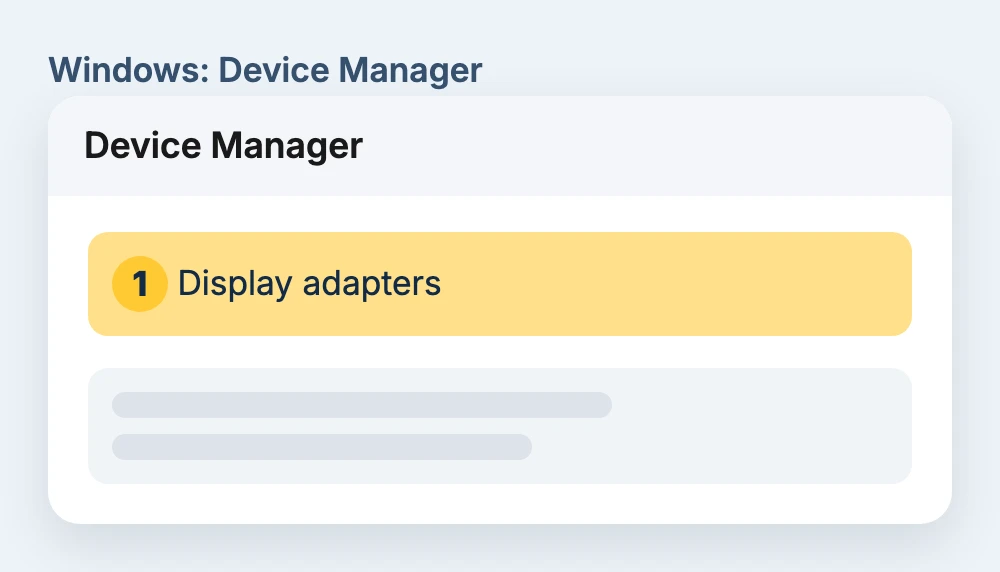
Right-click Start > Device Manager on Windows 10 and 11, then expand Display adapters. Write down every adapter listed, including integrated graphics as well as a separate Radeon card.
A Ryzen processor name isn't enough to choose the graphics driver. Some PCs have more than one graphics adapter, and the driver needs to support the graphics you're installing it for. Matching the processor brand isn't enough.
If Windows lists Microsoft Basic Display Adapter, open that entry's Properties > Details, then select Hardware Ids from the Property list. Keep those identifiers for the PC maker or support team to identify the device.
Don't guess a model from the first similar name in a download list. For a laptop or a factory-built desktop, search the maker's support site with the computer's model number or service tag, even if Device Manager doesn't name the graphics.
AMD says error 182 covers embedded, legacy, and customized OEM graphics. OEM means the company that built the computer, such as its laptop manufacturer.
If the graphics name is clear, continue with its matching route. If it isn't, get the model from the computer maker before installing a package chosen for a different Radeon generation.
2. Use the computer maker's package for customized graphics
For a laptop or prebuilt system, find your exact computer model on its manufacturer's support website. Go to its driver downloads, choose the installed Windows version, and look for the graphics or video driver.
Download the AMD graphics package listed for that model and operating system. Run its installer, restart when prompted, then return to Device Manager to check that the Radeon adapter you installed the driver for appears without a warning.
I'd try this package before removing a working display driver. Laptop manufacturers can customize graphics support, and their driver is the recommended choice when the general AMD package isn't compatible.
Make sure you didn't select a chipset package instead. Chipset drivers support motherboard components; they don't replace the Radeon display package that error 182 rejected.
If the maker offers no driver for your installed Windows release, ask its support team which operating systems the graphics configuration supports. A Windows 10-only listing doesn't mean the same package is supported on Windows 11.
Choose the version that supports your system, even if its version number is lower.
If setup completes but the control panel later won't start, the Adrenalin opening guide addresses that different stage.
3. Select the final driver for a legacy Radeon
Older graphics can be fully functional while no longer receiving current Adrenalin packages. Search AMD's product selector by your exact Radeon model to find the last available package for its legacy download entry.
Open the AMD Drivers and Support page, find the graphics family and model, and select the operating system listed for it. Read the package's supported-product and operating-system information before downloading.
The error page lists legacy families including Radeon R9 200 and 300 series, R9 Fury and Nano, and several older HD families. Use the exact product listing rather than treating every Radeon name as a current graphics card.
A legacy package doesn't gain support for newer Windows releases just because another installer is newer. When the download choices omit your OS, check the maker's supported options rather than forcing an unrelated package.
After installation and any requested restart, check Device Manager again. If the same 182 message returns, compare the selected product with every adapter name you recorded, then move to the special Windows Update cases.
4. Use Windows Update for the older models it covers
Some old graphics have a different route on Windows 10. The error page directs certain A-series, E-series, C-series, and Z-series APUs to Windows Update rather than a current standalone Radeon package.
An APU is a processor that also contains integrated graphics. Match its full series against the error page's list; this instruction doesn't apply to every AMD processor with graphics.
The same page directs Radeon HD 4000, HD 3000, HD 2000, and earlier graphics on Windows 10 to Windows Update. It names driver 8.970.100.9001 for those listed GPU families, rather than a modern Adrenalin release.
On Windows 10, open Start > Settings > Update & Security > Windows Update > Check for updates. Allow the matching graphics driver to install, then restart if prompted and check the adapter entry.
The Windows driver update instructions cover the system update and optional-driver controls.
On Windows 11, Windows Update is under Settings > Windows Update, with optional drivers under Advanced options > Optional updates. Those menus don't mean the old graphics listed for Windows 10 also have Windows 11 support.
When Windows Update offers no compatible graphics package, ask the computer maker about a supported OS and driver combination. Don't install a package for a neighboring model merely because its installer runs.
5. Choose Radeon Embedded when that is the product
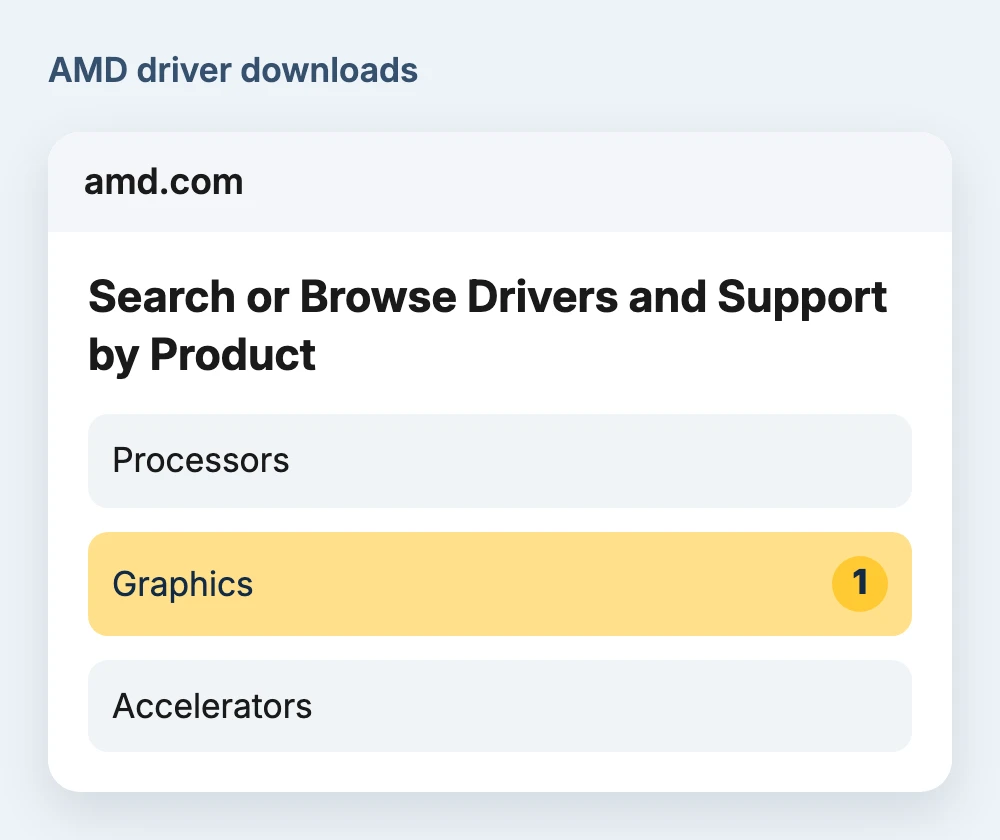
Embedded Radeon graphics are used in specialized systems and have a separate product family. In the AMD support product selector, choose Graphics > Radeon Embedded, then find the exact model and supported operating system.
Use this route only when your system's graphics are actually an embedded product. A laptop's built-in graphics aren't automatically Radeon Embedded simply because they're inside the processor or cannot be removed.
If the computer is a specialized work device, get its driver from the system vendor when directed. The Windows installation it came with or its hardware setup can affect driver support. Ask for the package made for that model.
6. Send the installer log when the matching package still fails
If error 182 keeps appearing, submit an AMD Customer Care service request with Error 182 in the subject. Include the graphics model, computer model, Windows version, and the exact driver package that failed.
Attach C:\Program Files\AMD\CIM\Log\Install.log, the installer log path given on the error page. Support can use this log to check why the package rejected your hardware.
For customized laptop graphics, give the laptop manufacturer those installation details and ask for its compatible display package.
If you need help choosing between download methods, the Windows graphics driver guide explains those routes.
The Short Version
Identify the adapter and use its driver route: the computer maker for customized graphics, the final legacy package for older Radeon models, Windows Update for the listed Windows 10 cases, or Radeon Embedded for that family.
Checked November 29, 2026.
 If you have any business, I can build it online