An old Voicemeeter virtual audio driver can block a Windows 11 upgrade even after you stop using the mixer. Use the official installer to update or remove it, restart, then retry the upgrade. Closing the app doesn't uninstall its driver.
If Windows opens and Voicemeeter itself gives the warning, finish installation and reboot first. A Windows Security notice that a driver can't load is different: identify its named driver before changing security settings.
In this guide
1. Identify Where the Warning Appears
Check whether the warning appears in Windows Setup, Windows Security or Voicemeeter. Save its wording and any driver name. Getting the mixer working again doesn't tell you whether Windows will now accept the upgrade.
If Windows Setup names Voicemeeter, check whether it's still installed. Open Settings > Apps > Installed apps on Windows 11, then search for Voicemeeter. On Windows 10, open Settings > Apps > Apps & features instead.
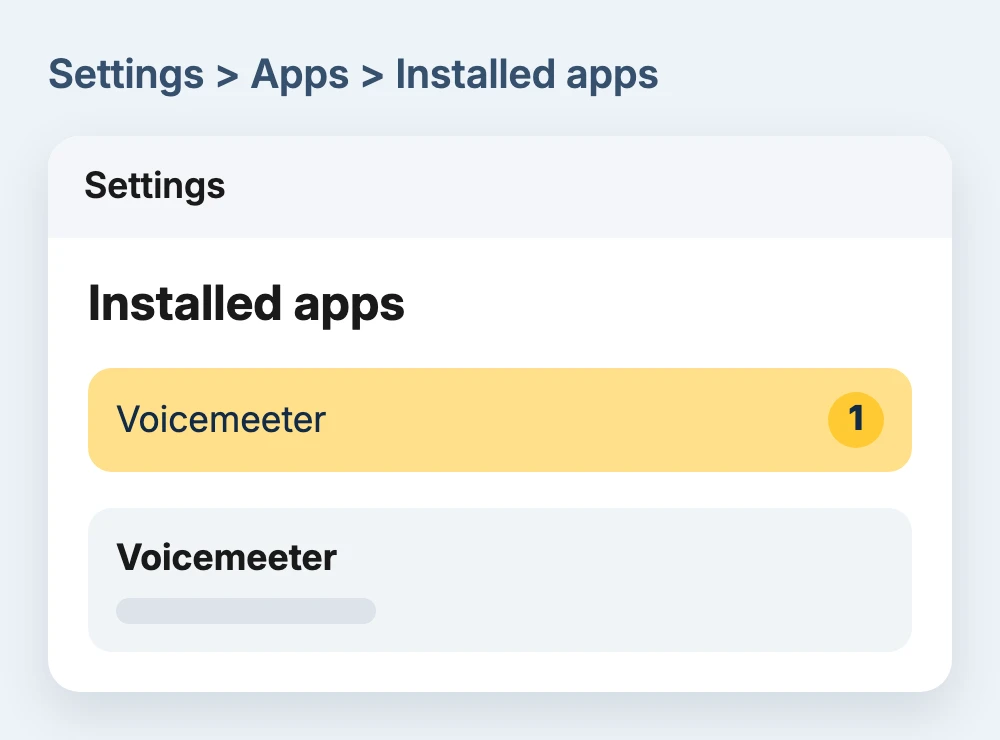
Old virtual audio devices can remain even when Voicemeeter isn't in the app list. If Setup still names the driver after a normal uninstall and restart, use the Device Manager check later in this guide.
Before changing the installation, save your mixer configuration and note the physical microphone and headphones you use. Audio apps may need those devices selected again while the virtual driver is removed.
If your problem is Rocksmith failing to launch, that guide covers its particular audio-software conflict. Don't treat a game's startup failure as evidence that Windows has blocked a feature upgrade.
2. Replace the old installation with the current package
Get the current installer for your edition from the official Voicemeeter download page. Standard, Banana and Potato are different editions. Choose the edition you already use so you don't accidentally switch mixers during the repair.
Close Voicemeeter and apps using its virtual inputs or outputs. Run the setup with administrator rights and remove the existing installation when prompted. Then use Start > Power > Restart to complete removal.
VB-Audio's installation instructions say to reboot after removal and again after installation. Skipping that restart can leave the old virtual driver interfering with its replacement. Choose Restart even if you normally shut down the PC.
After Windows returns, run the new setup as administrator and install the chosen edition. Restart again before reopening your audio apps. That lets Windows finish installing the new device before the mixer tries to use it.
For an upgrade block, return to Settings > Windows Update after the restarts and retry the offered upgrade. Check that the compatibility notice disappears. The mixer can play audio even when Setup still objects to the driver.
If you don't use Voicemeeter anymore, leave it uninstalled and test the upgrade after the removal restart. You don't need to reinstall a mixer just to remove an old-driver block.
3. Remove leftover Voicemeeter devices if setup still objects
Use this step if the installer still says the virtual device is installed or Windows Setup continues to name it. The maker's reinstallation repair instructions describe removing its remaining audio devices manually.
Open Device Manager from Start's right-click menu. Expand Sound, video and game controllers. Look for entries that identify Voicemeeter. Right-click the matching entry and choose Uninstall device, then restart Windows.
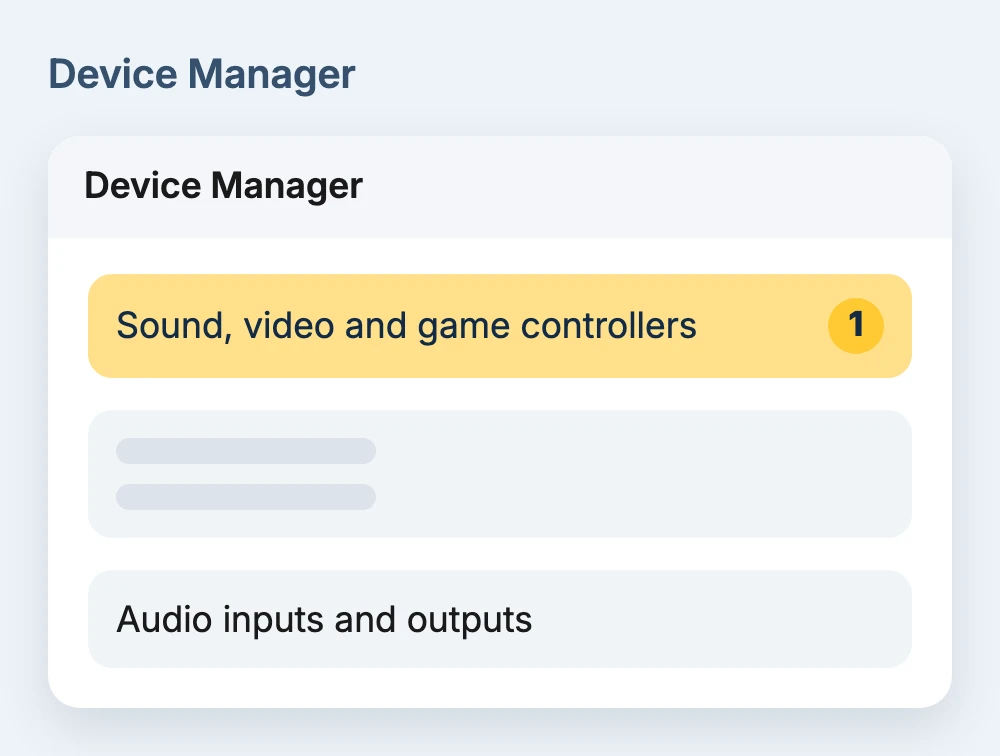
Return to Device Manager and check Audio inputs and outputs for remaining Voicemeeter entries. Remove only the matching leftovers, following the maker's instruction to reboot after each removal operation.
Leave your Realtek, Intel, AMD, NVIDIA and USB headset devices alone unless a separate repair calls for them. You're removing the mixer's virtual device, so the PC's other sound devices should stay installed.
If you want to reinstall, run the current official setup after the leftovers are removed and the restart has finished. If you're clearing an upgrade block, retry Windows Setup before putting Voicemeeter back.
Don't delete driver files from Windows folders. If the compatibility report still names a leftover package, give that name to VB-Audio support and ask for removal steps. Guessing which file belongs to it adds another problem.
4. Handle a Windows Security driver block separately
A Windows Security driver-loading notice can involve Memory integrity, the Windows protection that stops certain incompatible drivers from loading. Read the driver and company names in the notice before assuming Voicemeeter caused it.
Microsoft's blocked-driver guidance starts with the manufacturer's current package or compatible drivers offered through Windows Update. Replace the named old driver first.
Don't turn off Memory integrity to clear an unidentified warning. That removes a security protection and leaves the installation unrepaired. Ask the driver's maker for a compatible release if its current package is still blocked.
If the driver name belongs to another product, follow that product's update instructions. Voicemeeter can be installed on a PC that has a completely separate incompatible driver, so removing it won't solve every warning.
5. Check audio routing after the driver loads
After installation, reopen Voicemeeter and select your physical output. In Settings > System > Sound, check that Windows is using the input or output you want. Test one familiar app before putting all your audio routing back the way it was.
A successful upgrade can still leave an app using an old input or output selection. For example, PEAK microphone checks cover selecting the right microphone in that game after checking Windows recording.
If repair setup won't finish, the maker describes using its VBCABLE setup programs inside the existing Voicemeeter folder, with a restart after each operation. Follow those instructions instead of trying a generic driver-cleaning tool.
On the VB-Audio forum, include the exact warning, Windows version, mixer edition and when you restarted during repair. Ask whether the remaining package needs removal or a compatible update. Keep personal audio recordings out of the report.
The Short Version
Update or remove Voicemeeter, restarting after each operation. Remove matching virtual-device leftovers if normal setup fails. Identify a Windows Security warning by its driver name, then check the upgrade and audio routing separately.
Checked November 29, 2026.
 If you have any business, I can build it online