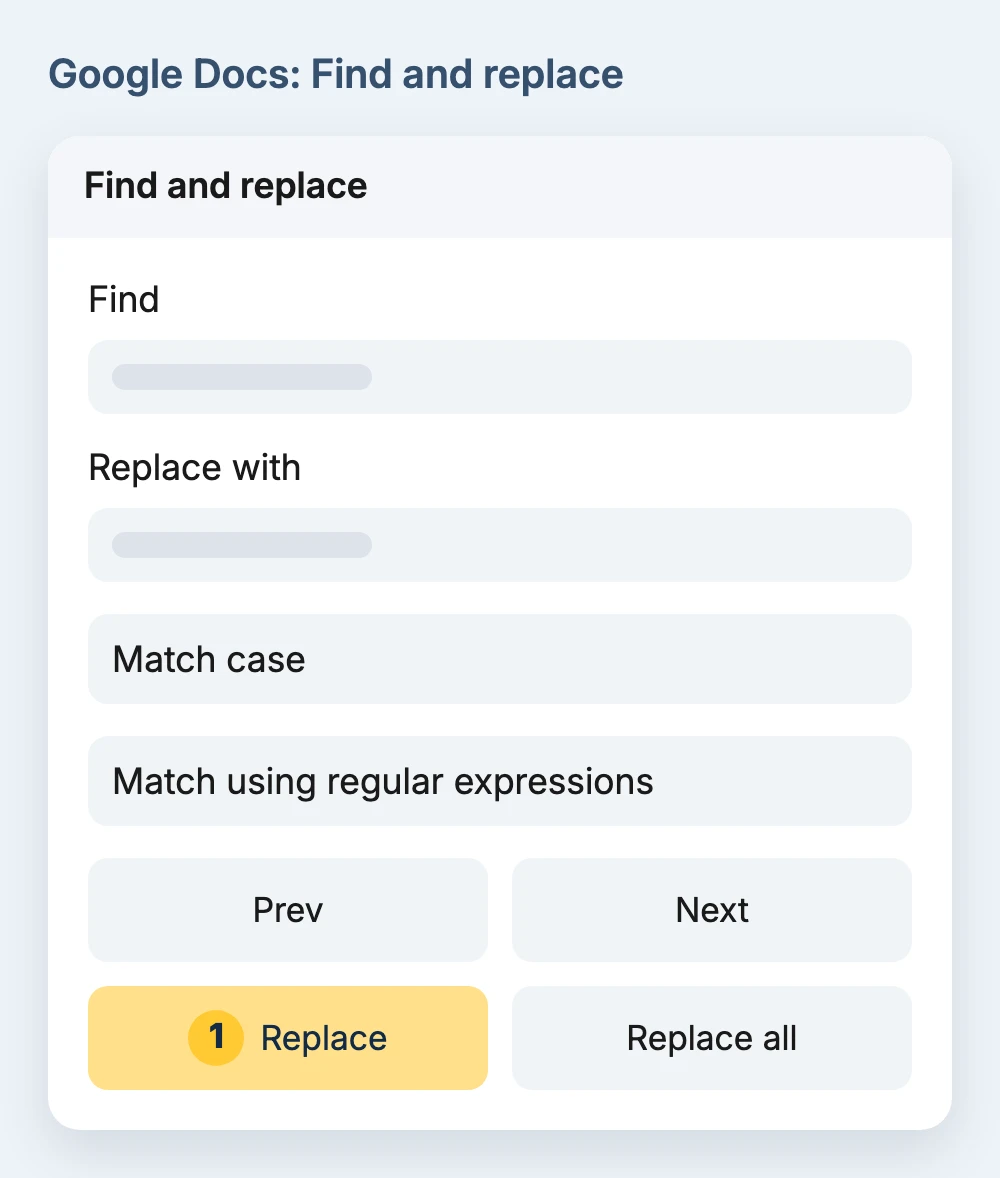
Find and replace in Google Docs is under Edit > Find and replace on a computer. Enter the old text in Find and the new text in Replace with, then use Replace for one match or Replace all for every match.
For a name, date, or phrase that appears in different contexts, review the matches first. A replacement that fits one sentence can change the meaning of another.
In this guide
Open the document's replacement tool
Open the document itself, then select Edit > Find and replace. This is different from the browser's page search, which can locate text but doesn't offer document replacements.
Ctrl+F on Windows or Chromebook and Command+F on Mac are useful when you only want to locate something. To change text, use the Edit menu so you're in the tool with the Replace with field.
Before replacing text throughout the document, check your editing access. Search can work even when editing is restricted. For a view-only file, you'll need editing permission from its owner or a separate copy you can edit.
If the file came from Word, decide which version should receive your edits. Our guide to opening Word documents in Google Docs explains when you're keeping the Word file and when you're creating a Google document.
Replace one occurrence and read the sentence
Google's find and replace instructions show how to change a highlighted match or all matches at once. Replace one match at a time when the same wording could have different meanings.
- Type the exact old word or phrase beside Find.
- Type the new text beside Replace with.
- Use Next or Prev to move between occurrences.
- Read the sentence containing the highlighted match.
- Click Replace when that occurrence should change.
For example, replacing a project's old name is straightforward until the same words appear in a quotation or an earlier project's history. Keep those exceptions in mind as you move through the document.
I'd use individual replacements for people's names in a contract or a report with quoted material. It takes longer than one click, but you can see whether each change belongs in that sentence.
Check the text around the replacement too. Changing a singular word to a plural one may leave the verb wrong. The replacement tool changes matching characters; it doesn't rewrite the surrounding sentence to suit them.
When a match isn't the one you wanted, click Next rather than changing the Find field immediately. That lets you review repeated text without changing the phrase you're searching for.
Use Replace all for a consistent change
Choose Replace all when the same correction belongs everywhere the tool finds it. A repeated product spelling or an obsolete label can work well once you've checked how it appears in the document.
Before clicking it, read both fields from left to right. A missing space, extra punctuation mark, or reversed old and new phrase can spread through a long document quickly.
After the replacement, search for the old wording again. Then search for the new wording and read several surrounding sentences. That lets you check for missed matches and make sure the new wording makes sense in those sentences.
If the result is wrong, use Edit > Undo promptly. Review what changed before making more edits, so the replacement is still the action you're reversing.
For a large cleanup, consider a working copy while collaborators use the original. Give the copy a name your collaborators will recognize, and agree which version to submit. Two similar files can cause confusion over the final version.
Set Match case only when capitalization matters
Match case finds only text with the same capitalization as your search. With it enabled, searching for a capitalized name won't treat its lowercase form as the same text.
Turn it on when a capitalized abbreviation and a normal word need different treatment. Leave it off when you're correcting the same spelling with different capitalization, then review how the replacement reads at the start of sentences.
Don't assume replacing a lowercase word automatically creates a properly capitalized sentence. The text in Replace with is the text you're asking the tool to insert.
If an expected occurrence isn't appearing, compare the capitalization and this checkbox before deciding the file is broken. Also compare the actual spaces and punctuation in the sentence with what you typed into Find.
Copying a short troublesome phrase from the document into Find can help reveal a mismatch. On a Mac where paste itself fails, use the Docs keyboard clipboard steps before changing search settings repeatedly.
Leave regular expressions off for an ordinary word
Match using regular expressions searches for patterns rather than just the exact characters you type. It can match changing numbers or character combinations, but punctuation such as a period has a special meaning in this mode.
For a normal phrase, leave this option unchecked. Searching for the exact text is easier to review, and it avoids matching text you didn't intend to include.
A simple pattern such as [0-9]{5} searches for five consecutive digits. That can help locate number strings, but inspect the matches rather than assuming every five-digit sequence is the same kind of information.
Google Docs and Google Sheets differ here. In Docs, regular expression formatting entered in Replace with appears exactly as typed. Capture-group replacements and special replacement characters such as \n work in Sheets, not Docs.
In Docs, you can't use the replacement field to rearrange parts of a pattern match. In a short document, make separate targeted edits rather than trying a spreadsheet replacement technique in the wrong app.
Find and replace on Android, iPhone, or iPad
On Android, open the document in the Google Docs app. Tap More > Find and replace, enter the text, and tap Search. Use the arrows to move through results. Open More for Replace or Replace all.
Enter the new text after choosing that command, then tap Replace or Replace all to apply it.
For iPhone and iPad, use the Docs app's document editor. Tap More > Find and replace. Enter the text and tap Search. Move through matches with the arrows; use Replace with for the new text, then Replace or All.
Read the sentence in the document before confirming a replacement on a small screen. The phone keyboard and search controls take up space, so moving to the next result is useful when the surrounding words aren't immediately visible.
If the app doesn't show the controls described, update it and try the editable document on a computer. If the controls still don't match, send the Docs Help Community the device, app version, search text, and what happens after Search.
The Short Version
Use Edit > Find and replace, fill in both text fields, and review a match before choosing Replace all. Match case controls capitalization. Leave regular expressions off for plain text; Docs doesn't support Sheets replacement patterns.
Checked November 29, 2026.
 If you have any business, I can build it online