

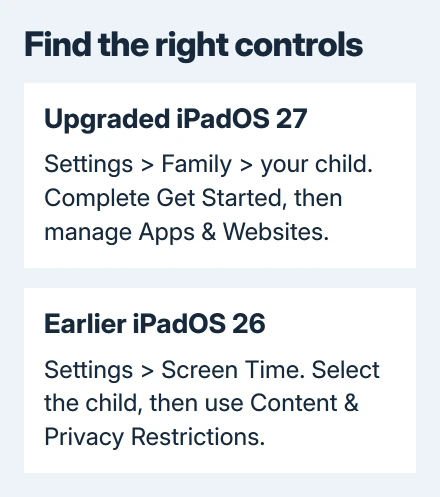
To activate parental controls on an iPad, open Settings > Family > your child's name and follow Get Started to set up the upgraded iPadOS 27 controls. An older iPad uses the earlier Screen Time settings instead.
Decide what you want to control. Apps, purchases, websites, contacts, and time on the iPad each have their own settings. A daily time limit alone won't set content ratings or require approval for new apps.
In this guide
Prepare the child's account and check the iPad version
Give your child their own Apple Account and add it to your Family Sharing group. Sharing an adult account mixes your account information with theirs and makes the child's controls harder to manage.
Check the iPadOS version in Settings > General > About, then look for updates in General > Software Update. Updating the iPad and upgrading the family controls are separate parts of setup.
Apple says its parental-control setup uses redesigned version 27 controls. The family upgrade requires that version on devices used in the last 90 days by parents, guardians, and managed children.
If a family device can't update, its earlier family permissions and Screen Time options still work. Don't erase a working iPad because it can't display the new menus. Follow the steps for the controls available on that iPad instead.
For a family still missing the upgrade, use the family-controls checks. They identify devices holding up the upgrade before you configure the new controls.
Complete the iPadOS 27 family setup
From your parent or guardian device, open Settings > Family and select your child. Choose Get Started when the setup is offered. Make sure you've selected your child's account, rather than your own Screen Time report.
Work through the content-access choices first. Choose website access and age ratings for media. Approved Websites Only asks for approval before new sites; Limit Adult Websites is the broader filtering choice.
Next, choose who the child can contact and review sensitive-image protection. These choices cover supported Phone, Messages, and FaceTime features. Check other chat apps through their own controls too.
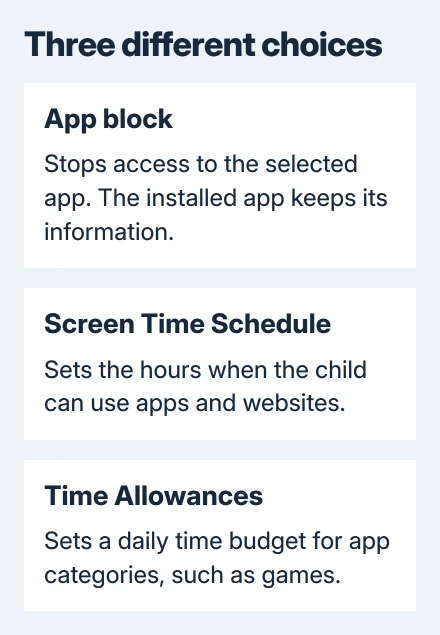
Follow the prompts for school hours, weekday and weekend routines, and daily time allowances. These do different jobs: a schedule decides when your child can use the iPad, while an allowance limits time spent in a category.
Finish by creating the four-digit Screen Time passcode. Use a code your child doesn't know and keep it different from the everyday device-unlock code. The setup isn't protected just because the iPad has a lock-screen passcode.
Add a parent or guardian to the child's address book so approval requests can arrive. Age and region can turn on some protections automatically, and some settings can't be removed for particular accounts.
Choose app, purchase, and website permissions
On the upgraded controls, open Settings > Family > your child's name > Apps & Websites. Select an installed app and choose Block App, then confirm. Its icon dims, but the app and its data stay on the iPad.
To prevent new installations, open Apps & Websites > App Store > Installing Apps and choose Blocked. That controls installation; it doesn't block an app that is already on the iPad.
To review downloads individually, open Apps & Websites > Restrictions > Ask to Buy. Turn on Require Purchase Approval, when the account allows that choice.
I'd choose approval for a child who needs occasional school apps. It gives you a decision on each request instead of making every new download unavailable.
For websites, use Apps & Websites > Restrictions > Filtering, under Websites. Select Limit Adult Websites or Approved Websites Only to match the website access you've chosen for your child.
The iPhone parental-control walkthrough covers these upgraded permissions for a child's phone. Select the correct child when several children share a family group.
Set ratings, contact rules, and daily boundaries
Open the child's Content & Privacy Restrictions settings and choose each content category under Content Restrictions. Review apps, movies, books, and music separately. An app rating doesn't also choose a movie rating.
Under Privacy Restrictions, choose Accounts > Don't Allow to prevent account-setting changes. Blocking changes to privacy settings doesn't set every app's permissions for you.
For supported calls and messages, open Allowed Contacts > During Screen Time. Choose the contact rule that fits your child, then review Manage Contacts if you want to manage their address book.
Open Screen Time Schedule, turn on Schedule, and choose Add Schedule. Set the days and times. Review Time Allowances separately for games, entertainment, and other categories.
Keep school apps and necessary family communication in mind while choosing restrictions. Your child should still be able to do schoolwork and contact family without spending that time on unrelated entertainment.
Use the earlier controls on iPadOS 26
If your iPad has the earlier controls, open Settings > Screen Time and select the child when managing them through the family list. Turn on App & Website Activity if it isn't enabled.
Open Content & Privacy Restrictions and turn its switch on. The older menus use Allowed Apps & Features and App Store, Media, Web, & Games, rather than the upgraded Apps & Websites layout.
Choose age ratings and web restrictions there, and review purchase permissions separately.
To protect earlier settings, select the child in Screen Time, then open Manage Screen Time > Lock Screen Time Settings. Create and confirm a four-digit code. On the iPad's own Screen Time page, use Lock Screen Time Settings.
Use App Limits > Add Limit for app categories or individual apps. Use Downtime for a schedule. With a Screen Time passcode set, enable Block at Downtime when the apps should be blocked rather than simply showing a reminder.
During blocked downtime, restricted apps have dimmed icons and show an hourglass. If your child can continue after a reminder, check that blocking choice instead of repeatedly changing the start time.
Check the restrictions on the child's iPad
Try the restricted activity with your child: open the blocked app, visit a restricted website, or send a purchase request. Check the result on the iPad and whether the request reaches the parent.
If one control fails, open Apple Support's Screen Time help. Share the iPadOS version, whether your family controls are upgraded, the child's account, and the exact setting. Ask for help with that restriction.
The Short Version
An individual child account comes first. Match the controls to the iPadOS version and protect them with a Screen Time passcode. Choose apps, purchases, websites, contacts, and time separately, then check the result on their iPad.
Checked November 12, 2026.
 If you have any business, I can build it online






