Mac desktop sticky notes come from the built-in Stickies app. Open it, choose File > New Note, and type your reminder. Use Window > Float on Top when the note needs to stay visible while you work in other windows.
Stickies and Notes are separate apps. A Quick Note opening in a screen corner isn't the desktop sticky note described here, and closing Stickies makes its notes disappear from the desktop until you open the app again.
In this guide
Open Stickies and create your first reminder
Open Finder, choose Applications, and open Stickies. Alternatively, search for Stickies with Spotlight and open the app result. Its name is plural, so look for Stickies rather than a separate app named Sticky Note.
With Stickies active, choose File > New Note in the menu bar. Type a short reminder into the note. Your text saves automatically, so you can switch apps without naming or saving a file.
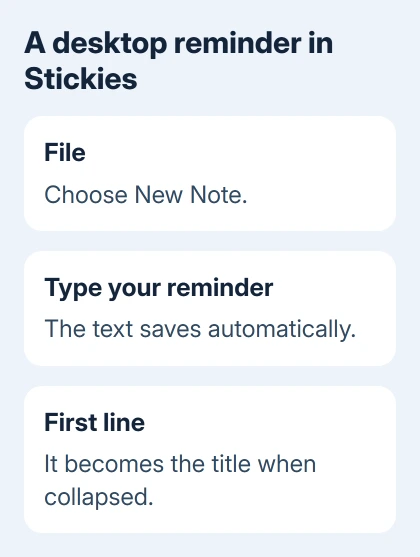
Start the note with the words you'll recognize later. When a note is collapsed, its first line becomes the title. A clear opening such as a project name makes a group of small notes much easier to scan.
Apple says Stickies saves your text automatically. The same guide covers floating and exporting notes; look for those controls in Stickies, rather than Notes.
Create another note with File > New Note when the next reminder is about something different. Separate reminders are easier to position beside the relevant work than one long note covering several unrelated tasks.
If the note is hard to read, adjust its size and text next. If it seems to vanish as soon as another app opens, use the visibility controls in the following section.
Keep the reminder in front of your work
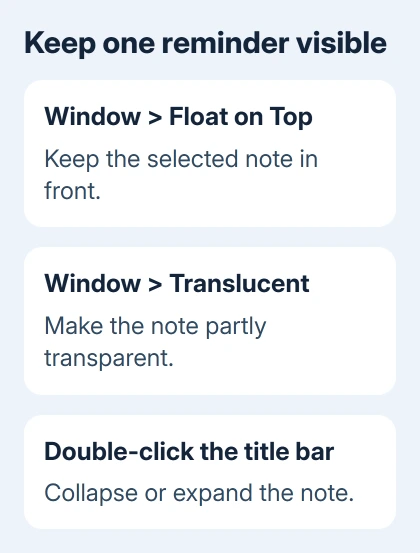
Click the note you want to keep visible, then choose Window > Float on Top. That note stays in front of other windows, so a browser or document won't cover it during ordinary windowed work.
On a Windows PC, keep Sticky Notes on top with PowerToys using its window-pinning shortcut.
Use this for the reminder you're acting on now. I'd leave less urgent notes out of the foreground; several floating notes can cover the very work they're supposed to help you finish.
Drag the note by its title bar to a useful place. Put it near the work you need to remember without covering a button or a passage you're reading. Resize it by dragging an edge to fit the text.
Choose Window > Translucent if you'd prefer a partially transparent note. Try it against the actual window behind it. Transparency can make a short reminder less intrusive, but the words still need to be easy to read.
For a reminder you don't need to read continuously, double-click its title bar to collapse it. Double-click again when you need the full text. Collapsing keeps the first line available without leaving the whole note open.
If a note disappears when you quit the app, leave your display settings alone. Reopen Stickies. The desktop only shows its notes while the app is running, even though their contents were saved.
Set the text, color and size for the job
Click the note and choose a color from the Color menu. Use different colors for different kinds of work if that helps you recognize them. It still works the same way after you change its color.
To change the font, choose Font > Show Fonts. Highlight the passage that needs formatting, then use the Fonts window. Check a short reminder at the size you actually use rather than making every note fill the screen.
Drag the top, bottom or sides of a note to resize it. The triangle in its upper-right corner expands it; clicking the triangle again returns it to its earlier size.
When a note looks the way you want future notes to look, choose Window > Use as Default. New notes will start with that formatting and those settings, so you won't have to repeat the adjustments each time.
For several reminders, choose Window > Arrange By and select an arrangement. You can also position them manually. Hold the pointer over a note's title bar to see when it was created and last edited.
If a screen corner keeps opening a different note while you're arranging windows, change the Quick Note corner setting. That setting doesn't control Stickies.
Add a list, a picture or text from a file
For a simple list, press Option + Tab in a note and type the first item. Press Return to add another item. At the end of the final item, press Return twice to continue with a normal paragraph.
At the beginning of a list line, Tab moves it deeper into the list. Shift + Tab moves it back. This is useful for a short shopping list or a few project tasks without changing to a larger planning app.
Drag a picture into the note when it explains the reminder better than another sentence. Keep the note readable after adding the image, especially if it floats over a small laptop display.
Choose File > Import Text to bring a text file into Stickies as one note. For a note you need as a file, use File > Export Text and choose the destination and format.
Exporting is useful before sending the content to another person. The note's position and visibility only apply on your Mac. Exporting gives the recipient a text file they can open separately.
Move longer notes into Notes and check a missing reminder
Choose File > Export All to Notes, then Export All, when you want the collection inside the Notes app. The imported notes are grouped into folders by their Stickies colors, and the originals remain in Stickies.
Open Notes afterward and check the imported content before tidying the originals. If the purpose is to share a note, use the Notes collaboration controls for a supported shared note.
To find text within your sticky notes, choose Edit > Find > Find. Search the current note or all notes as needed. Use this when you remember a phrase but can't remember which note it's in.
Don't treat the little box at the upper-left of a note as an ordinary hide control. Clicking it offers Delete Note. Use collapse or quit the app when you only want the reminder off the screen.
If Stickies won't open or saved notes remain missing, ask Apple Support about Stickies on your installed macOS version. Explain whether reopening the app, arranging windows or searching all notes changes what you see.
The Short Version
Use File > New Note in Stickies. Float on Top keeps it visible; double-click its title bar to collapse it. Reopen the app when notes disappear after quitting, and export important content before deleting a note.
Checked November 15, 2026.
 If you have any business, I can build it online