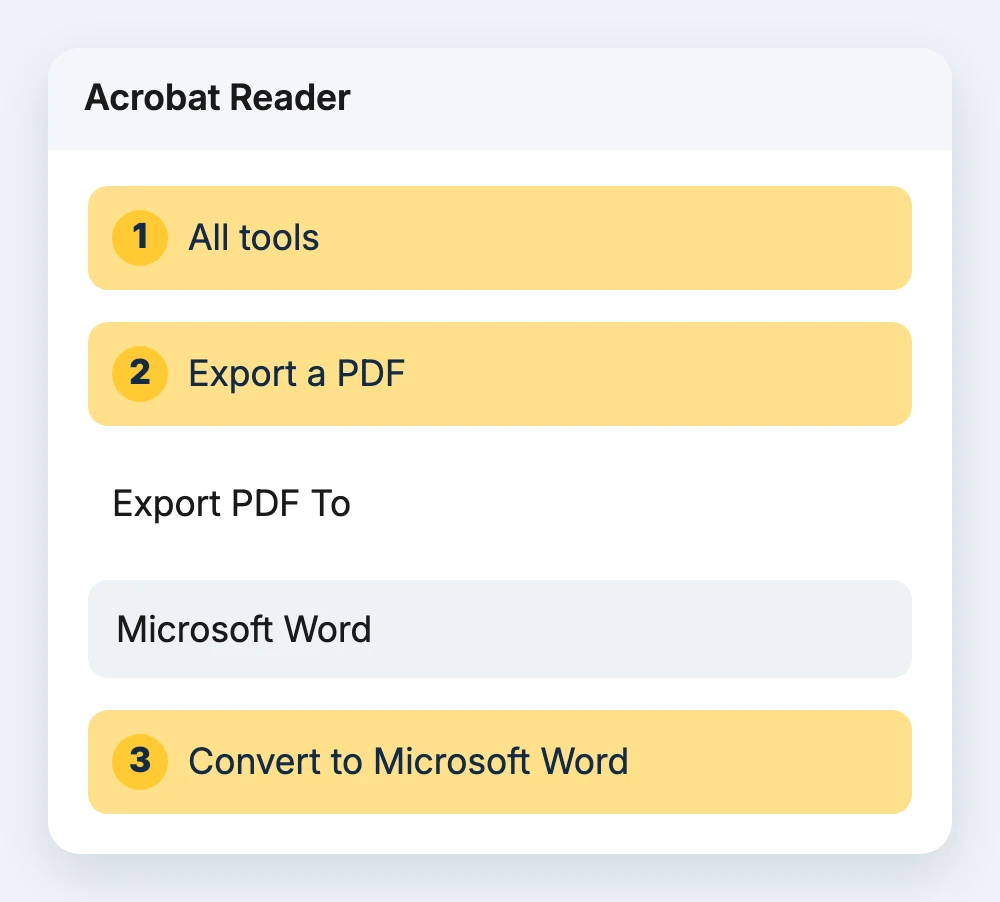
Adobe Reader can convert a PDF to Word through All tools > Export a PDF, but the export service needs a paid subscription. Sign in with the Adobe account that owns that service, choose the Word format, and save the converted file.
A subscription prompt doesn't mean your PDF is broken. Free Reader can display a document while conversion still needs paid access. Check whether work already provides that service or whether Word for Windows can handle your file.
In this guide
Does free Reader include Word conversion?
Open Reader and choose Sign In in the upper-right corner. Choose the Adobe account that holds your export subscription. Your personal and work Adobe accounts can include different services, even though both accounts belong to you.
Adobe's Reader export instructions require an Acrobat Export PDF subscription. Installing Reader alone doesn't add that service, and being able to open a PDF doesn't tell you whether conversion is included.
Ask your workplace administrator which account includes PDF export if your organization pays for Adobe software. Give them the sign-in address and the name of the service Reader requests, rather than asking them to reinstall Word.
I'd check the account before paying for another plan. Buying another plan won't explain why your existing subscription isn't showing up. You could end up managing two subscriptions for the same job.
For an occasional conversion, an existing Word for Windows installation provides another route. The PDF editing workflow in Word explains how to do it in Word instead.
Export the open PDF as a Word document
Start with the PDF you want to convert open in Reader. Check its first page and filename so you don't export an older attachment with a similar name. Then follow this sequence in the desktop app:
- Select All tools > Export a PDF.
- Check the selected source file. Use Select PDF File to choose a different PDF when needed.
- In Export PDF To, select the Word conversion format.
- Select Convert to followed by the chosen format.
- In Save as, choose a folder and filename, then select Save.
Choose DOCX when the recipient wants a normal modern Word document and that option is offered. If the recipient asks for the older DOC format, choose that instead. The format you export should match what they need.
Reader's export panel and the full Acrobat desktop interface can look different. These steps describe Reader's Export a PDF route; don't look for a Word ribbon tab inside the PDF viewer.
Saving the result is part of the job. Pick a destination you can recognize, then open that saved Word file. If Reader still shows the PDF after conversion, check the folder you chose for the editable copy.
For a document containing spreadsheet tables, the Acrobat PDF-to-Excel route gives you workbook-specific choices. Choose Word for editing paragraphs and document text, rather than expecting it to rebuild spreadsheet calculations.
Set the document language for scanned pages
A scanned PDF contains pictures of pages. Turning those pictures into editable words requires text recognition, also called OCR. That extra reading step is why a clear-looking scan can still produce a misspelled name or incorrect digit.
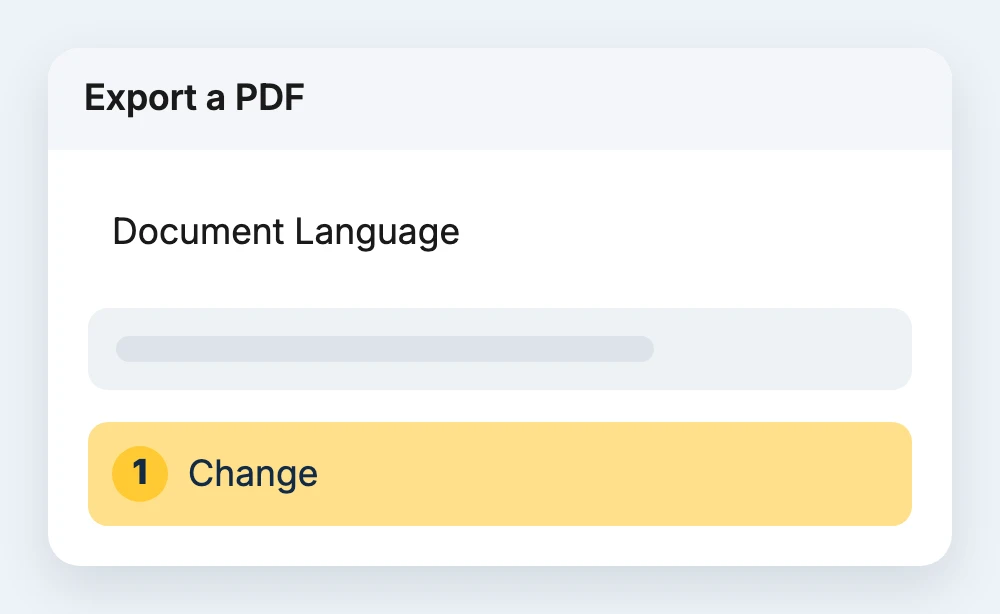
Before converting a scan or image, check Document Language in Reader's export controls. Select Change and choose the language used in the document when the current choice is wrong. Then run the Word export.
Check a short passage in Word before editing. Click between words and try selecting one word. If you can select individual letters, the page contains text. If the whole page selects as one image, it's still a picture of the page.
Compare names, dates, totals, and reference numbers with the scan. A mistaken letter in ordinary prose can be obvious, while a wrong digit in an account number can look perfectly plausible.
When the original scan is faint, crooked, or missing part of the page, ask its sender for a clearer copy or the original Word document. Changing the recognition language can't restore information that wasn't captured in the PDF.
Compare the Word copy with the original
Conversion gives you an editable document, but its layout still needs a check. A PDF keeps text and pictures in fixed positions. In Word, paragraphs, tables, and text need to move as you type.
Keep both files open and compare a table page, an illustrated page, and the document ending. Look for missing text, an extra page break, or a heading separated from the paragraph it belongs to.
Check that a table's entries still sit under the correct column headings. A document can look tidy while one wrapped description has moved away from its number. Fix any misplaced entries before changing fonts or other visual details.
Microsoft's PDF conversion explanation describes why PDFs and Word documents organize content differently. For a signed form or carefully designed publication, asking for the editable source can save substantial cleanup.
Give the edited Word file a recognizable name when saving. Keep the source PDF until you've checked and accepted the converted text and layout. If someone else must review your changes, keep it for their review too.
When export still won't finish
Try a simple, non-sensitive PDF through the same export controls. If that converts, explain to the original sender what differs about the failing file, such as a password prompt, scanned pages, or a particular error message.
If ordinary files all fail, use Adobe Help Center's Acrobat Reader support route. Include the account plan, Reader version, exact message, and the stage where it fails: conversion or saving.
For a managed account, ask IT to confirm the export service is assigned to your sign-in. A fresh Reader installation won't fix an export service missing from your account.
The Short Version
Sign into Reader with paid export access, open Export a PDF, choose Word, and save the result. Set the right language for scans, then check the saved document's text and layout before sending it.
Checked November 29, 2026.
 If you have any business, I can build it online