A text box in Google Docs starts with Insert > Drawing > New on a computer. Create the box inside that drawing, type your text, then choose Save and close to place it in the document.
The box belongs to a drawing, so changing its words later means reopening that drawing. For a note that should flow with ordinary paragraphs instead, a one-cell table can be easier to edit.
In this guide
Create the box inside a new drawing
Open your document in the Google Docs editor on a computer and click where the drawing should appear. Before looking for the Insert menu, confirm you have editing access. If it's view-only, request permission to edit from the owner.
Google's drawing instructions say to use Insert > Drawing > New to create a drawing inside Docs. This opens a separate editing window rather than placing a typing cursor directly on your page.
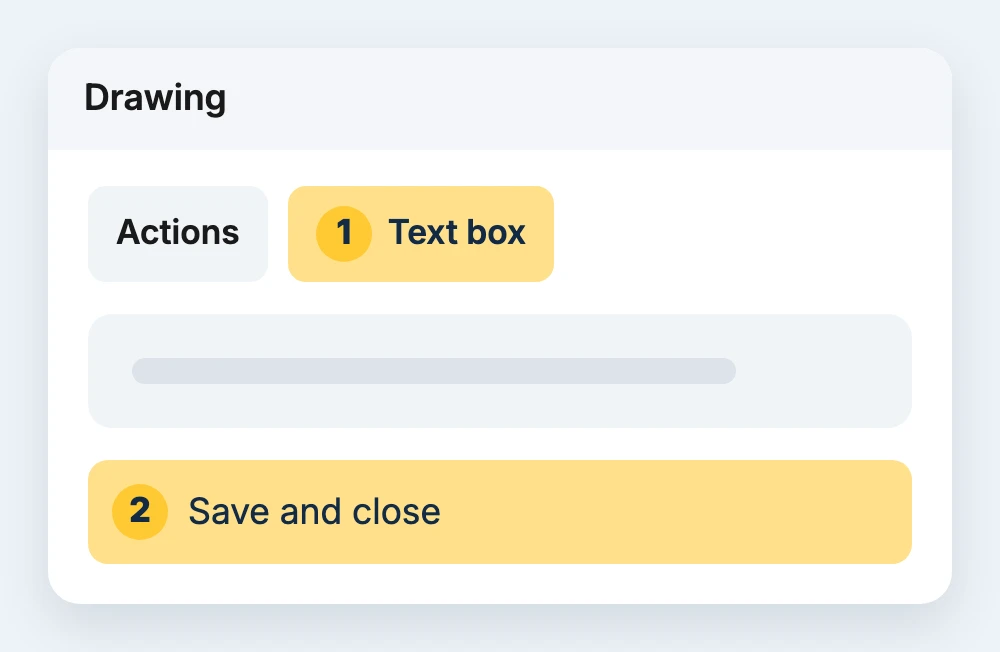
- Choose Insert > Drawing > New in the document.
- Select the Text box tool in the drawing toolbar.
- Drag on the canvas to give the box its starting size.
- Type the note, label, or quotation you want to display.
- Select Save and close to insert the drawing.
The finished drawing should now appear at the document's insertion point. Click elsewhere on the page and see whether you can read the text at your usual document zoom. Don't judge it only inside the larger drawing window.
I'd start with the real text rather than a placeholder. A box sized for a short sample can become awkward once the actual sentence wraps over several lines, especially beside a picture.
Format the text and leave room around it
Inside the drawing editor, select the words to change their font, size, alignment, or emphasis. Select the text box itself when you want to resize the object. Selecting the box won't select the words inside it for formatting.
Drag a sizing handle to change the box's height or width. If text wraps into a narrow column, give the box more width before reducing the font. A smaller font can solve the fit while making the note difficult to read in the final document.
For a short callout, keep the wording compact enough to read as one thought. A long explanation usually works better as a normal paragraph, where later edits can flow naturally with the surrounding document.
A box doesn't need a visible outside line to act as a text box. Formatting controls change its appearance separately from its words. Keep enough contrast between the letters and any fill so the note still reads clearly when printed.
Check the drawing's empty canvas as well as the box. If the box sits far from the rest of the content, the inserted drawing can occupy unnecessary space around your note. Keep related content close together.
If the starting file came from Microsoft Word, first open it in Google Docs and check whether you're editing the Word file or a converted Google document. That avoids changing the wrong copy.
For the same job in Microsoft's editor, Word's text box controls use a different insertion route. A missing Text Box button in the main Docs menu isn't a reason to follow Word's ribbon steps.
Reopen the drawing to edit its words
Double-click the inserted drawing to reopen its editor. Select the text inside the box, make your changes, and choose Save and close again. Confirm that the updated words appear back on the document page.
Clicking the drawing once selects the inserted object. It doesn't place the text cursor between the words stored inside it. That's why typing after a single click can put words beside the drawing instead of changing your note.
To move the text box within its drawing, grab the box itself and move it across the canvas. To move the whole drawing in the document, work with the inserted drawing after closing the editor.
Review the paragraphs around the result after moving or resizing it. A callout that looked balanced on an otherwise empty page can push a heading away from its text once the document fills up.
Keep the final text in the document itself when collaborators need to search, revise, or reuse a long passage. Save drawings for callouts rather than putting every paragraph on a page into its own box.
Insert an existing Google Drawing when it needs reuse
A drawing already stored in Drive can be inserted through Insert > Drawing > From Drive. Select the drawing and choose Select. Use this route for a note or diagram that belongs in several documents.
The inserted drawing stays linked to its source. After editing the original, select the copy in your document and choose Update when that control appears. You need both steps to bring the change into your document.
Choose Unlink on the inserted drawing when you don't want that connection. Before editing a reused drawing for one project, decide whether you also want that change in the other documents that use it.
For a one-off note, the earlier New route is usually simpler. Creating a separate Drive drawing adds another source file to manage, so use it when that shared source actually helps your work.
Use a one-cell table for a paragraph-style note
For text that belongs in the document's normal flow, choose Insert > Table and select one cell. Type into that cell as you would into the rest of the document, then adjust its width and text formatting.
The table controls also let you change cell background and border styling. A table cell is a different object from a drawing, but it lets you keep a note in a box without reopening Drawing for every edit.
Drawing creation needs the desktop Docs editor, so switch to a computer. Don't spend time hunting through the mobile Insert menu for a desktop Drawing window. A table is another route when its editing controls fit your device.
If Drawing is missing on a computer, check editing access and the document's file format first. Then report the missing command through Google Docs Help with the browser, file type, and whether the issue also affects a new Google document.
The Short Version
Use Insert > Drawing > New, add a text box in the drawing, and save it back to Docs. Reopen the drawing to edit its words. Use a one-cell table when the note should behave more like ordinary document text.
Checked November 29, 2026.
 If you have any business, I can build it online