Google Sheets removes repeated records through Data > Data cleanup > Remove duplicates on a computer. Select the whole table first, then choose which columns define a duplicate so the remaining rows still make sense.
For a separate list that leaves the source untouched, use UNIQUE instead. The cleanup command changes the selected data, while a formula can show a list without repeats elsewhere in your spreadsheet.
In this guide
Select the table, then choose the matching columns
Make a copy of important data before using a command that removes records. Include every column belonging to the records you're cleaning, even when only one column, such as an email address, decides whether two records match.
Google's duplicate-removal instructions say to look under Data > Data cleanup. They also say that selecting a single cell within a range makes the cleanup cover the whole range.
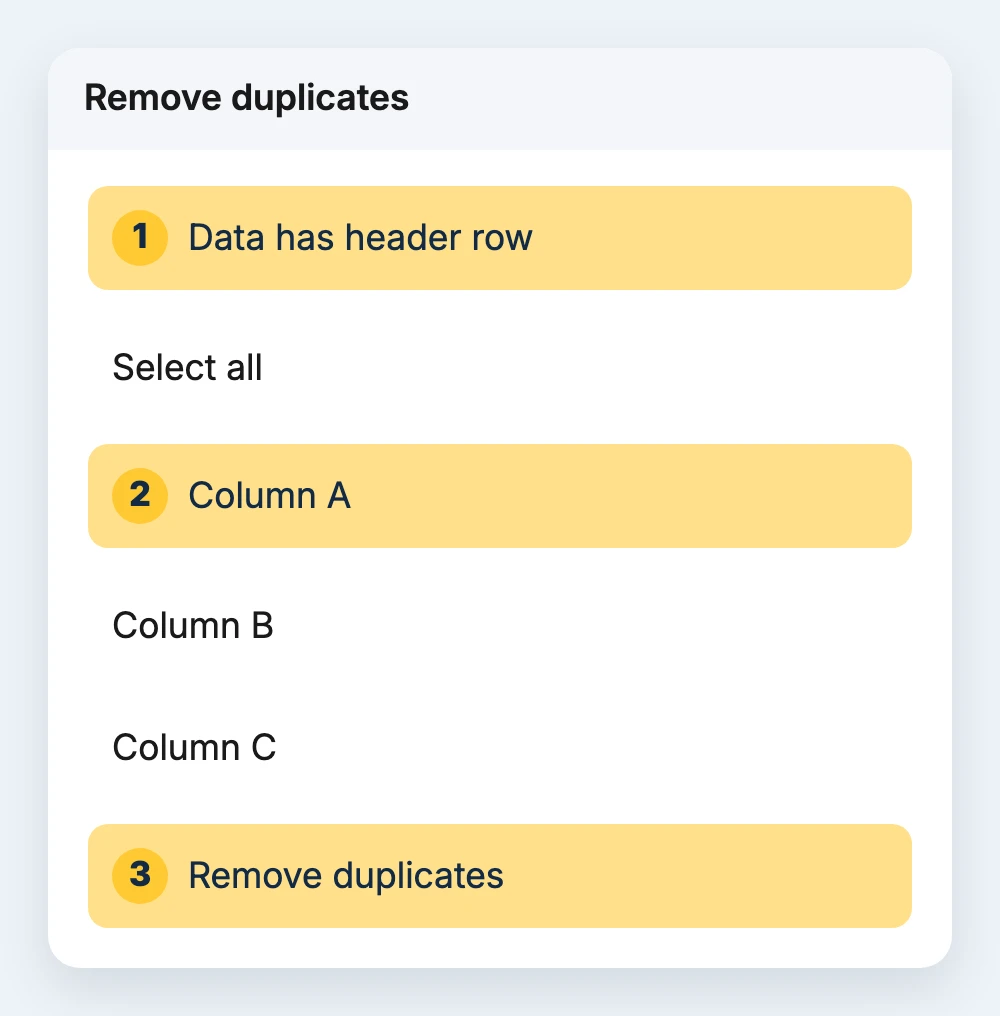
- Select the complete data range, including related columns and its header row if it has one.
- Choose Data > Data cleanup > Remove duplicates.
- Set the headers option to match the range you selected.
- Select the columns that should be compared when looking for repeated records.
- Select Remove duplicates, then review the result.
The range and the comparison columns do different jobs. The range tells Sheets what data is involved. The columns selected in the dialog tell it which values must match for a record to count as a duplicate.
Two customers can share a name, so a name alone isn't a good way to spot a duplicate. A customer ID or another value unique to that customer can work better. Decide what one record means before choosing the comparison columns.
Decide whether repeated values are actually duplicates
A repeated name isn't automatically a repeated transaction. One person can place several orders, and each order may need to remain in the table. Compare the order ID when you're cleaning orders rather than building a customer list.
Selecting several comparison columns makes the combination matter. Two records with the same name but different order numbers shouldn't be treated the same as two copies of the same complete order.
Write down the rule in ordinary words before running cleanup: one row per email address, one row per order number, or one row per complete set of matching values. Use that rule to judge the result.
I'd try the operation on a copied tab when the choice isn't obvious. You can review the result there without having to rebuild a shared table after someone notices that a row they needed has disappeared.
Don't rely on cleanup to choose the newest or most accurate record for you. When repeated IDs carry conflicting phone numbers, dates, or amounts, decide which information should survive before deleting records.
If your data started as an Excel file, convert it to Google Sheets when you want a native Sheets working copy. Keep the source workbook while checking the imported records.
If the work is happening in Microsoft's spreadsheet instead, Excel's Remove Duplicates behavior has its own controls. Check the application before following instructions that refer to a different ribbon or dialog.
Understand what Sheets considers a match
Cells with identical values can count as duplicates even when their letter case, formatting, or formulas differ. Changing a cell's color or making a name uppercase isn't a dependable way to keep that record separate.
One imported row can use capitals and another ordinary capitalization, yet still count as a match. Read the actual information rather than deciding from appearance. Cleanup compares values rather than preserving each style.
Formulas can also produce identical values despite using different expressions. If you need those formulas in the workbook, check what each one does before removing rows that look like copies.
Hidden characters are a separate problem. A trailing space can make text behave differently even when both cells display the same word. Check any rows you expected to disappear before running cleanup again with different columns.
After removal, check your totals and what each row represents. Fewer records are expected, but check why a sales total changed: did cleanup remove repeated transactions, or did it match separate purchases just by customer name?
Clean extra spaces when apparent duplicates remain
Select the relevant text range and choose Data > Data cleanup > Trim whitespace. This removes leading, trailing, and excessive spaces that can arrive when data is copied from another system.
Apply it to the text fields that need cleaning, then compare the affected values. Cleaning a name or email field is a different decision from changing a field whose exact spacing is part of its content.
Non-breaking spaces aren't removed by this command. They can arrive from web content and resemble ordinary spaces. When trimming leaves apparent duplicates, compare the source text to check for those characters.
For a stubborn pair, select each cell and read its entire value in the formula bar. An extra character, punctuation mark, or different identifier can explain why the records remain separate.
After correcting the text, run duplicate removal using the same rule for which columns must match. Changing the matching columns just to make the row disappear can remove valid records elsewhere in the table.
Keep the original with a UNIQUE formula
Choose an empty area or a separate tab and enter a formula such as =UNIQUE(A2:C100). This example returns each different row from that three-column source range once. Adjust the range to match your real table.
The UNIQUE function returns rows in the order they first appear in the source. With several columns in the range, the whole row combination matters rather than just the first cell.
For a list of distinct email addresses only, use the email column as the range instead. A formula returning one column doesn't carry the person's other fields with it, so decide whether you need just the addresses or the full records.
Leave room for the returned rows and columns. The cells where the result will appear must be empty; don't place it over another table or expect it to delete entries from the original list.
If rows you need disappear, use Undo immediately and revisit the selected range and columns. Ask Google Docs Editors Help about unexpected results with a harmless sample showing the input, comparison columns, and expected output.
The Short Version
Select the full table, open Remove duplicates, and compare the columns that define one record. Check apparent matches and spaces before deleting more data. Use UNIQUE for a separate list without repeats that keeps the source in place.
Checked November 29, 2026.
 If you have any business, I can build it online