The Alienware X14 has separate microphone and speaker mute controls. Press the key matching what you want to silence. If that key has no effect, try the Windows audio controls and check your calling app before changing drivers.
In this guide
1. Separate microphone mute from speaker mute
A crossed-out microphone is for voice input. A crossed-out speaker is for sound output. Turning off the speakers won't prevent your voice from reaching the call, and muting the microphone won't silence a video.
Dell says the X14 R2 has dedicated keys for microphone mute, speaker mute, volume up and volume down. Those aren't the programmable F2-F6 macro keys. Don't assign a mute macro just to replace a control that's already present.
Press the appropriate audio key once while watching the relevant Windows control. For speaker mute, play a video quietly, then watch the speaker indicator. For microphone mute, use the recording test in the next section.
Read the model in Settings > System > About or on the service label. X14 and X14 R2 layouts can differ. Match your printed symbols to that model's manual, since another Alienware's shortcut may not apply.
The X14 R2 keyboard table separates dedicated audio keys from function-key behavior. Fn-Esc changes the function-key mode; it isn't a universal repair for those dedicated mute keys.
2. Compare the key with Windows audio controls
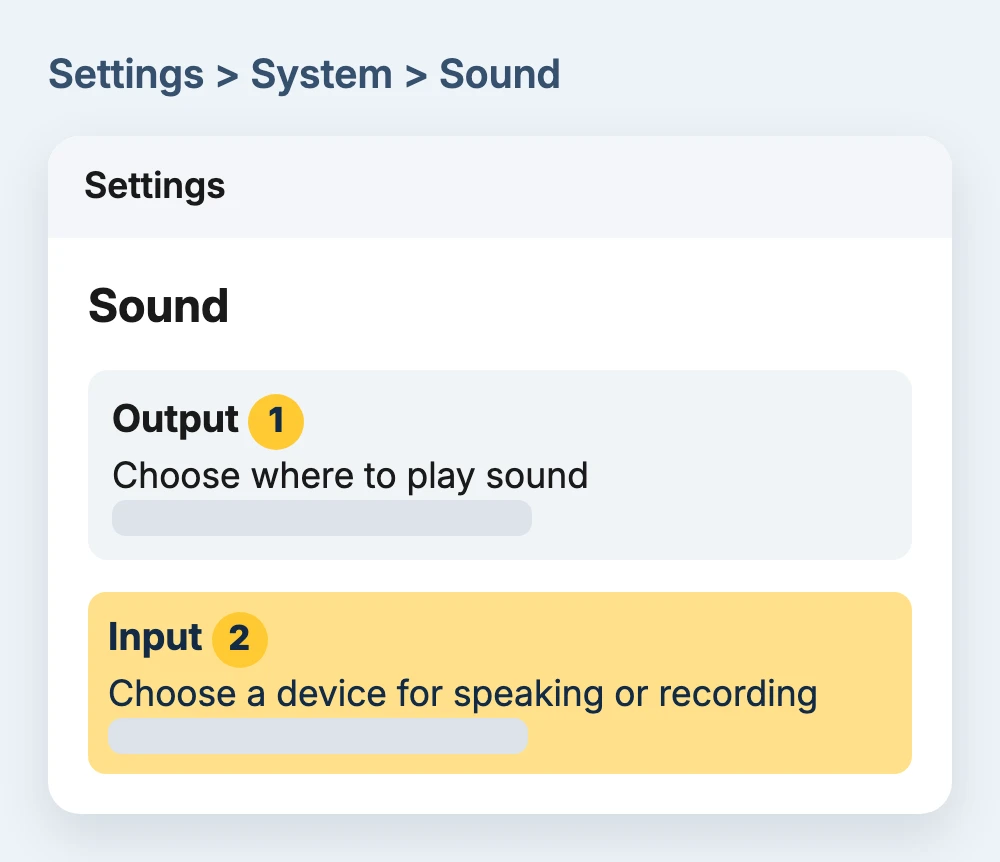
Open Start > Settings > System > Sound. For a speaker problem, select the output device you actually hear: internal speakers, wired headphones, a USB headset or a connected monitor. Change its volume and mute state from Windows.
If the on-screen control silences that device but the keyboard key doesn't, the audio device itself can still play and mute. Focus on whether Windows responds to the key and which system software it uses rather than replacing the speakers.
For a microphone problem in Windows 11, find Input, choose the microphone and open its properties. Under Microphone test, choose Start test, speak, then choose Stop test. Use Play for the recorded sample if your version shows it.
Repeat a short recording with the microphone mute key in each state. You should hear your voice in one recording and silence in the other. The calling app may use a different microphone even when the key light or mute symbol changes.
Windows 10 puts the input selection under Settings > System > Sound > Choose your input device. Speak while watching Test your microphone. The moving level indicator shows that the selected input is receiving sound.
3. Select the microphone or speakers the app uses
A USB headset, webcam or monitor can add another audio device. In the calling app, read the selected microphone and speakers under its audio settings. Match those to the devices you just checked in Windows.
Try the app's test-call or recording tool if available. When the Windows recording works but a particular app remains silent, check its device selection and mute button. The app can keep a call muted independently of the keyboard.
A headset's physical switch or raised boom can also mute its input. Set that control to let the microphone pick up your voice before testing the key. Either mute control can keep the call silent while the other one works.
The Windows microphone setup guide covers a microphone that never records, even without using the keyboard. A silent microphone needs different checks from a key failing to toggle a working input.
If the sound reaches headphones but not the laptop, compare the selected output with the Windows no-sound checks. Keep the output problem separate from whether other people can hear you.
4. Give the calling app microphone access
On Windows 11, open Settings > Privacy & security > Microphone. Enable Microphone access. Turn Let apps access your microphone on too. Enable the particular app when it appears in the app list.
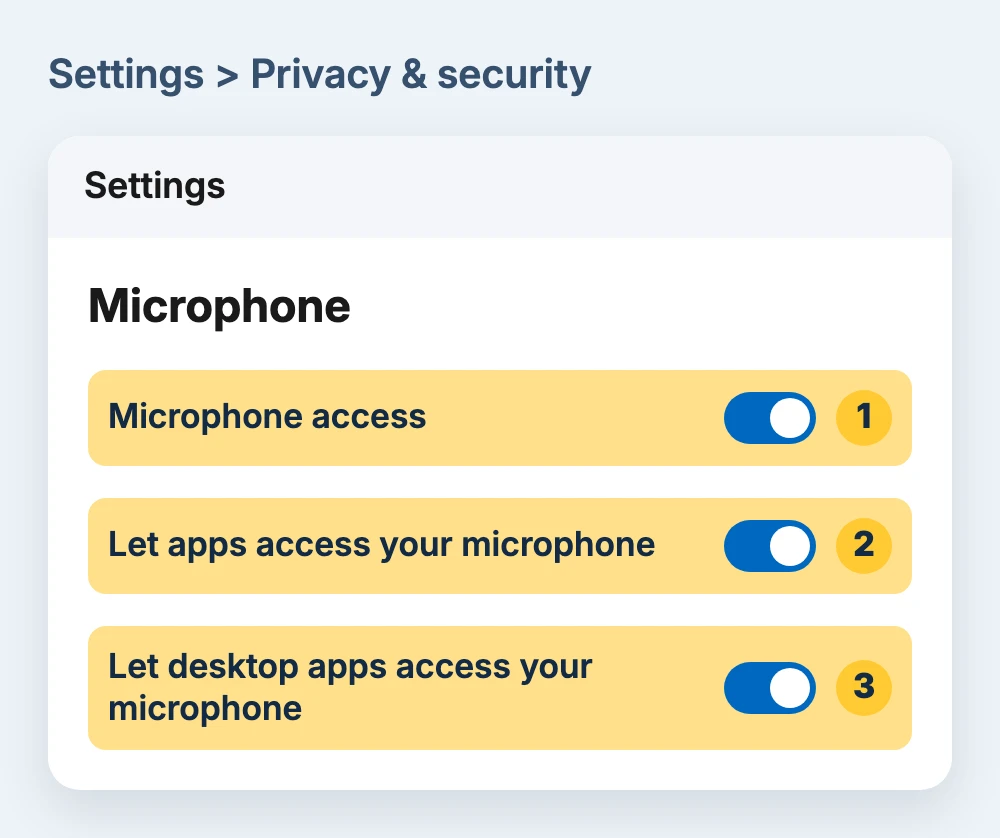
Traditional programs need Let desktop apps access your microphone. The individual app switches don't control those programs. Enable desktop access for your program, then reopen it and retest.
On Windows 10, use Settings > Privacy > Microphone. Review the separate device, app and desktop-program permissions there. The microphone troubleshooting steps explain the separate permission controls.
Permissions help when an app can't receive microphone sound; they don't change what a mute key controls. If all apps record and only the key fails, move to the software and keyboard checks.
5. Restart and update the matching audio software
Save your work and use Start > Power > Restart. Test the dedicated key again before opening every usual game and calling app. If the key works after restarting, watch which app is running if it stops again.
Run Settings > Windows Update > Check for updates on Windows 11. On Windows 10, use Settings > Update & Security > Windows Update. Install offered updates and restart when asked.
Use audio software for your exact X14 model and Windows version. If a software change happened just before the key stopped working, ask Dell support which package your model needs. Leave other Alienware generations' drivers alone.
I'd keep driver removal for a device Windows can't detect or a repair requested by support. If manual mute works and only one key fails, removing every audio device adds work without answering whether Windows detects that key press.
When to ask for keyboard or audio service
Ask Dell to check the dedicated audio key if it remains unresponsive while Windows can mute the same device. Include the model, Windows version, whether volume keys work and the result of the recording comparison.
Ask Dell to check the audio device if neither Windows nor your apps can use it. A USB headset can keep your calls going while that's being checked, though the built-in microphone still needs its own repair.
The Short Version
Compare the appropriate audio key with Windows controls, then check the app's input and permissions. If manual mute works while its key doesn't, request an X14-specific software or keyboard check.
Checked November 27, 2026.
 If you have any business, I can build it online