

An iPhone can say its Apple ID doesn't support two-factor authentication even when that protection is already turned on. For Keychain setup, check restrictions first; a sign-in refresh is a later step, after you've backed up your data.
If two-factor authentication is actually off, enable it before retrying the feature. A missing verification code needs delivery checks; an unsupported-account alert needs a different repair.
In this guide
1. Check whether two-factor authentication is already on
Open Settings, tap your name, then Sign-In & Security. Look for Two-Factor Authentication. On older iOS versions, the security section can be called Password & Security. Apple ID and Apple Account refer to the same account.
Apple's two-factor authentication instructions explain the current setup route. If the setting is off, turn it on and follow the prompts to verify a phone number you can use.
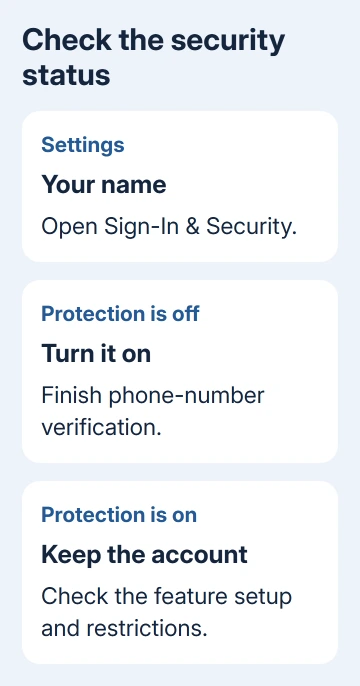
The password and six-digit code are separate parts of sign-in. Enter the code requested during setup, then retry the feature. Completed setup should leave two-factor authentication enabled in the security settings.
If the setting is already on, don't turn it off to make the warning go away. The account already has the protection the feature is requesting. Write down which feature produces the alert and continue with that feature's checks.
In Settings, check the account shown with your name. Use that account's iCloud security settings, rather than those of a different account you use for purchases. Comparing two accounts can make their security settings look contradictory.
2. Retry Keychain setup on the updated iPhone
For a Keychain warning, open Settings > General > Software Update and install any offered update. Then go to Settings > your name > iCloud. Under Saved to iCloud, select Passwords and enable Sync this iPhone.
Some iOS layouts show See All before the password entry. In iOS 17 or earlier, the entry is Passwords and Keychain. Follow the label on the phone rather than looking for a separate Keychain app in Settings.
Finish any request for the iPhone passcode or approval from another device. Keychain setup uses account security and device approval, so turning on the switch may not be the last step.
Open Passwords afterward and check for a familiar saved login. On iOS 17 or earlier, saved passwords are in Settings > Passwords. Seeing your saved logins helps you check whether setup worked or the alert is still blocking it.
If the switch simply flips off without the unsupported-account warning, the Keychain switch guide covers that different symptom. Use the warning you can see to choose between these repair paths.
3. Allow account changes if Screen Time blocks them
An unavailable account page or a grayed-out Sign Out button needs attention before any account refresh. Open Settings > Screen Time > Content & Privacy Restrictions and check the controls for account changes.
In the current layout, look under Privacy Restrictions > Allow Changes to Settings > Accounts and select Allow. Older layouts place Account Changes under Allow Changes To. Enter your Screen Time passcode when asked.
If Sign Out still says restrictions prevent it, open Screen Time > Manage Screen Time > Change Screen Time Passcode > Turn Off Screen Time Passcode. Older versions show Change Screen Time Passcode on Screen Time's main settings page.
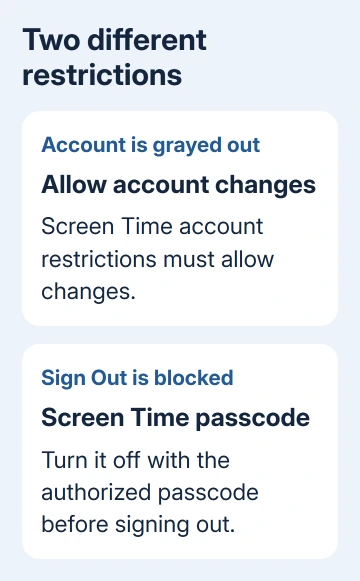
For a child's account, have a parent or the family organizer allow the change with their passcode. Ask the administrator to change these controls on a school or work phone. These steps aren't a way around someone else's restrictions.
Return to account settings after making the change. The account page should be available, or the restriction warning should be gone. If it isn't, give support the exact restriction text rather than repeatedly entering your account password.
4. Refresh the iCloud sign-in only after protecting data
One owner with this exact Keychain error reported that removing the Screen Time passcode let them sign out of iCloud; signing in again restored Keychain setup. Their iPhone 12 was running iOS 17.2.1.
When protection is already on, signing out and then back in can help later in the repair. Screen Time doesn't cause every such alert. I'd check the security status and restrictions before interrupting iCloud.
Before signing out, make sure you know your password, can use your trusted phone number, and have an up-to-date backup. Check that recent iCloud changes have synced to another device, and keep copies of important data that isn't synced.
Open Settings > your name, scroll to Sign Out, and follow the prompts. On versions offering Sign Out But Don't Erase, choose that option for a sign-in refresh. Older versions ask which data to keep on the iPhone.
Read those choices before confirming. Signing out also interrupts other account services, and a paired Apple Watch signs out of iCloud too. You're signing the device out of its account, rather than just changing the Keychain switch.
Sign back into the same account, complete verification, and enable Keychain again through the iCloud password settings. Check for familiar saved passwords after setup. Restore your Screen Time protection when the account change is finished.
5. Get help for a persistent account warning
If another feature shows the warning, write down its name and whether two-factor authentication is on. Don't assume the Keychain fix applies. For an account from work or school, ask its administrator about services and sign-in rules.
If the personal account still fails, open the Apple Support app and select an Apple Account or iCloud issue. Ask support to check why that feature rejects two-factor authentication while Sign-In & Security shows it enabled.
Have the iPhone model, iOS version, exact warning, and results from another trusted device ready. The Apple Account sign-in guide is useful when repeated password prompts accompany the warning.
Don't erase the iPhone or create a replacement account just to try this error. Keep the account and its purchases together while support checks the mismatch. If the feature still rejects your account after setup, support needs to check it.
The Short Version
Check whether two-factor authentication is off or on. Enable it when needed; otherwise finish Keychain setup and check restrictions. A sign-in refresh helped one owner. Protect data first, and take persistent mismatches to support.
Checked November 15, 2026.
 If you have any business, I can build it online






