A stuck Apple Watch button can be trapped by its case or surrounded by dirt. Remove the case first. A sticky Digital Crown needs its moving gap cleaned; a damaged side button needs a repair assessment.
Check whether the button physically won't move or clicks normally without a response. If the screen won't respond, check the software; if the button feels gritty or trapped, check for something blocking it.
In this guide
1. Identify the button and remove anything blocking it
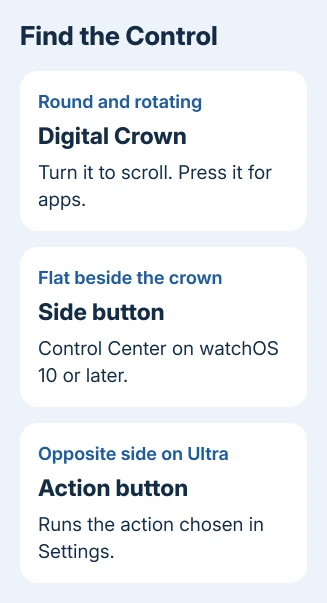
The round, rotating control is the Digital Crown, which also presses inward. The side button is the flatter button next to it. An Apple Watch Ultra also has an Action button on the opposite side, with a job you choose in Settings.
Take the watch off your wrist and remove its protective case or film. Check whether the case's button cover has shifted, whether a corner is caught, or whether the crown rubs against the opening when you turn it.
Try the control gently with the case removed. If it moves and responds normally, leave the case off until you've replaced or adjusted it. Pressing harder through a poorly fitting cover can hide the actual problem.
Apple recommends removing obstructions and checking for dirt in its button troubleshooting. If the button or crown stays stuck with the case off, follow the cleaning steps for that part rather than trying to pry it out.
2. Clean the watch before judging the side button
Turn the watch off and take it off its charger. If the side button still works, hold it until the power controls appear, tap the power button, then drag Power Off. Remove a leather band before using water during cleaning.
Use a non-abrasive, lint-free cloth to clean around the button and watch case. A little fresh water on the cloth can loosen residue. Look for residue around the edge, especially after exercise or a spill.
Don't push a pin, blade or other tool into the gap. A button that is dented, sits unevenly or won't return after a gentle press needs an inspection rather than extra pressure.
Dry the watch with a clean, lint-free cloth and try one normal press. If the button clicks and returns freely, check its onscreen response next. If it still sticks, or only responds when pressed at an angle, arrange a repair.
The crown has a more specific cleaning procedure. Follow those steps if the crown feels rough when you turn it or won't move. The other buttons don't rotate, so they need a different approach.
3. Rinse a sticky Digital Crown the supported way
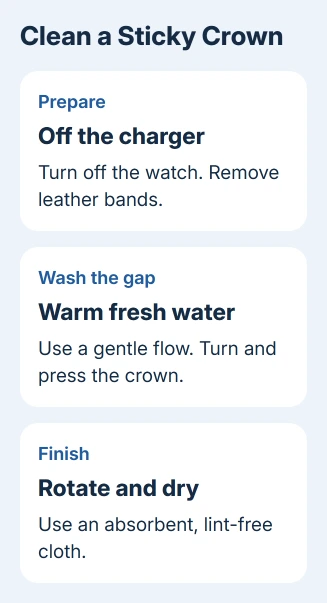
Apple's Digital Crown cleaning steps call for lightly running, warm, fresh water. The watch should be off its charger and switched off, with a leather band removed.
- Hold the Digital Crown under a gentle flow of warm, fresh tap water.
- Turn and press the crown continuously while water runs over the small gap between it and the watch housing.
- Once the residue has washed away, dry the watch with an absorbent, non-abrasive, lint-free cloth.
- Rotate and press the crown as you dry it, including the gap and surrounding surfaces.
Use water without soap or other cleaning products. The water washes residue out of the small gap where the crown moves. Don't add oil or a household cleaner to loosen it.
Once the crown turns freely, try scrolling through a long list in Settings. Try rotation and a normal press separately. The crown can turn normally even when pressing it still doesn't work.
If cleaning removes residue but movement remains rough, don't keep forcing it. A damaged crown, or one that only works sometimes, needs a repair assessment. Repeating a software reset won't release a physical obstruction.
4. Check whether the button is working differently
On watchOS 10 and later, press the side button once for Control Center. On watchOS 9 and earlier, it opens the Dock. Expecting the older screen can make a working button seem broken after an update.
Crown shortcuts have changed too. On current watchOS, a press while viewing the watch face displays apps; a double-click opens the App Switcher. Check the single-press action first, then try the double-click.
For Water Lock, keep the Crown pressed until the screen unlocks on current watchOS. With watchOS 8 or earlier, rotate it instead. Water Lock blocks touch input but doesn't prevent the crown from physically moving.
For a screen showing Sleep mode, use the Apple Watch Sleep mode controls. If that unlock action works, the control isn't physically jammed.
On an Ultra, a delayed flashlight after pressing the Action button is also a separate symptom. The Action button flashlight delay guide covers that behavior when the button itself still moves normally.
5. Restart only when the controls move normally
If the buttons move normally but apps won't respond, try a restart. Keep the side button pressed for the power controls. Tap the power button, drag Power Off, then use another long side-button press to switch the watch on.
Disconnect the charger before restarting. Once startup finishes, unlock the watch and repeat the single button press. If the button works now, the watch had probably stopped responding; the button itself wasn't trapped.
If you can't restart normally, press both controls together: the Crown and side button. Keep them down for 10 seconds or longer and release as the Apple logo appears. Avoid this forced restart during a watchOS update.
This requires both controls to work. If you can't press one of them, skip this combination and arrange a repair. Erasing or unpairing the watch isn't a useful first response to a part that won't move.
6. Arrange repair for a stuck or unreliable control
Ask Apple Support for a Watch repair if cleaning and case removal leave a button stuck, damaged or unreliable. Say which control is affected and whether it rotates, clicks and returns to its normal position.
Explain what happened with the case off and whether the touchscreen still works. That helps support separate a hardware problem from an unresponsive display. Ask about coverage and how to prepare the watch for service.
The Short Version
Remove the case, then clean any residue. Use the specific warm-water procedure for a sticky Crown. If movement feels normal, check watchOS shortcuts and response. A jammed, damaged or unreliable control needs service.
Checked November 13, 2026.
 If you have any business, I can build it online