A white Cellular button on Apple Watch doesn't mean cellular is broken: the plan can be active while the watch uses your nearby iPhone or Wi-Fi. A green button means it's actually connected to the cellular network.
For a watch that won't activate, check the supported plan and setup first. For one that stops working away from the phone, check its connection status, Low Power Mode and the type of call or message that fails.
In this guide
1. Read the Cellular button before changing the plan
On watchOS 10 and later, press the side button for Control Center. On watchOS 9 or earlier, hold a finger against the screen's bottom edge, then swipe upward. Use the side button, not the Digital Crown, on current software.
Find the Cellular button. Green means the watch has a cellular connection, and the green bars indicate signal strength. White means the plan is active while the watch is connected through Bluetooth or Wi-Fi.
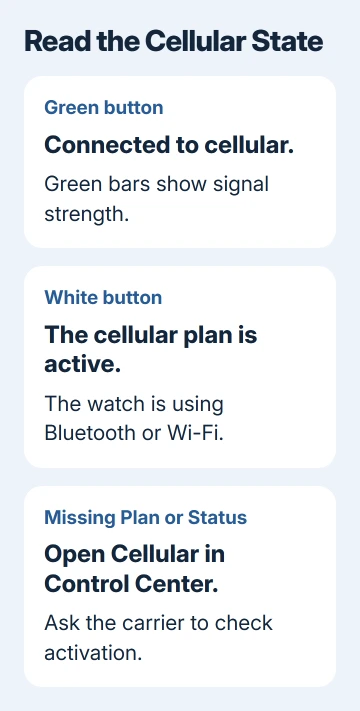
Tap Cellular, then check the connection screen. Make sure cellular is enabled and read Plan and Status. If either field is missing, Apple says to ask the carrier about missing Plan or Status fields.
Move away from your paired iPhone and known Wi-Fi networks, but stay within carrier coverage. Make an ordinary call or open an app that needs the internet. A white button while sitting beside your iPhone isn't a useful failure test.
If the watch only shows a red disconnected-phone symbol, the Watch connection checks explain that separate link. A watch without a cellular plan can't replace its lost phone connection with mobile service.
2. Confirm the watch and account support cellular
The watch must be a cellular-capable model, with an eligible watch service plan. A GPS-only Apple Watch can't gain cellular by changing a setting or adding an iPhone data plan.
On the paired iPhone, open Watch > My Watch > Cellular. If setup hasn't finished, tap Set Up Cellular and follow the carrier's instructions. Regional versions can call this the mobile-data menu.
For a normally paired watch, the iPhone and watch must use the same carrier. Apple Watch For Your Kids, formerly Family Setup, is the exception: an eligible family watch can use a different supported carrier.
Some prepaid and older accounts don't support watch service. A work plan can need approval too. Ask whether your exact plan supports a watch companion line, rather than only asking about phone data.
During setup, remain within the carrier's network. On iPhone, open Settings > Cellular, find the app list and make sure Safari can use cellular data. Current layouts can place the full list behind Show All.
If the carrier page refuses activation, note its wording or error code. That's a setup failure to discuss with the carrier; deleting the watch repeatedly won't make an unsupported account eligible.
3. Reset the connection and update both devices
For activation trouble, enable Airplane Mode separately on the watch and its iPhone. Wait 15 seconds, turn it off on both, then retry cellular setup. This can help you retry a connection that hasn't finished setting up.
Close and reopen the iPhone's Watch app. With Face ID, swipe from the bottom edge, pause in the middle, then swipe the Watch app away. With a Home button, double-click it and swipe the app away.
If setup still fails, restart both devices normally. For the watch, hold the side button, tap the power control on current watchOS, and slide Power Off. To switch it on again, keep that button pressed until the Apple logo appears.
Install available software updates through Settings > General > Software Update on iPhone and Watch > General > Software Update for the watch. Leave the watch charging, with the phone nearby, and follow the displayed update requirements.
Also check Settings > General > About on iPhone and accept any carrier settings update prompt. These settings come from the carrier and are separate from a watchOS update.
Try the same setup step or action that failed before. If activation still returns the same carrier error, take that result to the carrier rather than moving straight to an erase-and-pair cycle.
4. Check Low Power Mode and which messages fail
Open Settings > Battery > Low Power Mode on the watch and turn it off while checking the connection. In that mode, Wi-Fi and cellular data turn off away from your iPhone until you open an app that needs a network.
Incoming calls can go to voicemail while the iPhone isn't nearby, and outgoing calls might take longer. Those power-saving behaviors can resemble a cellular fault even though the watch can connect when an app needs it.
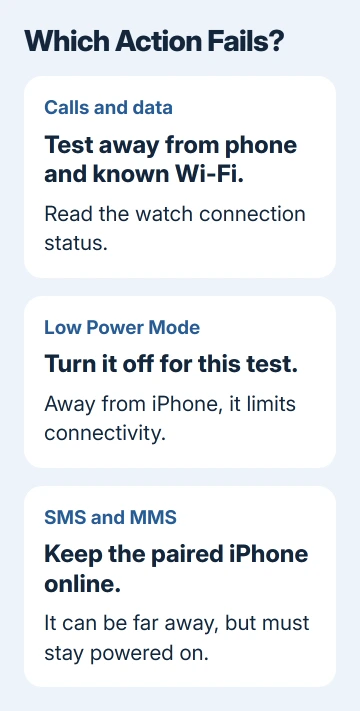
Test calls and internet apps separately from texts. SMS, MMS and third-party push notifications need the paired iPhone powered on with internet access, even when it's elsewhere.
Messages also requires iMessage sign-in on the iPhone. If calls and data work on the watch but ordinary texts don't, check the phone's power and connection before asking the carrier to rebuild the watch plan.
If the watch is running out of power so quickly that Low Power Mode is always needed, the Watch battery drain checks address that problem separately.
5. Match the plan after a carrier change or replacement
A new iPhone carrier or replacement watch can leave old plan details behind. Open Watch > My Watch > Cellular on iPhone and compare the listed carrier with the one serving your phone.
After changing carriers, you need the new carrier's watch plan. Use Add a New Plan when offered and follow its activation steps. If an old plan remains, ask the carrier how to remove it and complete the switch without duplicate billing.
With a replacement watch, some carriers offer a transfer during Set Up Cellular. Otherwise, ask the carrier to move the service. Pairing the replacement doesn't itself transfer the cellular plan.
The carrier subscription can remain active after you remove its plan in the app. Confirm cancellation or transfer with the carrier rather than treating the app's Remove button as a billing cancellation.
6. Ask the carrier to check the watch line
Give the carrier the watch model, phone number, activation message and what Plan and Status show. Ask the carrier to confirm the watch line is active and linked to your current watch, especially after a replacement or carrier switch.
For travel failures, ask whether the plan supports Apple Watch roaming in that country. Watch roaming depends on the model, watchOS version and carrier; roaming working on your iPhone doesn't mean your watch is eligible too.
Once the carrier has confirmed service and coverage, use the Apple Support app to book an assessment if the watch still won't connect. Bring the carrier's case number and the call/data results so support can assess the watch itself.
The Short Version
White can be normal; green shows cellular is connected. Check the plan and activation, retry setup, then test without Low Power Mode. SMS needs the iPhone online. Ask the carrier about persistent service failures.
Checked November 13, 2026.