
For a failed Apple Watch ECG recording, start with dry skin, a snug band and steady contact with the Digital Crown. If the ECG app is missing or won't finish setup, check model and regional support before resetting the watch.
An ECG, or electrocardiogram, records your heart's electrical activity. These steps help with recording problems. For chest pain, pressure or symptoms that could be a heart attack, get emergency help immediately; don't wait for the app.
1. Dry the watch and make steady contact
Sit down and support your arms on a table or in your lap. Wear the watch snugly, with its back touching your wrist. Open ECG, then rest a finger from your other hand on the Digital Crown without pressing it.
Keep contact steady for the 30-second recording. Pressing the Crown can leave the app; lifting your finger breaks contact. If the countdown repeatedly starts again, check contact before changing software settings.
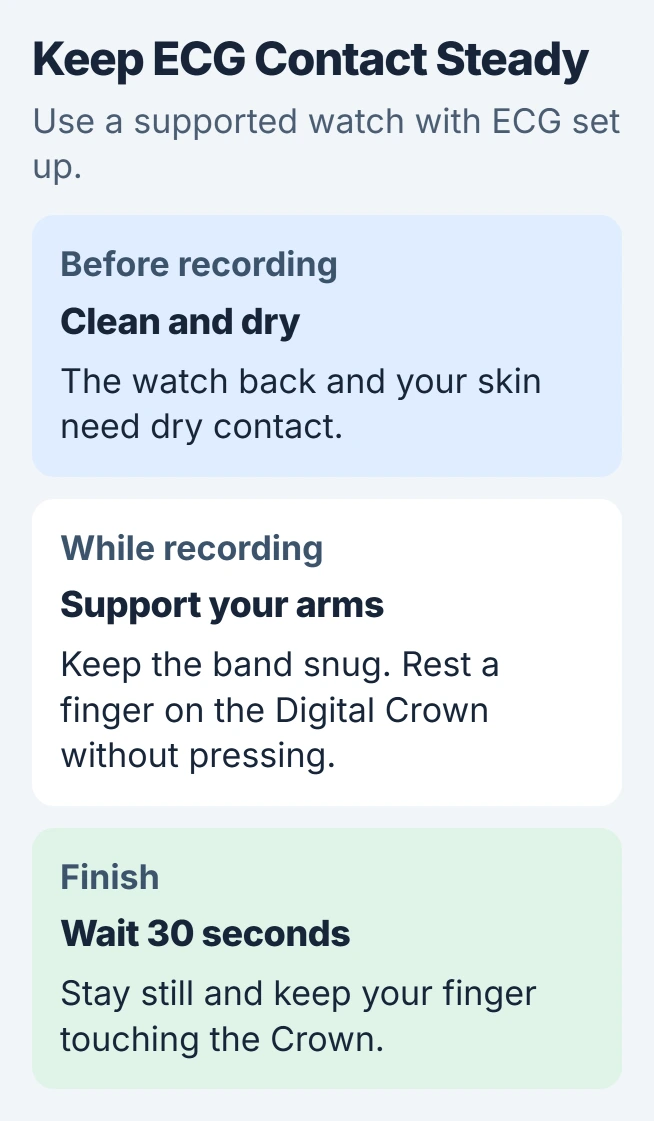
Apple says its ECG recording process needs clean, dry skin and a dry watch. After swimming, showering or heavy sweating, it can take an hour or longer for the watch to dry fully.
For the next pool session, match the watch and band to the activity and follow the post-swim care steps.
For Poor Recording, stay still and move away from electronics plugged into an outlet. Electrical interference can affect the reading, so change those conditions before trying another recording.
2. Clean the contact surfaces and check the chosen wrist
Turn off the watch, take it off its charger and wipe it with a soft, nonabrasive, lint-free cloth. Clean the back crystal and dry it carefully. Lotion and sunscreen buildup can affect the sensors' contact with your skin.
Use the watch cleaning procedure if visible dirt needs more attention. Keep abrasive cleaners, compressed air and external heat away from the watch. Dry the Crown and surrounding surfaces before another reading.
On the paired iPhone, open Watch > My Watch > General > Watch Orientation. Check that the selected wrist matches where you wear the watch. Correct it if you've moved the watch to the other arm.
Try another recording with your arms supported. I'd check contact before unpairing: ECG needs that electrical connection, and this check leaves your watch's setup in place without making you restore it afterward.
3. Check whether this watch can use ECG
ECG works on Series 4 and newer Apple Watches, plus Ultra models, in regions that offer it. Apple Watch SE models don't support the ECG app. Updating an SE doesn't add the electrical sensor it needs.
The feature also isn't supported on a watch set up through Apple Watch For Your Kids, previously called Family Setup. Check how the watch was set up if it belongs to a family member and the app never appeared.
Compare your country or region with the current ECG availability list. ECG isn't available in every region, even on a compatible watch. Follow the availability message you see during setup.
The ECG app isn't intended for people under 22. Use your correct birth date in Health during setup. Changing personal details or region settings to bypass these limits won't fix a recording failure.
Ordinary pulse measurement uses a different process. If your missing reading is in the Heart Rate app, use the Apple Watch heart-rate checks for that symptom.
4. Finish ECG setup on the paired iPhone
Open Health on the iPhone paired with this watch. Follow the ECG setup prompt. If there isn't one, open Heart, then Electrocardiograms (ECG) through Health's category browsing or search, and choose the setup option offered.
Complete the onscreen questions, then return to the watch and open ECG. Use the paired iPhone for this step. Opening Health on another phone won't set up the watch you're wearing.
The watch ECG guide starts setup in Health. Having the ECG icon on your watch doesn't mean you've finished that setup.
If setup stops on an availability message, note its wording and the watch model. If setup finishes but recording never starts, try the software checks. Tell support which stage fails; the two problems need different help.
5. Restart normally and install supported updates
Remove the watch from its charger. Hold its side button until the power controls appear, tap the power button and drag Power Off. Switch it back on by holding its side button, then restart the paired iPhone normally.
The watch can't restart while it's charging, as the restart instructions explain. Its power controls work once you take it off the charger.
Next open the iPhone's Watch app and choose My Watch > General > Software Update. Install the newest version offered for your watch. An older watch can receive a different version from newer hardware.
Before updating, the watch needs 50 percent charge or more. Leave it charging, with the iPhone nearby on Wi-Fi. Keep both devices undisturbed during installation. The update procedure covers those requirements.
If updating is the part that fails, follow the watch update repair guide before returning to ECG. Repeating recordings won't fix an update that never completed.
6. Read the result before treating it as an app failure
Poor Recording means the app couldn't work out a result and only appears in ECG version 2. Inconclusive also means it couldn't work out a result, but can have causes beyond poor contact. Neither message diagnoses a heart condition.
A completed result is saved in Health > Heart > Electrocardiograms (ECG). Open the recording to review it, and use Export a PDF for Your Doctor when you need to share it with your doctor.
If you feel unwell or receive a concerning result, contact a clinician rather than trying to turn it into a different result. The watch can't rule out a heart attack or every heart condition, even when a recording completes.
For repeated failures, contact Apple Support with your watch model, software versions and exact recording message. Say whether setup finishes. A supported watch that still can't record may need servicing.
The Short Version
Try dry contact, a snug band and supported arms. Check that you can use ECG, finish Health setup and update both devices. Keep the result for your clinician, and take persistent recording failures to Apple Support.
Checked November 5, 2026.

Isaac Smith is the founder and editor of PC Glance, a website that covers computers, laptops, and technology. He is a tech enthusiast and a computer geek who loves to share his insights and help his readers make smart choices when buying tech gadgets or laptops. He is always curious and updated about the latest tech trends.