

The AsusSetup WNT_6.2P_64 error can come from using the wrong driver package for the installed hardware. In one owner's TUF GAMING B650-PLUS WIFI case, installing the Realtek driver from the official site restored the missing Wi-Fi.
That doesn't mean every ASUS board needs a Realtek package. Match the motherboard and adapter first, then install the appropriate Windows driver. The error alone doesn't tell you which wireless chip is installed.
In this guide
1. Choose the driver for the exact motherboard
Press Windows + R, enter msinfo32, and press Enter. In System Information, note BaseBoard Manufacturer and BaseBoard Product. For a complete ASUS laptop or desktop, also note System Model.
Check Settings > System > About > System type for the Windows architecture. Use that information and the exact product name when selecting an operating system on the support page. A similar-looking model name isn't enough.
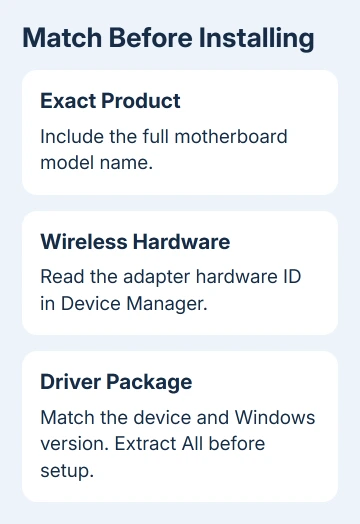
Open the official ASUS support page for your product and its driver downloads. For the reported board, use the TUF GAMING B650-PLUS WIFI page, choose the matching Windows version, then expand the wireless driver category.
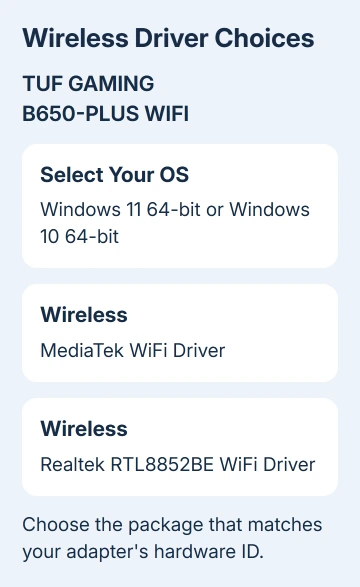
The saved support page lists both MediaTek and Realtek wireless packages. Read the description and match the chip on your board. The Realtek entry is for RTL8852BE; it isn't a universal replacement for MediaTek hardware.
If the affected PC has no network connection, use a working computer to download the package, then carry it over on a USB stick. Keep the downloaded ZIP and its extracted folder so you can retry installation without needing Wi-Fi.
2. Identify the adapter before trying another package
Right-click Start > Device Manager. Look under Network adapters and Other devices for the wireless adapter or a warning-marked Network Controller entry. Open its Properties.
Select Details, choose Hardware Ids from the Property list and copy the first entry. A hardware ID is Windows' identifier for the device. It helps you match the driver more accurately than the generic label Network Controller.
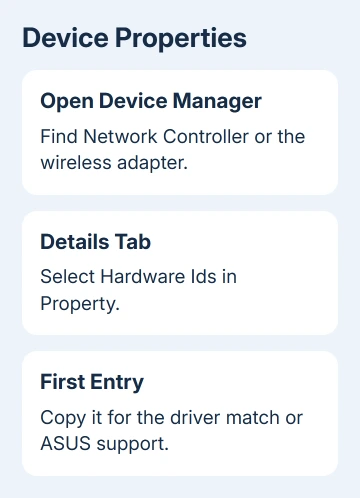
Compare that ID with the hardware listed for the official driver package. If the page's descriptions don't make the match clear, give ASUS support the first hardware ID and your exact product model before installing more packages.
A separate PCIe Wi-Fi card or USB adapter may need its own maker's driver. The motherboard page supplies the board's devices. Check which adapter you're restoring before choosing its download.
For a device that isn't detected at all, the USB detection guide applies to an external adapter. A visible Network Controller with no working driver is a different state from an absent USB device.
I'd match the hardware before trying compatibility settings. Making an installer launch doesn't make its driver suitable for a different adapter. After installation, the wireless device needs to work too.
3. Extract the package and run its installer
Right-click the downloaded ZIP and choose Extract All. Start AsusSetup from the extracted folder. Avoid running its copy inside the ZIP. Keep its supporting files together while the installer runs.
Run the installer supplied with the matching driver package and accept the permission request from Windows. Follow its installation choices, save open work and restart when requested. ASUS packages can use different setup filenames.
If the same error returns, note the exact package filename and version. Compare those details with the hardware ID. Check whether the error affects just that package or every package that matches your hardware.
With a temporary network connection, check Settings > Windows Update > Advanced options > Optional updates. Expand driver updates and select a suitable offered driver. Without internet access, use the transferred ASUS package.
Windows Update hadn't supplied the missing Wi-Fi driver in the original case. Try the matching download for your model if Windows Update hasn't offered the driver.
4. Use Device Manager for a matching extracted driver
When a matching package contains driver INF files, you can let Device Manager search that folder. An INF file describes how Windows should install a device driver; the AsusSetup launcher is a separate program.
Open the affected device's Properties first and read Device status on the General tab. Record any error code, then close Properties and right-click the device to choose Update driver.
Select Browse my computer for drivers, click Browse, and choose the extracted driver folder. Leave Include subfolders selected, then click Next. Windows searches for a driver that matches the device.
ASUS describes this folder-based installation for packages without a setup program. Microsoft's manual driver steps explain the same Device Manager route.
If Windows says it couldn't find a driver, return to the hardware match and package contents. Don't force an unrelated model through Have Disk just to remove the warning icon. A wrong selection can leave the device unusable.
This lets Windows install a matching driver without running AsusSetup. It won't add every companion utility that a full ASUS installer might include. For the immediate Wi-Fi fault, check whether the wireless adapter now works.
5. Confirm Wi-Fi works before changing anything else
Restart after installation, then reopen Device Manager. The wireless device should now show an adapter name without the earlier warning. Read Device status again if the warning remains.
Open Settings > Network & internet > Wi-Fi and look for available networks. Connect to your own network and open a web page. That checks whether Wi-Fi actually works after installation.
When the network connects yet websites still fail to load, use the Wi-Fi and internet checks. A working adapter that joins a network needs different troubleshooting from a missing driver.
In the original thread, deleting an ASUS scheduled task and restarting didn't solve the problem. Skip that failed suggestion for this install-time Wi-Fi fault. For a message that appears only at sign-in, check startup tasks separately.
If installation still fails with the matched package, send ASUS support the hardware ID and request the appropriate driver. Include your model, Windows version from winver, package filename, device status and complete error message.
The Short Version
Choose a driver for your actual wireless chip. Realtek fixed the reported B650-PLUS WIFI case, but your hardware may differ. Extract the matching package and try its installer, then Device Manager's folder search if needed.
Checked November 17, 2026.
 If you have any business, I can build it online






