Blocking a named website on a child's Android phone starts in Family Link > Controls > Google Chrome and Web > Blocked sites. For your own browsing, a supported Firefox extension can block chosen sites without setting up a child's account.
Android 17 also has a built-in filter for explicit sites. Choose between blocking particular addresses, allowing only approved sites, or filtering adult content before changing settings.
In this guide
Pick the kind of block the phone needs
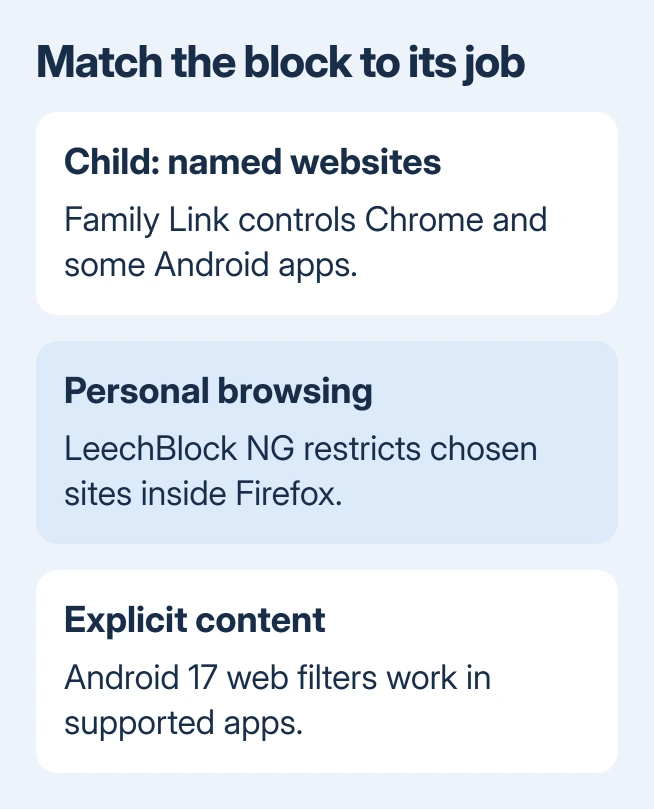
For a supervised child, use Family Link's website controls. They cover Chrome and some Android apps under the child's managed account. For a personal distraction block, the Firefox route later in this guide stays within that browser.
For broad adult-content filtering on supported Android 17 devices, use the phone's parental controls. A content filter checks sites against a category, such as adult content. A blocked-site list lets you choose the addresses yourself.
I'd choose the smallest change that matches your aim. Blocking one distracting site doesn't require rejecting every unfamiliar website, while a young child's approved-only browsing needs more than a single blocked address.
Search filtering is another separate control. SafeSearch changes search results; it doesn't serve as a complete list of websites the phone can visit. Test the destination itself when checking a restriction.
Add a website to a child's blocked list
Start with the child's Google Account supervised through Family Link and signed into Chrome on their Android device. If supervision isn't set up yet, follow the Family Link setup instructions first.
Open the Family Link app on the parent's device and select the child. Tap Controls > Google Chrome and Web. Under Manage sites, open Blocked sites, then tap Add a website and enter the site you want blocked.
Google explains the difference between a website and a domain in its child website controls. For a specific website, include www. when appropriate; don't assume related addresses are included.
A rule for one website can leave other addresses and some subdomains accessible. A domain rule has wider coverage. Choose it to restrict related destinations rather than one exact website.
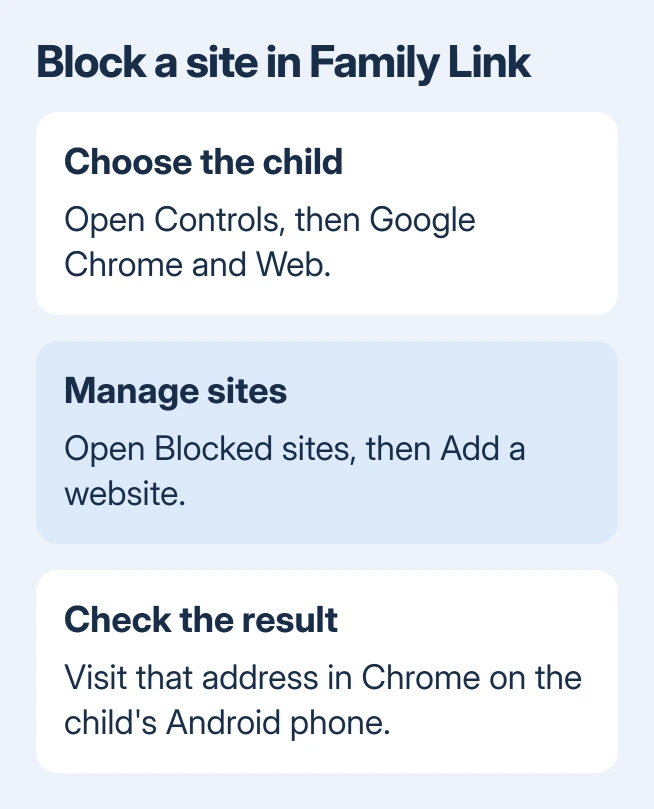
Open the address in Chrome on the child's phone afterward. A block or permission request shows the rule is being applied there. If the site still opens, compare the address with the entry and confirm the correct child is selected.
Decide what happens to sites you haven't listed
Return to Google Chrome and Web in Family Link. Allow all sites permits sites except those you specifically block. That can suit a short list of unwanted destinations without having to list every site you're happy for your child to visit.
Try to block explicit sites adds filtering for sexually explicit websites. The word Try matters: the filter can miss content. Keep your own blocked entries for particular sites you already know need restricting.
Only allow approved sites reverses the approach. The child can visit approved sites, so add the school and other destinations they need under Approved sites before relying on that mode for everyday use.
When a child reaches a blocked site, they can request permission. Ask in person lets you review the request on their Android device using your account password. Ask in a message sends a request to Family Link.
Check which site each request would allow before approving it. If the wrong site was blocked, change its entry in the same managed-sites controls and try the address again.
Block distracting sites in your own Firefox browser
For an adult's personal browsing, LeechBlock NG is a browser extension with custom site lists and schedules. In Firefox for Android, open the three-dot menu and Extensions (or Add-ons on older layouts).
Find LeechBlock NG, select its plus control and review the requested access. Tap Add, then OK to finish. Open the installed extension's Options to configure its site list.
Select Block Set 1. Under What to Block, enter each domain on its own line. Leave out https://; the developer's configuration instructions also say the www. prefix isn't needed.
Under When to Block, use 0000-2400 for an all-day period and select the days you want covered. Leave the time-limit field empty for a simple scheduled block, then scroll to Save Options and select it.
Visit one listed site in Firefox and check that LeechBlock stops it during the selected period. If it opens, check the saved domains, chosen days and time period before changing advanced options.
Under Manage extensions > LeechBlock NG > Permissions, allow access for all sites when needed for its full features. That permission lets the extension work across the pages it manages. Read what access it requests before accepting.
This is a Firefox restriction. Chrome, another browser or a site's separate app can still open the same service. Private Firefox tabs also need the extension's Run in private browsing setting enabled separately.
Use Android 17's explicit-site filter when available
With Android 17 or later updated on your device, open Settings > Parental controls > Set up Parental controls PIN. Create and confirm the PIN. Add and validate a recovery account so a forgotten PIN has a recovery route.
Then open Parental controls > Web content filters. Turn on Block explicit sites to help restrict sexually explicit websites. Filter explicit search results is the separate choice for explicit search content.
The on-device filter requirements include Google app 16.42 or later, Chrome 140.0.7332.0 or later and Android System WebView 139 or later. Apps from other providers need their own support for this feature.
An older Android version won't gain these controls just by updating Chrome. Check the Android system-update screen if a phone update is offered, then use a method your phone supports.
Check the browser where the block failed
For Family Link, check the selected child in your app and their managed account in Chrome. For LeechBlock, check Firefox and the active schedule. For Android's filter, check the supported app versions and the filter switch.
If the aim is removing advertisements while keeping a site accessible, the Brave ad-blocking checks address that task. Hiding ads and stopping access to the entire site are different choices.
If Family Link still lets a blocked site open, use Google For Families Help and report the blocked address, selected mode and affected browser. For LeechBlock, use its developer support with the block-set settings and schedule that failed.
The Short Version
For a child's blocked-site list or approved-site list, choose Family Link. Use LeechBlock for personal browsing restrictions in Firefox. Android 17 filters explicit sites in supported apps. Test each restriction in its intended browser.
Checked November 10, 2026.