

A Brother DCP-L2640DW that won't print may have a stalled queue, lost network connection or printer error. Fix any displayed paper or toner warning first. If its own test page prints, check your computer's queue and connection next.
The DCP-L2640DW has physical menu buttons. Touchscreen instructions for other Brother models in the same manual don't match this printer, even when the surrounding troubleshooting advice looks similar.
The inkjet MFC-J885DW uses a different touchscreen quality check, so match that model before following its cleaning prompts.
In this guide
1. Read the printer's display before changing the PC
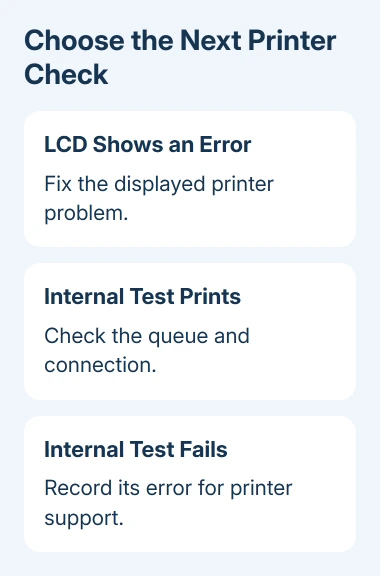
Wake the printer and read its LCD. An error about paper, a cover, toner or a jam needs attention at the machine. Reinstalling a driver won't close a cover or feed paper into an empty tray.
Check that paper lies straight in the tray and that the guides fit its width. If the stack is curled or feeding poorly, remove it, fan it and reload a smaller straight stack. Push the tray fully into place.
If the computer's print settings specify Manual as the paper source, the printer can wait for paper in its manual feed slot. Select the tray you loaded for an ordinary document rather than repeatedly sending more copies.
For a display that asks for toner, follow the Brother toner replacement steps. Toner and drum are different consumables; match the message before buying or resetting either one.
When the screen returns to its normal ready state, send one short document. If nothing comes out, use the printer's buttons to print a test page. That checks whether it can print without a job from your computer.
2. Run the internal test using the physical buttons
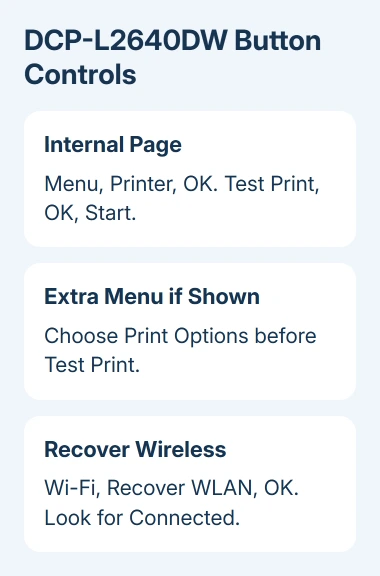
Press Menu on the printer. Use the up or down button to find Printer, then press OK. Find Test Print and press OK, then press Start to print the page. Press Stop/Exit when finished.
Brother says the model's test-print instructions include a Print Options level for models supporting printer emulation. Use it if that extra level appears before Test Print.
A complete test page shows that the machine can feed paper and print a job started from its own controls. It doesn't check whether your computer sent a job to the right printer or whether the wireless connection is working.
If the internal page fails, return to the LCD message and paper path. Record any new error. If it produces a blank, damaged or incomplete page, describe the page when you ask for help. Calling it offline misses the print-quality problem.
If the internal page looks normal, leave the toner and drum alone for now. Send one test document from your computer next. This checks the queue and connection that the internal test didn't use.
3. Clear a stalled job and select the correct printer
Open your document's Print window and read the selected printer. Choose Brother DCP-L2640DW, not a PDF destination, an old printer or an offline duplicate. Send a single-page document after checking the selection.
In Windows 11, open Settings > Bluetooth & devices > Printers & scanners. Select the Brother entry and choose Open print queue. Cancel the failed document before resending it.
In Windows 10, start at Settings > Devices > Printers & scanners, select the Brother printer and open its queue. If a classic queue is available, check its Printer menu for Use Printer Offline and clear that selection.
On a Mac, open System Settings > Printers & Scanners, select the printer and open its queue. Older Mac releases put these controls in System Preferences. Resume a paused queue and remove the failed document before sending a fresh job.
If the job leaves the queue and paper prints, that path works. If it stays with an error, note whether the printer is marked offline, paused or unreachable. That wording helps decide what to check next.
Mac users whose trouble began after a system update can also use the Mac printing checks. Keep the printer's successful internal page result available while working through the Mac connection.
4. Recover a wireless connection or check the USB cable
For Wi-Fi, press the printer's Wi-Fi button. Select Recover WLAN using the up or down button and press OK. A successful reconnection displays Connected on the printer.
Connect the PC and printer to one local network. A guest network can keep devices apart despite a working internet connection on each. Reconnecting a laptop to the usual home network can change which printer it can reach.
Try printing the same single-page document after Connected appears. If another computer can print while yours cannot, focus on your computer's printer entry and software instead of repeating wireless setup on a working printer.
For USB, reseat the cable at each end, then try a port directly on the PC. Remove a hub from the connection for that comparison. If another suitable USB cable works, replace the failing cable rather than altering network settings.
Don't apply wireless repair tools to a USB-only connection. For a USB connection, focus on the cable and port. Changing the printer's Wi-Fi address won't fix a USB connection.
5. Repair the Windows network entry and escalate precisely
For a network printer on Windows, open Brother Utilities and select DCP-L2640DW in its model list. Choose Tools > Network Connection Repair Tool and follow the prompts with both devices connected to one network.
The utility corrects the printer connection's IP address and subnet mask, the address information used to reach it. If an administrator assigned a static address, ask them before allowing automatic address changes.
Retry printing after the repair. If the address settings are still wrong, have your network administrator review them. For continued failure, reinstall the current model-specific driver and software from Brother support.
On a Mac whose printer stays offline, remove and add that printer again through Printers & Scanners. This creates a fresh printer entry; it doesn't require resetting every printer on the Mac.
Give Brother support the LCD error, internal test result, connection type, operating system and queue message. Request hardware help for a failed internal test, or help with the connection or driver when only jobs from your computer fail.
The Short Version
Fix the LCD warning, run Test Print from the buttons, and clear the computer queue. Recover WLAN repairs a lost Wi-Fi connection; the Windows tool handles network addressing. Include the internal test result in a support request.
Checked November 15, 2026.
 If you have any business, I can build it online






