

The Brother printer default password is usually the value marked Pwd on the printer, or initpass on models without that label. Check the label first: this administrator login is different from your home Wi-Fi password.
If someone changed the password during setup, their replacement takes over from the factory password. That can explain why the printer refuses the value on its label, especially if you bought it used or it's managed by an office.
In this guide
Match the password to the prompt
A login box in the printer's browser settings, firmware updater, BRAdmin, or Remote Setup asks for the password that protects its settings. Start with your model's default, unless someone has changed it.
When the wireless setup wizard lists your router's network name, it needs the router's Wi-Fi password. The printer's administrator password won't connect it to that network.
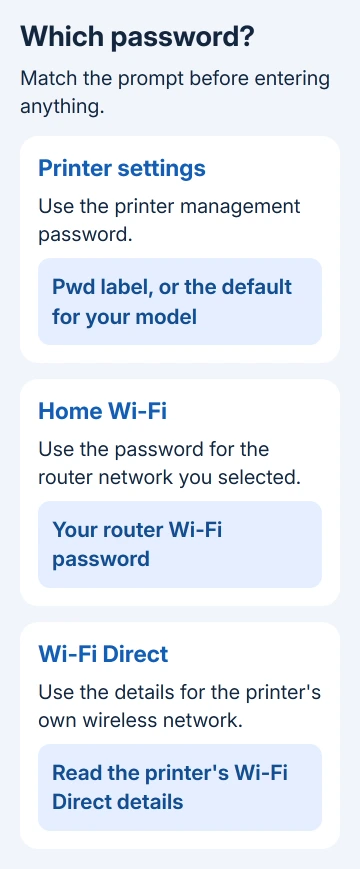
Wi-Fi Direct is another separate connection. A computer or phone joining the printer's own wireless network needs the Wi-Fi Direct network details shown by that printer, rather than its administrator login.
I'd identify the prompt before resetting anything. A reset can't recover your router password, and it can leave a previously connected printer waiting for network setup again.
If you're still installing the printer, follow the Brother connection procedure for its USB or network connection. A Windows administrator prompt during installation belongs to the computer, not the printer.
Read the Pwd label carefully
Read the full model number from the printer's label, then check the back or bottom for Pwd. Enter the characters after Pwd, not the word Pwd itself.
Use the exact capitalization and punctuation printed there. Compare similar-looking characters closely, particularly a capital letter O and the number 0. Include punctuation that is part of the value rather than treating it as decoration.
On some products, a Pwd label can be present without a password printed beside it. Look for another label on the back that includes both the marker and its value. Don't use the serial number as a replacement.
Brother says supported models can also show their default password on a printed Network Configuration Report.
Choose the report named in your model's manual, since the menu steps vary between Brother printers. If the report includes the default password, you can read it there without reaching behind the printer.
Keep that report private. It can contain network information as well as the password, so it shouldn't be attached unedited to a public support post.
Use initpass only when the model calls for it
Use initpass, all lowercase, if your model's instructions call for it. The earlier FAQ gives that password for machines without a Pwd password label. It won't override a password printed on the label.
On Brother Support, select the exact model, then open FAQs & Troubleshooting or Manuals. Look for default password or Web Based Management. Match the model and region before relying on a default from another printer family.
Some older or specialist products use different credentials. That is why cycling through admin, access, the serial number, and other guesses is less useful than reading the machine's own instructions.
The correct password should let you sign in and open the protected settings. If the page keeps asking for a password, you haven't signed in yet, even if the printer still prints normally.
Open the printer's own management page
Keep the computer and printer on one shared network. Find the printer's current IP address, its local network address.
Use the Brother IP address report steps if you don't know that address. Guest Wi-Fi can block local communication between devices that can still browse the internet.
Type that address into the browser's address field, without submitting it as a search. Use the address and connection method in your model's manual. The page should identify your Brother model before you type its management password.
A saved bookmark can point to an old address after a router change. If the page names another device or doesn't load, recheck the current report. A page that won't open is a connection problem, not a rejected password.
Enter the label's password, or the model's specified default, in Login, then submit it. Don't enter your Samsung, Google, Microsoft, or email password into the printer's settings page.
This page belongs to the printer on your local network. Its address depends on that network, so a universal login link can't open each person's machine.
Change the default after the first successful login
For models covered by the login-password procedure, open Administrator > Login Password in the left menu. Expand the menu first if it's collapsed.
Enter the old password if requested, then the new password and its confirmation. Choose Submit. Follow the password requirements displayed for your model.
Save the new password under the printer's model in your password manager. You'll have it ready when a firmware update next asks you to sign in.
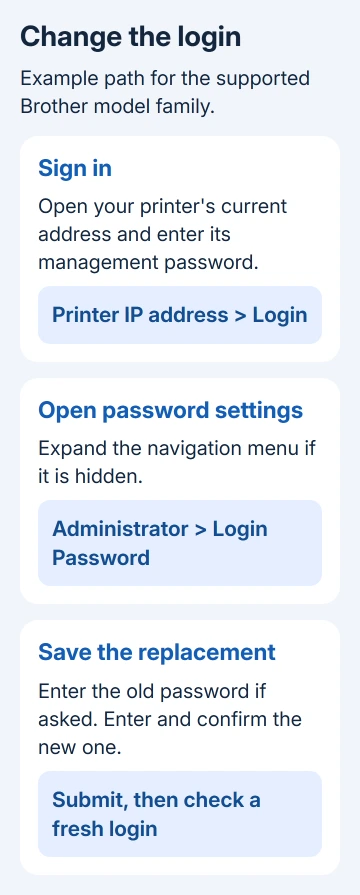
Sign out, then check that the new password lets you sign in again. The printed label will still show the factory password; changing the login doesn't physically update that label.
When the default password is still refused
Ask whoever configured the printer whether they changed its management password. In an office, ask the administrator before changing or resetting it. Permission to print doesn't necessarily include permission to manage the device.
The reset you need depends on your model. The earlier FAQ calls for Network Reset; the newer one calls for a factory reset, such as All Settings Reset. Follow your exact model's current password-recovery instructions.
Before a reset, print the settings lists and keep your router's network credentials handy. A factory reset removes settings. Depending on the reset, a manually assigned IP address or address book may need restoring too.
If the label value still fails after the model's reset, contact Brother Support through its model page. Give the model, prompt wording, and whether its Pwd label is readable. Ask for the management-password recovery procedure.
The Short Version
Use the value after Pwd first. Use initpass only where the model's instructions specify it. Keep the management login separate from Wi-Fi passwords, and follow the exact model's recovery instructions when a changed password is lost.
Checked November 10, 2026.
 If you have any business, I can build it online






