
Call forwarding on Android follows the carrier's setup route. Supported Samsung phones use Phone > Settings > Supplementary services > Call forwarding. Google Fi requires its own app or website.
Choose whether every incoming call should be redirected or only calls that go unanswered, arrive while busy, or cannot reach the phone. Then enter the destination number and test the result from another line.
Select the forwarding condition in Samsung Phone
Open Phone, tap its three-dot More options menu, then choose Settings > Supplementary services > Call forwarding. This path is documented by Samsung for supported Galaxy phones.
Select the intended SIM and Voice calls when those choices appear. Menu availability depends on the phone model and carrier, so a missing option needs the carrier's instructions.
Status: Samsung Phone and Google Fi forwarding procedures checked November 2, 2026. Carrier availability and menus vary. No telephone number or forwarding setting was changed.
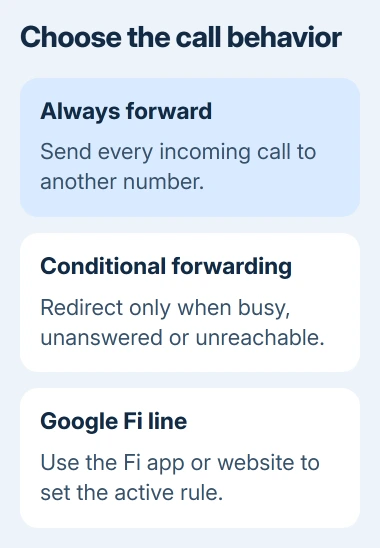
Select the condition that matches the intended behavior:
- Always forward: redirect every incoming call to the chosen number.
- Forward when busy: redirect calls when the line is busy.
- Forward when unanswered: redirect when an incoming call is not answered.
- Forward when unreachable: redirect when the network cannot reach the phone.
Enter the complete destination number and tap Enable. Some regional Samsung instructions label the save control Update. Check the displayed number carefully before leaving the screen.
Samsung says the forwarding controls vary by device and software. Do not assume a Pixel or another Android dialer has Samsung's Supplementary services menu.
Use Google Fi's account controls when Fi is the carrier
Google says forwarding setup must use the Google Fi app or fi.google.com. Its forwarding instructions exclude the Android device settings as the setup route.
Open Home > Phone settings > Call forwarding in Fi. Choose Always forward to redirect calls without ringing the primary number, or Ring all numbers to ring the primary and selected forwarding numbers together.
Select Add a number, enter the destination and complete its verification. Google offers verification by call when the SMS code cannot be received. Choose Save to apply the selection.
Check which destination is selected. Fi permits several numbers for Ring all numbers, but only one for Always forward. A verified number and the active forwarding choice are separate parts of setup.
Make a test call that matches the selected condition
From another phone, call the original mobile number and check where it rings. Test the actual condition chosen: an unanswered-call rule cannot be checked by answering immediately on the original phone.
If calls reach voicemail instead, inspect the Android carrier-mailbox setup. Before replacing an existing conditional destination, record it and ask the carrier whether it belongs to voicemail.
When only one caller fails to reach the line, review Android's blocked-number list. A caller filter and a forwarding rule are separate controls.
Confirm any forwarding charges, eligible destinations and number format with the carrier. Those conditions belong to the plan; Android does not establish one worldwide price or dialing code.
Turn forwarding off in the same service
On Samsung, return to the forwarding option that was enabled and choose Disable. Samsung documents this reversal in its forward-calling instructions. Repeat the test call afterward.
For Google Fi, choose Don't forward in its Call forwarding settings and save. Only the primary number should ring. Removing a saved forwarding number is a separate account action.
If the setting will not save or deactivate, contact the carrier with the selected line, destination, forwarding condition and exact message. Ask it to check the network's active rule before resetting the phone.
The Short Version
Use Samsung Phone's forwarding menu when supported, or Google Fi's own account controls for a Fi line. Choose the intended condition, verify the destination and test an incoming call. Return to that same service to switch forwarding off.

Isaac Smith is the founder and editor of PC Glance, a website that covers computers, laptops, and technology. He is a tech enthusiast and a computer geek who loves to share his insights and help his readers make smart choices when buying tech gadgets or laptops. He is always curious and updated about the latest tech trends.