Cancel a Microsoft 365 subscription through Services & subscriptions in the Microsoft account you used to buy it. Turning off recurring billing stops the next renewal and keeps access until the displayed expiration date.
For payments through Apple, Google Play or a retailer, cancel through that seller.
In this guide
Find the account and company that bill you
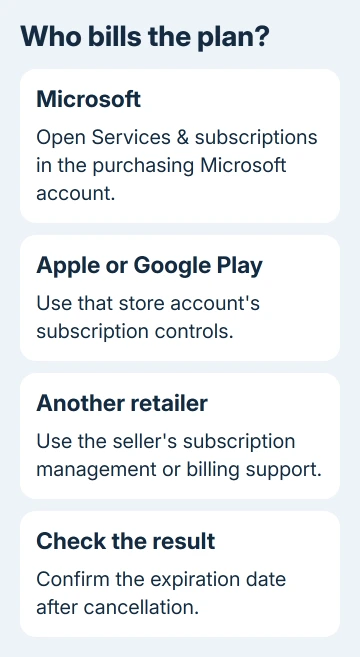
Open Microsoft's subscription management page and use the personal Microsoft account that made the purchase. The account signed into Windows or Word isn't necessarily the account paying for the plan.
Look for the Microsoft 365 subscription, its plan name, and its billing details. Match those with the receipt or renewal email. That way, you won't cancel one plan while another account keeps paying for a second one.
Microsoft says its cancellation instructions apply to personal plans purchased directly. For a work or school license managed by your organization, the administrator handles cancellation separately.
If someone shares a Family plan with you, the subscription owner controls billing. Leaving their sharing group doesn't cancel the owner's plan. Ask the person paying for it to make the change from their account.
For an unfamiliar charge, start with the receipt and account details rather than deleting an app. Uninstalling Word, removing your payment card, or signing out doesn't complete a subscription cancellation.
Turn off renewal for a Microsoft-billed plan
Select the Microsoft 365 plan. Depending on the account page, open Manage, then choose Cancel subscription or Upgrade or Cancel. Read the options shown for your subscription before confirming anything.
If your aim is to keep the time you've paid for and prevent the next payment, choose Turn off recurring billing where offered. Continue through the confirmation screens until the account page shows the change and an expiration date.
Don't stop at an offer page or a screen asking whether you're sure. Return to the subscription details afterward. Check that the plan is set to expire and that the next billing date no longer shows a scheduled renewal.
Save the confirmation email or a copy of the confirmation details. You'll have the account, plan and date the change takes effect if you need to query a later payment. Keep the date handy if you need to move files before access changes.
I'd check the final subscription page before closing the tab. A button click is easy to remember; the expiration date is what tells you whether the billing change actually finished.
Understand the buttons and dates on the page
If the page offers Turn on recurring billing, recurring billing is already off. You don't need to turn it on to cancel. The subscription should expire on the date shown, and you can use the remaining paid time until then.
A Renew option can indicate a prepaid subscription that expires without automatically charging again. Check the displayed expiration details. Product keys and prepaid time don't always have the same controls as monthly card payments.
The recurring billing guidance explains these account states. If the page still says that it will renew or charge you, continue through the cancellation controls or get billing support.
A refund and a stopped renewal are different outcomes. Not every cancellation qualifies for money back. Read the offer and effective date shown for your purchase; don't assume that stopping future payments refunds the current month or year.
If you need an immediate cancellation and refund, follow the cancellation options first, then use the refund route for that purchase. Whether you qualify depends on your purchase and its rules. Check the result shown for your account.
Cancel an Apple, Google Play or retailer purchase
For an Apple-billed plan, open Settings > your name > Subscriptions on iPhone or iPad. Select Microsoft 365 and follow the screens to confirm cancellation. The iPhone subscription guide explains the expiration message after cancellation.
For a Google Play purchase, open the Play Store with the Google account that bought it. Tap the profile picture, choose Payments & subscriptions > Subscriptions, select Microsoft 365, and follow Cancel subscription to completion.
If the plan is missing, compare the receipt's account with the selected store account. Switch to the purchasing account rather than buying a second subscription. Keep the original receipt while sorting this out.
For Amazon or another retailer, use the seller's subscription management or billing support. The Microsoft account page may show who sold you the plan without giving you a cancel button.
Check storage and shared access before the plan ends
When the subscription expires, your storage allowance returns to the free level: 5 GB of Microsoft cloud storage and 15 GB of Outlook.com mailbox storage. People sharing a Family or Premium plan also lose its extra storage allowance.
Check OneDrive and Outlook.com usage before the end date. If you're over the free allowance, download the files you need and reduce usage, or arrange another storage plan. Check that downloaded copies open before deleting the cloud copies.
Exceeding the allowance can stop OneDrive uploads, edits and syncing, and Outlook.com mail delivery. OneDrive files may be deleted after six months if the account remains over quota.
Paid desktop app benefits also end with the subscription. If you're deciding how to keep editing afterward, the Microsoft 365 plan comparison separates the free browser apps from desktop licenses and storage plans.
For a shared plan, tell the other members the expiration date. Each person needs to check their own storage and editing needs. Canceling the owner's payment doesn't move the members' documents to a different service automatically.
When the subscription or cancellation control is missing
Compare your personal account addresses with the receipt. Work accounts, family members' accounts and other personal addresses can show different subscriptions. Confirm the plan owner before changing another account.
For a Microsoft-billed plan that won't cancel, open Contact Microsoft Support. Describe the billing problem and select Get Help, then Contact Support if needed. Provide the receipt, purchasing account and subscription status.
For a business plan, ask the Microsoft 365 billing administrator to use the admin center cancellation process. For a store purchase, use its billing team. That puts you in touch with the company that can stop the payment.
The Short Version
Find the purchasing account and billing company. Complete the cancellation or turn off recurring billing, then verify the expiration date. Check storage and shared-plan members before the paid benefits end.
Checked November 10, 2026.