

Outlook needs a drawing canvas in the message body before you can select a pen and write. In classic Outlook for Windows, open the message for editing, click inside its body and insert the canvas before checking a Wacom pen or touchscreen.
If the Draw tab itself is missing, enable it through the ribbon settings first. A missing tab and a visible tab with unavailable pen tools need different checks; replacing the pen won't fix either ribbon setting.
In this guide
1. Open the email for editing and enable Draw
In classic Outlook, start with New Email. For a reply shown inside the main Outlook window, choose Pop Out so the message has its own editing window. Click in the area where the message text belongs.
Don't use a received message's reading pane for this check. Start a message you're composing, with a body you can edit. Type a few words to confirm the insertion point is in that body, rather than the subject or address field.
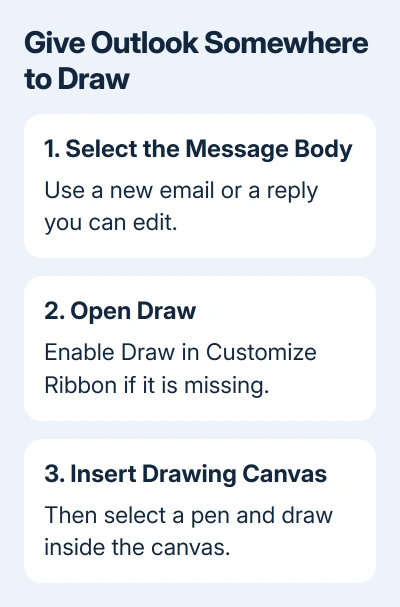
Look for Draw on the ribbon. On a touch-enabled device, that tab is normally enabled automatically. On a PC without touch, use File > Options > Customize Ribbon and select Draw in the main-tab list, then choose OK.
Return to the message window and check the ribbon again. If the tab is present, continue to the canvas step. If Draw isn't offered in the customization list, record the Outlook edition and build before changing input-device settings.
This procedure uses the classic Windows Outlook app. The newer app and browser edition have different controls. Open the installed classic app to follow this procedure; its File menu contains Options.
For a stuck application that won't accept clicks at all, restart Outlook completely before checking the ribbon. A frozen window won't respond to either a mouse or a pen reliably.
2. Insert the canvas before choosing a pen
Click inside the message body again, open Draw and choose Drawing Canvas. The canvas supplies the area for your ink. Select a pen only after that area has been inserted.
Microsoft's Office inking instructions call out this extra Outlook step. Word's page-layout advice on the same help page isn't an Outlook fix; the email needs its own canvas.
Make a short mark inside the canvas. If it appears, the drawing tool is working. Use the pen's menu to change color or thickness, then continue the sketch within the inserted area.
If clicking a pen does nothing, return to the body and check that you actually inserted a canvas. Selecting the subject line or clicking the message's outer window doesn't give the drawing tools the same editing area.
If the message is plain text, use Format Text > HTML in its editing window. Plain text cannot carry an inline drawing. Recheck the canvas after switching formats.
Keep the comparison simple: one new message, one canvas and one pen. Once those work, return to your original reply. This checks whether the original reply was ready for drawing without changing every ribbon and pen setting at once.
Press Esc when you want to leave inking and select content again. A pen left in drawing mode can keep adding marks when you expected to select or move an object.
3. Check whether the pen is drawing or selecting
Try the pen inside the inserted canvas, then compare it in another drawing app you already use. A pen that works elsewhere but not in this Outlook canvas calls for an Outlook check before a tablet-driver reinstall.
Some Office controls switch between selecting content and making ink. Choose an actual pen from Draw when you want strokes. A selection tool moves the insertion point or selects an object instead of writing.
On a touchscreen, use the available touch-drawing control when you want finger input to draw. Turning on the ribbon tab won't let you draw with a finger on a screen that doesn't support touch. The screen itself needs to support touch.
For a Wacom tablet, confirm that the pen still moves the pointer and works in its usual drawing program. If it fails in every app, use Wacom's support instructions for your exact tablet model and current Windows driver.
The source report involved a Wacom pen on an HP laptop without a touchscreen. The missing Outlook tab didn't mean the laptop needed a touchscreen or that its display had developed a fault.
For the opposite Office problem, where a pen draws when you want to select cells, the Office pen selection settings explain that distinction. Keep Excel's settings separate from the Outlook canvas requirement.
4. Update the installed Office build if Draw disappeared
In classic Outlook, open File > Office Account. Under Product Information, choose Update Options > Update Now. If Enable Updates appears first, enable updates before running the update check.
Save open work when the updater asks to close Office apps. Once it finishes, reopen Outlook and make a fresh test message. Check for Draw and insert a canvas again before trying the pen.
Drawing returned later for one owner in the Microsoft forum discussion. They wondered whether automatic updates had restored it, but didn't confirm which change was responsible. They didn't identify a particular update to change.
The historical build in that discussion was version 1703, build 7967.2139. Don't try to get that old build as a repair today. Use the supported version supplied through your current subscription or workplace installation.
If Update Options is missing and only About Outlook appears, your installation may use a volume license or managed updates. Give your help desk the Office build and ask about its drawing tools instead of downloading another installer.
I'd check the canvas and ribbon before updating drivers. Those steps directly address a missing or unavailable drawing tool, while changing a working tablet driver can add another problem to solve.
Give support a repeatable message-window example
If drawing still fails, record the product name, version and build from File > Office Account > About Outlook. Ask Microsoft Support or workplace IT to check Draw in a new message with an inserted canvas.
Include the pen model, its behavior in another app and whether Draw is absent or its pens are unavailable. With those results, support can check Office's drawing tools and whether Windows receives input from the pen.
The Short Version
Enable Draw in classic Outlook's ribbon if needed. Click the editable message body, insert Drawing Canvas, then select a pen. Check Office updates for a missing feature, and compare the pen in another app before changing tablet drivers.
Checked November 17, 2026.
 If you have any business, I can build it online






