The protected-content warning can block a Chromebook recording even when you're trying to capture an ordinary page. Close any protected video or app first.
If a plain page still triggers it, a browser settings reset fixed that exact problem for an owner on Google's Chromebook forum.
That's different from a movie or app that intentionally blocks recording. A reset is for a false warning on ordinary content. It won't make every protected video recordable, so check which case you have before changing settings.
In this guide
1. Try your own document without protected video
Save your work, close video players and other windows, and leave one ordinary page visible. Try a short recording of content you created, such as a simple document. Keep streaming video out of view during this comparison.
If recording works, try the original content again. A block that appears only with one video or app needs that service's help. A warning on your own document points toward a broader recording or browser problem.
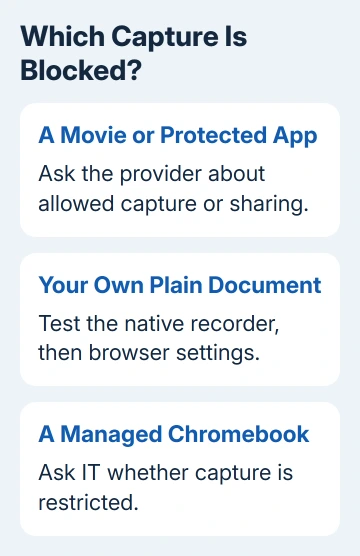
Watch for the actual outcome too. A warning before recording begins, a recording that saves with a black area, and a recording with no sound aren't the same failure. Note which one happens before changing the recorder's options.
For an intentionally protected video, use the service's supported viewing, sharing, or download option if one is available. If the material is needed for a class or presentation, ask the provider for an approved copy or link you can use.
For a school Chromebook that won't capture any ordinary content, ask whether recording is restricted by policy.
If the school manages that setting, you'll need its administrator's help. Changing browser preferences won't remove the school's control of the device.
2. Start a native recording with the right area
Press Shift+Ctrl+Show windows to open the Chromebook capture toolbar. On an external keyboard without Show windows, use Ctrl+Shift+F5. Choose Screen record, rather than the screenshot option.
Select the area that matches the job: full screen, partial screen, or window. For a document in one window, the window option keeps the recording focused on that app. It also avoids capturing unrelated windows around it.
Start a brief recording, then use Stop recording at the lower right. The keyboard alternative is Search+Shift+X. Play the saved clip to confirm it shows the document you intended to capture before recording the full presentation.
Recordings normally save to Downloads, unless the save location was changed in the capture settings. A file that saves but looks wrong needs a playback check, while a warning that prevents the recording needs the next troubleshooting step.
The original forum question also described different results between capture areas. Try another area to see whether the result changes. Don't expect window recording to remove content protection.
The browser reset was the change the owner later confirmed worked.
If an extension is the only recorder that fails, compare the native toolbar before resetting anything. A Chrome recording extension has its own capture permissions and save controls, separate from the built-in ChromeOS tool.
3. Reset browser settings for the false warning
In the confirmed case, the warning appeared even on an ordinary Google page. One owner reported that a browser settings reset restored recording.
They reported success after following the reset advice, without changing protected-media permissions.
Save unsaved work in your tabs before proceeding. A settings reset changes browser preferences, extensions, themes, cookies, and site permissions, so expect to review those settings afterward.
The browser reset keeps saved passwords and bookmarks.
Follow the browser reset procedure:
- Open Chrome and select More (…) > Settings.
- Select Reset settings.
- Choose Restore settings to their original defaults.
- Select Reset settings to confirm.
- Retry the same short recording of an ordinary page before changing other settings.
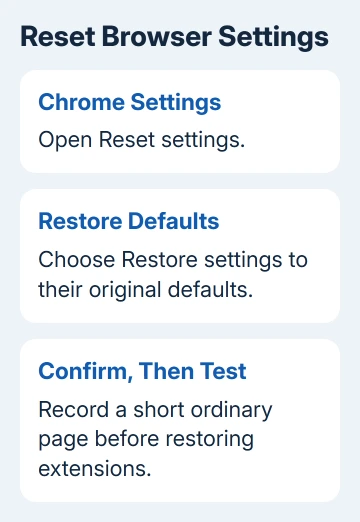
This is a browser settings reset, not Powerwash, the Chromebook factory reset. Don't choose an erase option because it also contains the word reset.
The confirmed fix didn't require removing all local files or setting up ChromeOS from scratch.
For a managed Chromebook, ask IT before performing the reset if the control is restricted or you aren't sure what's allowed. In the original discussion, the owner checked with the adviser about management before reporting success.
If the controls on your current build differ from those names, use the linked help instructions for that build or ask your administrator. Don't choose a full system reset just because an older browser menu isn't there.
4. Restore extensions gradually after recording works
If the ordinary-page recording now works, leave the browser in that state long enough to save and play a useful test. Enable the extensions you need individually, testing capture after each one.
That order matters because the reset changes several preferences together. A successful reset doesn't tell you which setting or extension caused the warning.
The first extension whose return brings back the problem is the one to disable and report.
Keep that report specific: name the extension, its version, the ChromeOS version, the recording area, and the exact warning.
Tell the developer that recording worked after reset and failed again after enabling their extension, if that is what happened.
Don't change Protected content IDs as a recording fix. That permission controls protected-media playback and whether a site can identify your device. It isn't a general switch that authorizes screen recording of protected material.
After capture works, review the Chromebook recorder's sound options before a narrated presentation. The protection warning and a silent recording need different fixes.
5. Report the capture failure with its exact symptoms
If the native recorder still rejects your own document after the reset, open Settings > About ChromeOS and note the installed version. Send the Chromebook Help Community or your administrator the warning and the steps that reproduce it.
Include whether full-screen, partial-screen, and window recording behave differently. State whether it happens on an ordinary page with other windows closed.
Those details help show whether recording is failing everywhere or just with one service.
If only a particular app or streaming service fails, ask the provider whether it supports capturing that material. Another recording extension isn't a dependable answer to a restriction the app intentionally applies.
The Short Version
Compare an ordinary page first, then test ChromeOS's native recorder. For a false protected-content warning, restore browser settings and retry before restoring extensions.
Take intentional capture restrictions to the content provider and managed-device restrictions to IT.
Checked November 15, 2026.
 If you have any business, I can build it online