

The message Sign out is not available due to restrictions often appears because a Screen Time passcode is blocking sign-out. Turn that passcode off in Screen Time, then return to your Apple Account settings and try Sign Out again.
For a gray account name, check the restriction on account changes instead. For an iPhone security delay, wait and confirm your identity using Face ID (face recognition) or Touch ID (your fingerprint), rather than changing Screen Time again.
In this guide
1. Turn off the Screen Time passcode for the restrictions message
Open Settings > Screen Time on the iPhone or iPad. On current versions, scroll to Manage Screen Time, then choose Change Screen Time Passcode > Turn Off Screen Time Passcode and enter that passcode.
Apple explains the Screen Time connection in its sign-out restriction instructions. It's a different code from the one that unlocks the device, so entering the lock-screen code may not be the answer.
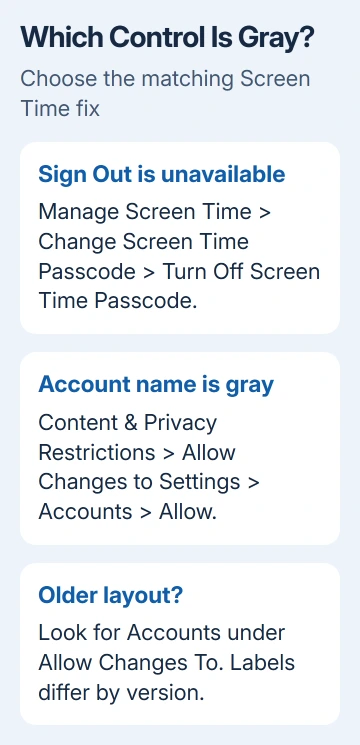
On an older version where Change Screen Time Passcode is on the main Screen Time screen, open it there. The location can differ, but the action you need is Turn Off Screen Time Passcode.
Return to Settings > [your name], scroll to the bottom, and check Sign Out again. If the restriction message has gone, check your data and finish signing out rather than changing more settings.
If the same message remains, check the account-change permission next. If you don't know the Screen Time passcode, use its reset procedure instead of repeatedly guessing the device unlock code.
2. Allow account changes when the account name is gray
Open Settings > Screen Time > Content & Privacy Restrictions. On the current layout, if All Restrictions is on, find Privacy Restrictions, then open Allow Changes to Settings.
Select Accounts and change it to Allow, entering the Screen Time passcode if requested. Return to the account section in Settings and check whether you can now open your name and reach the Sign Out button.
Older layouts place Accounts in an Allow Changes To section on the Content & Privacy Restrictions page. Follow the labels your device shows because older versions don't use the extra page.
Check other settings marked Don't Allow only if they block the change you are trying to make. Leave unrelated parental controls in place when restoring access to account settings.
A gray account name stops you from opening the account page. A disabled Sign Out button stops you at the end of that page. Start with the control that matches your screen.
If iCloud Backup alone is gray while the account page and Sign Out work, check the backup status instead. That narrower problem doesn't require signing out of the entire account.
3. Reset a forgotten passcode or ask the family organizer
If you've forgotten your own code, open Settings > Screen Time and Manage Screen Time if shown. Choose Change Screen Time Passcode twice. Enter the Apple Account used for Screen Time recovery if requested.
The account used to reset Screen Time can be different from the one signed in on your phone. Use the email address and password chosen when recovery was set up. The Screen Time passcode recovery guide covers that distinction.
After setting a new Screen Time passcode, use it to turn the passcode off or allow account changes as needed. Resetting the passcode doesn't remove all the restrictions already in place.
When Family Sharing manages a child's Screen Time, its organizer must reset the code using their own device. Open Settings > Screen Time, select the child under Family, then find Manage Screen Time under Restrictions.
Choose Change Screen Time Passcode, choose it again, and set and confirm a new code when prompted. On older layouts, the child's passcode control may appear without the extra Manage Screen Time page.
Have the parent or guardian authorize the account change afterward. The steps for resetting your own passcode won't get around a child's family controls. If the family setup is wrong, resolve it with the organizer before changing accounts.
4. Complete an iPhone security delay when shown
Stolen Device Protection on iOS 17.3 or later can require a security delay before signing out. With the usual setting, you get the extra checks when away from familiar places; Always can require them at home too.
The Stolen Device Protection instructions include account sign-out among protected changes. Complete the requested face or fingerprint check, wait out the delay, then confirm your identity again when prompted.
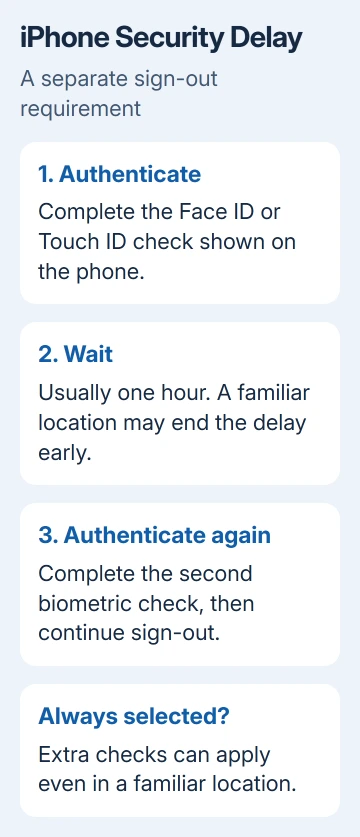
The delay is normally an hour, and the phone may end it early after recognizing a familiar location. Don't assume returning home instantly clears it, especially if Always is selected or the phone hasn't recognized that location yet.
Check the setting under Settings > Face ID & Passcode > Stolen Device Protection, or Touch ID & Passcode on a supported Touch ID model. Read Require Security Delay to understand why the extra check appeared.
This is an iPhone security feature, not the iPad Screen Time restriction. A request for the Screen Time code belongs to the earlier restriction checks. If it shows a security delay, complete that displayed process.
5. Finish sign-out without losing unsynced information
Before signing out, check that recent changes have synced and your iCloud backup is current. Confirm important new content on another signed-in device, and don't sign out while an iCloud backup is still running.
Open Settings > [your name] > Sign Out. Current versions can offer Erase this [Device] or Sign Out But Don't Erase. Read what each choice keeps or removes before deciding.
For a phone you're keeping, erasing it isn't a shortcut past a disabled account button. Follow the on-screen prompts for whichever password or passcode the device requests and confirm the intended sign-out.
Older versions can ask which information to keep locally. Keeping a copy on the device is a separate choice from keeping data in iCloud. Read each prompt carefully, especially when handing the device to someone else.
If the button works but you can't confirm your identity, note the exact password or connection message. Use the account section of the Apple Support app to request sign-out help. Include the Screen Time restriction or security delay shown.
When an organization manages the device, ask IT if its policy prevents account changes. Don't remove its management profile to force sign-out. Give them the message and the setting that remains unavailable.
The Short Version
Remove the Screen Time passcode for the restrictions message, or allow Accounts changes for a gray account name. Have the organizer change child controls, finish any security delay, and check synced data before signing out.
Checked November 13, 2026.
 If you have any business, I can build it online






