

A speaker icon with an x that won't clear tends to be a speaker Windows has switched off for audio, not one that's muted. The volume slider can't undo that, so clicking the icon does nothing.
Open Settings > System > Sound, pick your speaker under All sound devices and press Allow, the button that brought one owner's speaker back. If the button reads Don't allow, the speaker is already on, so restart or reinstall the driver.
In this guide
Tell which stuck mute you have
Hover the mouse over the taskbar's speaker icon until its tooltip pops up. Its wording points to the right fix, and reading it takes less time than any troubleshooter.
If it says No audio output device is installed, Windows can't see a working speaker at all: either the speaker has been switched off or its driver didn't load. Fixes 1, 2 and 5 cover that.
If the tooltip names your speaker but the slider won't stay up, something else keeps muting it. That's usually an app or the control software for an audio interface, and fix 6 covers it.
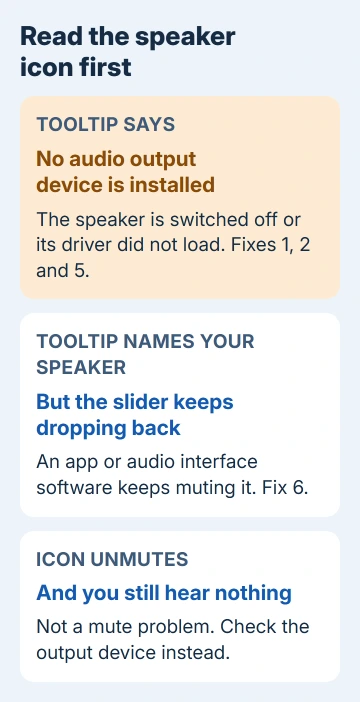
If the icon unmutes fine and you still hear nothing, it isn't a mute problem. Our no sound guide starts from the output device instead. And a crossed-out speaker in the center of your display, away from the taskbar, comes from a monitor.
1. Press Allow on the speaker
Open Settings > System > Sound and scroll to Advanced. Choose All sound devices, then select your speaker under Output devices.
Its properties page opens, and you'll see an Audio setting near the top. I'd check this before touching any driver, since it's the quickest fix here.
The button there shows what pressing it will do, not the current state. If it reads Allow, the speaker is switched off: press Allow and the x should clear. If it reads Don't allow, leave it alone.
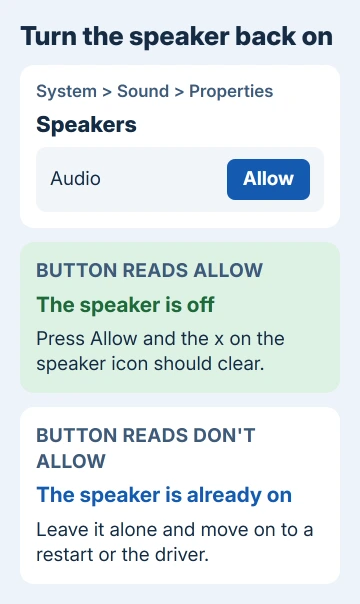
That label trips people up. The owner whose speaker came back had found the setting flipped to Don't allow. Another owner pressed Don't allow, which switched the speaker off, and reported that it did nothing.
If you prefer the older Sound control panel, it holds the same switch. In Sound settings, select More sound settings, open the Playback tab, select the speaker and choose Properties. Device usage should read Use this device (enable).
If your speaker isn't listed on the Playback tab, right-click an empty spot and choose Show Disabled Devices. Any disabled speaker shows up grayed out. Right-click it and choose Enable.
2. Restart the PC
One owner tried drivers and the system properties without luck, then kept restarting the PC: "It worked for me, and the problem is fixed." A restart is quick, and it gives you a freshly loaded audio driver.
Choose Restart rather than Shut down. With Fast Startup on, Shut down saves part of the running system and brings it back at power-on, stuck audio driver included. If Windows offers Update and restart, use that.
3. Run the audio troubleshooter
Windows 11 runs the audio troubleshooter from the Get Help app: search for Get Help, type audio and let it check your sound. It runs its own tests and tries to fix whatever it finds.
If Get Help isn't available, open Settings > System > Troubleshoot > Other troubleshooters and select Run next to Audio. Pick the speaker when it asks which device has the problem.
4. Restart the two audio services
Search for Services and open it. Right-click Windows Audio and choose Restart, then do the same for Windows Audio Endpoint Builder. Both should show Running afterward.
If either one won't start, set its Startup type to Automatic in Properties and restart the PC.
5. Reinstall the audio driver
Right-click Start, then choose Device Manager and expand Sound, video and game controllers. If your audio device (often Realtek or Intel) offers Enable device on its right-click menu, choose that first.
Otherwise choose Uninstall device, check the box that also removes the driver, select Uninstall and restart. Windows reinstalls the audio driver by itself during the restart.
If the trouble began right after Windows Update, open the device's Properties instead, go to the Driver tab and choose Roll Back Driver. That brings back the driver you had before the update.
When neither helps, find your model's page on the PC maker's website and install the newest audio driver it lists. Microsoft's own audio steps suggest the generic High Definition Audio Device driver as a last resort.
6. When the slider snaps back to mute
One owner using a USB audio interface with recording software saw this: drag the slider up, audio plays, and "it then automatically shifts to the left, and the X returns". The Allow button wasn't on their page at all.
That owner never got a working fix, but two checks make sense. Set the interface as your output in Settings > System > Sound, and install its maker's current driver instead of the one Windows picked.
Then close your recording app and try the slider again. If it stays up with the app closed, the mute is coming from the app's own audio settings, so check those and its help pages next.
When the x still won't clear
Plug in your headphones or a USB headset. If they play while the built-in speakers stay muted, the speakers or their connection inside the laptop may have failed, and the PC maker's support or a repair shop can test them.
If no audio device appears in Device Manager at all after a driver reinstall, contact the PC maker with your model number. A laptop under warranty gets the audio hardware checked for free.
The Short Version
Read the speaker icon's tooltip, then open Settings > System > Sound > All sound devices and press Allow on your speaker. If it already says Don't allow, restart, run the troubleshooter and reinstall the audio driver.
Checked November 19, 2026.
 If you have any business, I can build it online






