

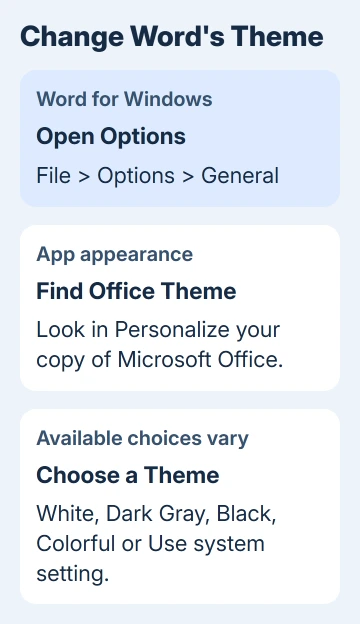
Word's blue app color comes from its Colorful Office theme. In desktop Word for Windows, choose File > Options > General, then change Office Theme to White, Dark Gray, Black, or Use system setting, depending on the choices available.
That changes the app's appearance. A document's page color and text color are separate settings, so decide whether it's the blue ribbon, the editing page, or the actual document you want to change.
In this guide
Change the blue app appearance in Windows
Open desktop Word and go to File > Options. Choose General, then find Personalize your copy of Microsoft Office. Open the Office Theme list and select the appearance you prefer.
Choose White for a light interface without the Colorful theme's strong blue accent. Dark Gray uses gray controls, while Black gives the darkest app appearance. Select OK to apply the change.
The theme names don't let you assign any color you like to Word. Colorful uses each app's own accent, which is blue for Word. It isn't a color picker for turning Word's ribbon green, purple, or another custom shade.
Microsoft's Office appearance instructions describe the current Microsoft 365 themes. Older editions can use the same names with a different visual design or offer fewer choices.
Check the top of Word's window after applying the setting. If your document's text is unchanged but the controls have changed appearance, you've changed the app theme. That's the expected result when the blue interface was the problem.
If Word can't open far enough to reach Options, use the Word startup checks first. You'll need to get Word open before you can reach its theme settings.
Decide whether Word should follow Windows light or dark mode
Use system setting lets Microsoft 365 follow Windows: it chooses White for a light Windows appearance and Black for a dark one. A later Windows appearance change can therefore change Word without another visit to its Options window.
For a fixed light appearance, choose White directly. I'd choose White to keep Word bright even while Windows switches its appearance. It makes the behavior easier to predict.
In Windows 11, the system appearance lives in Settings > Personalization > Colors > Choose your mode. Change that setting only when you want Windows itself to change, rather than adjusting Word alone.
Windows 10 places its color settings under Settings > Personalization > Colors, although the mode selector's wording differs. Choose a fixed Office theme if you don't want Word's appearance to depend on the current Windows mode.
On Windows 11, a light theme can also show a faint tint from the desktop background. That effect is called Mica. This faint tint differs from the strong blue accent in Colorful.
If that background tint is what you're trying to remove, turn off Transparency effects in Settings > Personalization > Colors. This is a Windows appearance setting, so consider whether you want that change outside Word too.
Keep the document page white with a dark app
Choosing the Black theme can make Word's editing page dark as well as its surrounding controls. That affects the page's appearance during editing. Adding a page background to the document is a separate setting.
To keep a white editing page, return to File > Options > General. Under Personalize your copy of Microsoft Office, select Never change the document page color, then confirm with OK.
This is useful when the ribbon is easier to read in a dark theme but the page isn't. Keep the app theme you prefer and change the page-display option instead of repeatedly switching the whole app between White and Black.
Open a familiar document and look at both the ribbon and editing page after the change. Their appearance should now match the combination you chose. Check the actual document formatting separately before sharing a file whose colors matter.
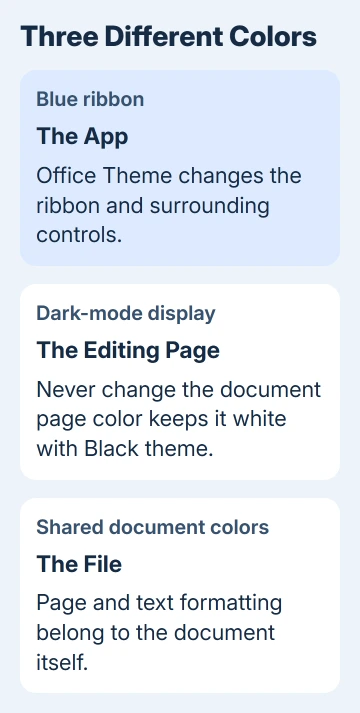
A colored page added through the document's design settings needs a separate change. The dark-mode preference won't remove that page background, just as changing Office Theme won't remove blue text formatting.
Set the Mac app's appearance
On a Mac, start with Word > Preferences > General. In the Personalize area, review the theme choices shown by your version. File > Options belongs to the Windows edition, so its route won't match this window.
For Microsoft 365 subscribers whose Mac uses a light appearance, the choices include Aluminum and Colorful. Aluminum gives Word the familiar neutral Mac appearance. Colorful uses the app's main color in its ribbon.
For dark mode, open Apple menu > System Settings > Appearance and choose Dark. Older macOS versions place the system appearance under System Preferences > General. Word normally follows that Mac appearance.
If you want macOS dark but Word light, return to Word > Preferences > General and select Turn off Dark Mode under Personalize. That setting applies to the current app, so another Office app can need its own adjustment.
Check the controls in your installed version. The Mac preference window differs from Windows theme screenshots, and older Mac editions can offer different choices. Follow that app's menu rather than the Windows route.
Separate app themes from the document's colors
The app theme changes the Word window you work in. Document formatting changes the file itself. Before changing a setting, ask whether the color needs to follow the document when someone else opens it.
For example, a blue heading in a document needs text or style formatting changes. A blue app header needs an Office theme change. Changing the app theme won't fix a blue document heading, even though both colors appear in the same window.
Word in a browser is also a different interface from desktop Word. These File > Options instructions apply to the installed Windows application. The browser version's appearance settings aren't the same as Office Theme in desktop Word.
If you need the installed app, check the Word download and license options before following desktop-only menus. Opening a document in the browser doesn't add the Windows Options dialog to it.
For missing choices, note the edition and version in File > Account > About Word on Windows or Word > About Microsoft Word on Mac. Send support those version details and name the appearance setting you can't find.
The Short Version
Change Office Theme to replace Word's blue accent. White keeps the app light; other supported themes change its appearance. Page display and document formatting are separate choices. Mac Word uses General preferences.
Checked November 16, 2026.
 If you have any business, I can build it online






