A WSJ login loop in Chrome can come from blocked cookies or stale sign-in data. Clear the site's saved data and allow the cookies its login needs, then try again in a regular browser window.
A rejected password or a request to subscribe needs a different fix. If WSJ accepts your sign-in but still asks you to subscribe, check the account's access rather than repeatedly clearing Chrome.
In this guide
1. Match the problem to the screen
Open wsj.com directly and use its sign-in control. Avoid an old saved sign-in address: start from the publication's own site so the login can return to the page correctly.
If the form rejects the password, use its password-reset option for the email address tied to your subscription. A Chrome setting won't change which account owns your access.
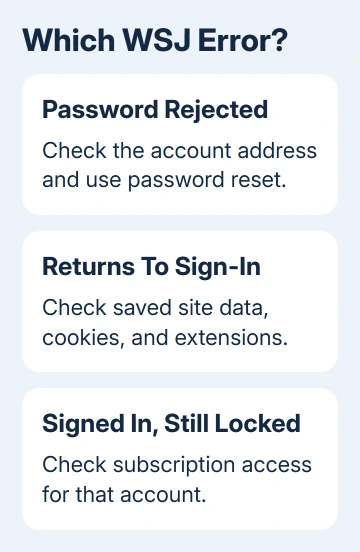
If the form accepts your details but sends you back to a signed-out page, continue with the cookie checks. If your name or account appears but an article is still locked, skip to the subscription section.
Try the same account in another browser on the same computer. If that works, a setting in Chrome could be getting in the way. The same password rejection everywhere needs account help first.
This guide focuses on desktop Chrome for Windows and Mac. Chrome on iPhone and Android uses different settings menus, so the phone app won't have this desktop Privacy and security layout.
2. Remove stale data for the affected site
In Chrome, open Settings > Privacy and security > Third-party cookies > See all site data and permissions. Search for wsj and delete the matching site's saved data.
Google says you can delete one site's data. Deleting it ends your session on that site and clears its preferences. Other sites stay signed in.
Close the WSJ tabs, reopen wsj.com, and sign in again. If the loop stops, clearing the old sign-in data fixed it. Keep this fresh session rather than immediately deleting the cookies again.
If login moves through a Dow Jones account page and still loops, note its actual address. Search the site-data list for that domain too, and remove the matching account-site data before trying once more.
I'd clear one site's data before resetting a profile. This replaces its session without disturbing other browsing data. Keep saved passwords and other sites out of the cleanup.
If that changes nothing, check whether Chrome can save new site data. It can't remember your sign-in if it blocks or immediately removes that data.
3. Let the login save the data it needs
Open Settings > Privacy and security > Site settings > Additional content settings > On-device site data. Check that Allow sites to save data on your device is selected rather than blocking saved site data.
Automatic site-data deletion on closing Chrome can explain a login that works now but disappears next time. Decide whether you want that privacy behavior or a remembered WSJ session.
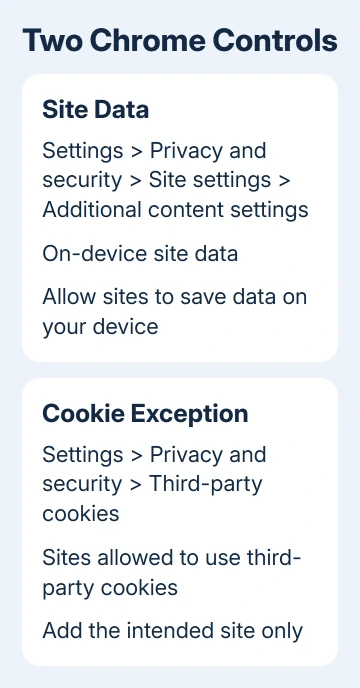
First-party data comes from the site you're visiting. Third-party cookies come from another site's service running within that page. Saving the visited site's own data and allowing those embedded cookies are separate controls.
If Chrome shows Third-party cookies blocked beside the address bar during login, select that control and temporarily allow third-party cookies for the site. Reload if prompted and retry the sign-in.
For the desktop settings route, open Settings > Privacy and security > Third-party cookies. Under Sites allowed to use third-party cookies, choose Add and enter the site you intend to allow.
Our Chrome cookie settings guide explains these exceptions. Use a site exception for this check rather than allowing every website to use third-party cookies.
If the exception lets you sign in, keep that site exception. If it makes no difference, remove the exception and continue. You don't need to leave it changed if it didn't help.
4. Try a regular session without extensions
Make the next attempt in a regular Chrome window. Incognito blocks third-party cookies by default. A failed login there won't tell you whether cookies in your regular window are causing the problem.
Open Extensions > Manage extensions from Chrome's three-dot menu. Temporarily turn off extensions that block ads, scripts, tracking, or page content, then reload WSJ and retry.
If sign-in works, enable each extension separately. Retry after each one until the problem returns. That tells you which extension needs a WSJ exception or a settings change.
If the login form is blank or unresponsive, open the site's information control beside the address, choose Site settings, and check JavaScript. Blocked JavaScript, the code that makes the controls respond, can stop the form working.
Allow JavaScript for the affected site if you've blocked it, then reload. This is different from allowing notifications or downloads; those permissions aren't a general sign-in repair.
If a managed setting prevents the change, ask your browser administrator about the blocked permission. Our Chrome reset guide explains what a reset changes, but a reset won't override an enforced policy.
5. Check the profile before making bigger changes
Open the profile control at Chrome's top right and choose Add Chrome profile. Try signing into WSJ in this separate profile before adding extensions or other browser settings.
If WSJ opens there, compare the original profile's cookies, permissions, and extensions. Keep the original profile intact while you repair it; the test doesn't require deleting bookmarks or saved passwords.
If both profiles fail while another browser works, update Chrome through Help > About Google Chrome, then relaunch when offered. Retest before changing the computer's network settings.
If every browser fails on one connection, try another trusted connection. A work network or VPN can affect access. Switching connections won't tell you exactly what's blocking WSJ, even if it helps. Ask IT about workplace restrictions.
6. Resolve access that cookies can't restore
For a signed-in account without access, compare its email with your subscription record. For school or employer access, follow the organization's activation instructions and finish any required verification.
If the problem continues, open the WSJ Customer Center and choose its help or contact route. Report whether login rejects the password, loops after accepting it, or succeeds but leaves articles locked.
Include your Chrome version, the actual login domain, whether another browser works, and whether a separate profile helped. Don't send support your password or a copied sign-in link containing a private account token.
The Short Version
Clear WSJ's saved site data, allow the login's required cookies, and test without blocking extensions. Use a regular window. A password error or signed-in subscription problem belongs to account support rather than repeated Chrome resets.
Checked November 12, 2026.