

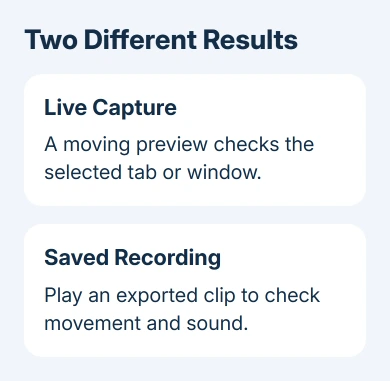
Chrome can test screen capture without an extension. Open the WebRTC sample, click Start, and share a harmless tab. Movement in its preview confirms capture. It doesn't save a video, so test your recorder's export separately.
That distinction helps when a meeting or recording tool won't capture the screen. A moving preview shows Chrome can capture that source. Your recording app still needs to record sound, make a video and save a file you can play.
In this guide
Prepare a harmless tab for the test
Use desktop Chrome on Windows, macOS or a Chromebook. Open a separate tab with ordinary content you don't mind sharing. Close private documents and notifications before choosing a whole screen, since that choice includes more than one page.
Open the WebRTC screen-capture sample. The heading includes getDisplayMedia, the browser function that asks you what to share. No extension or developer-console command is needed to use its Start button.
Leave the default sharing option selected for the first attempt. A tab is a good place to start because it gives you something simple to check. Keep the sample in one tab and the content you're sharing in another.
This is a capture demonstration rather than a microphone tester. Its preview is muted, so silence in the preview doesn't mean audio capture has failed. You'll check the saved recording with your usual recording tool later.
Start capture and select the correct source
Click Start on the sample page. Chrome should open its source picker. Choose a tab, window or entire screen from the choices your browser and operating system offer. Select the particular item before clicking Share.
If you cancel the picker, no capture starts. A permission-related error after cancellation doesn't mean the computer is broken. Reload the sample page and try again, this time approving the harmless source you prepared.
For a more specific comparison, the page's Advanced options menu offers preferences for a browser tab, window or entire screen. Choose the type you want to try before clicking Start. The final choice still happens in Chrome's picker.
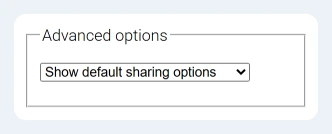
A preference isn't automatic access to a screen. Chrome still asks you to select and approve the capture source. If the picker doesn't show the window you want, open that window and bring it out of its minimized state, then try again.
Google recommends checking available windows and permissions in its screen-sharing troubleshooting steps. A minimized window can be missing from the picker; a capture error needs a permission check.
Check movement in the preview, then stop sharing
After approving the source, return to the sample tab. Its video area should show the selected content. Change something harmless in the shared source, such as scrolling a page, then confirm that the preview follows that movement.
Sharing the sample's own tab can produce a repeating view of the preview inside itself. That result is distracting but isn't the same as a frozen capture. Choose the separate content tab for an easier comparison.
Check the source name as well as the picture. A live preview of the wrong tab shows that capture works, but it won't help someone trying to record a particular application. Stop sharing and repeat with that application selected.
Use Chrome's Stop sharing control when finished. The sample reports that sharing has ended and makes Start available again. The ending message is expected when you stop the capture; it isn't a new fault to repair.
Repeat once with a different source type only if you need that comparison. For example, if sharing a tab works but sharing a window fails, you know which type of capture needs attention. Record which one works.
When the picker or preview fails
First, reload the tester and start a fresh request. You approve sharing in the picker each time you start a capture. The test page can't silently remember a screen selection and begin watching it again after you've stopped.
Update Chrome through Menu > Help > About Google Chrome, then relaunch when prompted. Use the equivalent Chrome update route on a Mac. On a Chromebook, check for a ChromeOS update in Settings and restart as requested.
On a Mac, open System Settings > Privacy & Security and check Screen & System Audio Recording, or Screen Recording on releases using that label. Allow Google Chrome if it appears there, then quit and reopen Chrome when requested.
If that permission is enabled but Mac capture still fails, the Chrome screen-sharing permission repair covers that particular failure. Don't apply Mac privacy-menu instructions to Windows; its screen capture controls are different.
For a workplace or school browser, check whether the failure occurs only in the managed profile. Your organization can limit what Chrome lets you share.
Send the administrator the displayed error and the source type that fails instead of changing managed settings yourself.
If the sample works but one site doesn't, use that site's support instructions next. Chrome can capture the source you selected, but other sites, embedded pages and extensions can make different capture requests.
Test the saved video in the recorder you actually use
Open your normal recording tool and select the same source that worked in the sample. Record a short clip with movement. Include spoken narration or tab audio only if those are parts of the finished video you need.
Stop recording using that tool's controls, then save or download the video. Play the downloaded clip and check the beginning, movement and sound. A live preview can look correct while the saved file is missing, silent or incomplete.
For an extension-based workflow, the Chrome screen-recorder setup covers capture, sound and saving as separate steps. I'd check that small saved clip before recording a long demonstration or meeting.
If the tester works but the recorder can't save, tell the recorder's support team which stage failed. Include Chrome's version, your operating system, the selected source and export message. That helps support see what went wrong.
If both fail, include the tester's exact error instead. Note whether Chrome opened the picker and whether a tab, window or entire screen was selected. That tells support whether permission was refused or capture started and then failed.
The Short Version
Use the WebRTC sample to approve a source and check a moving preview. Stop sharing afterward. Then make and play a short saved clip in your actual recorder, because live capture and a working exported video are separate results.
Checked November 13, 2026.
 If you have any business, I can build it online






