

Chrome's installed extensions are in Extensions > Manage extensions, even without a Chrome Web Store library link. Check that list first. If something you remember isn't there, check the Store account next.
An extension installed in another profile or on another computer won't necessarily appear in this local list. A missing toolbar icon can also mean the extension is simply unpinned.
In this guide
Start with the extensions already on this computer
On Windows, macOS, Linux or a Chromebook, open Chrome's three-dot menu > Extensions > Manage extensions. Or type chrome://extensions into Chrome's address bar.
The list belongs to the current profile. Entries show their names, Details, Remove and an on/off switch. Use this list to find the tool you're looking for and see whether it's turned on.
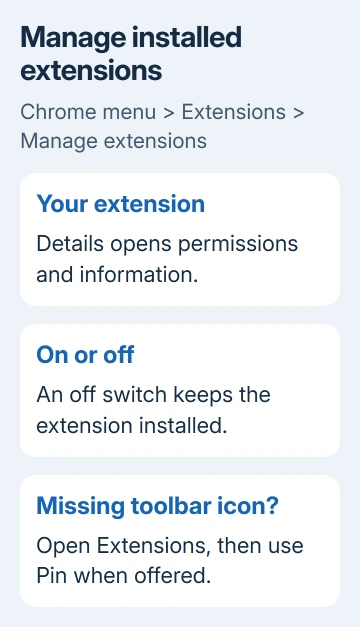
Read the extension's full name before changing anything. Two developers can use similar names. Details opens information and permissions for that particular entry, which helps you confirm that it's the tool you remember.
An extension that's switched off is still installed. Turn it on if you recognize it and want to use it. If Chrome shows a message saying it disabled the extension, read that message first. Reinstalling the same item isn't always the answer.
I'd check installed items before searching the Store again. It prevents installing a second tool when the first one is already present but hidden.
Bring a hidden extension back to the toolbar
Click Extensions, the puzzle-piece button next to the address bar. Find the extension in the menu and select its Pin control when available. Its icon should appear next to the address bar.
Pinning changes how easily you reach the extension. It doesn't install a new copy, change its account or give it extra access to websites. Unpinning leaves the extension installed, so it can still work with the settings you've chosen.
Some extensions don't offer a pin control. For those, use their own entry in the Extensions menu or open Details to see how they work. A tool that changes a page in the background may not need an icon you click.
If the extension is in Manage extensions but absent from the menu, check whether it's enabled. If it has an error or unsupported warning, deal with that message before expecting the toolbar shortcut to return.
Match the Store account with the Chrome profile
Click Chrome's profile button and check which profile is open. Open a second profile from that menu if the extension belongs to your work, school or another personal profile. Each profile keeps its own browser setup.
Next, open the Chrome Web Store and check its account control. Google's help for missing Store items says Chrome and the Store should use the same Google Account.
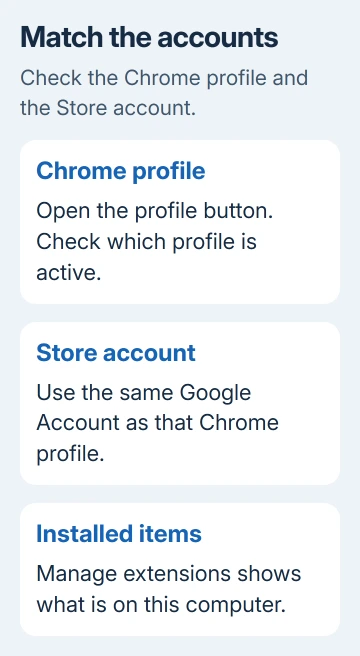
Switch the Store to the account used in that Chrome profile, then check its account or library controls. Store navigation can change; those account pages aren't the same as the list of extensions installed in this profile.
Don't use a Store account page as the only record of what's on the computer. The local Manage extensions page answers that question directly. Likewise, an empty local list doesn't tell you what was installed in a different profile.
Restore an item from another computer
On the original computer, open Manage extensions and note the exact name and developer. Use those details to find the matching listing on the new computer, rather than choosing the first similar search result.
Signing in to Chrome can bring account-saved extensions across computers. Open Settings > You and Google, select your account, and review what Chrome saves in the account. Check Extensions if that choice is available in your version.
Check that Chrome uses the same account on both computers. Signing in to a website such as Gmail isn't the same check as signing in to the browser itself. Check the browser's account in Chrome's profile and account settings.
For an available Store listing, choose Add to Chrome, read the requested permissions, and confirm Add extension only for a tool you trust. A school or employer may control whether installation is allowed.
If the listing is blocked, use the Chrome Web Store access checks to read the actual restriction. Changing profiles won't remove an organization's installation policy.
Separate extensions, themes and old Chrome apps
An extension adds browser functions. A theme changes Chrome's appearance. An old Chrome app is another kind of Store item, so searching the extension list for all three can be misleading.
The current Store help says apps can no longer be downloaded on Windows, Mac or Linux. An old app name in your account history doesn't mean you can install it again on a modern computer.
For a theme, check Settings > Appearance rather than expecting an extension-style toolbar button. For an old app, look for the developer's current web app or supported replacement and check its requirements before installing anything.
On Android, iPhone and iPad, Chrome doesn't run desktop Store extensions. An Add to Desktop option sends an installation request toward desktop Chrome; it doesn't make that extension run on your phone.
Get help when a known item still won't return
Update Chrome through three-dot menu > Help > About Google Chrome, then relaunch if prompted. Reopen that Store listing in your usual Chrome profile. Incognito and Guest browsing can't install extensions.
For a broken or missing listing, use its Support information to reach the developer. Send the extension name, listing address, Chrome version and installation error so they can identify the failed step.
A browser reset can change extensions and settings, so read what resetting Chrome keeps and changes before using it. Finding one hidden icon doesn't call for a reset.
The Short Version
Find installed items in Manage extensions and hidden icons in the Extensions menu. Match the Chrome and Store accounts for account items. Check the original profile before reinstalling. Phones can't run desktop extensions.
Checked November 12, 2026.
 If you have any business, I can build it online






