When Android apps won't open after a Chromebook update, shut the Chromebook down fully and switch it back on before removing anything. Chrome web apps and Linux apps use different software, so their fixes differ.
Check which kind of app stopped working, then try another of the same kind. The repair depends on whether one app fails alone or other apps of that kind fail too.
In this guide
1. Complete ChromeOS installation before testing apps
Save open work, then select the time and shut down the Chromebook. After switching it on again, launch the affected app once. Closing the lid puts it to sleep instead of shutting it down.
Open Settings > About ChromeOS and check the installed version. Select Check for updates. If an update is offered, let it install and select Restart when prompted before testing the app again.
An app can stop opening after an update without having damaged files. If it opens normally after the restart, it doesn't need reinstalling. Keep its existing data and carry on.
When the failure continues, write down the ChromeOS version and app name. Include the app version if you can reach its information screen. Give the developer both versions so they can check the combination that fails.
2. Work out whether it is Android, a web app, or Linux
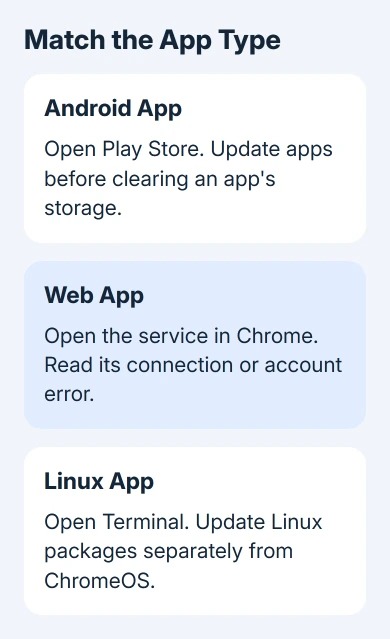
An app installed through the Play Store is an Android app. A site installed from Chrome runs as a web app, even when it has its own Launcher icon. Software installed inside the Linux environment needs the Linux checks later in this guide.
Open Chrome and load an unrelated page, then try another app from the same group as the failing one. If Chrome loads pages but several Android apps won't open, concentrate on Android rather than changing the Wi-Fi password.
For an installed web app, open its normal website in a Chrome tab. If that works, your account and the service may be fine while the installed window has the problem.
If the site fails there too, check its error message and connection first.
School and work devices can have app restrictions set by an administrator. If you see a blocked-app message, ask that administrator for help, especially if several students or coworkers see it after the same update.
Resetting the Chromebook won't remove those rules.
3. Update Android apps and repair the affected app
Open Play Store, select your profile, and choose Manage apps & device. Install available app updates, then reopen the affected app. ChromeOS updates and Play Store app updates are separate, so a current system can still have an old app.
Google says to check the connection and app storage when restarting hasn't cleared an Android app failure. Try the options that keep your saved work first.
Open Settings > Apps > Manage Google Play preferences > Android settings. Find the affected app in Android's app settings and open its storage controls. Storage labels can differ between the Android versions supplied with ChromeOS.
Use Clear cache first if that control is available. It removes temporary files. Try the app again before moving to Clear storage or Clear data, which can remove its sign-in and locally saved information.
Before clearing data or uninstalling, confirm that your important work is synced or exported. A notes app, game, or editor can hold data that hasn't reached an account. Check inside its working web or phone version when available.
If just this app still crashes, reinstall it after that backup. For a Play Store authentication message rather than an app crash, follow the Chromebook Play Store authentication guide.
If the app opens but doesn't respond to a gesture, that control might not work on a Chromebook. Try its supported mouse or keyboard controls, then ask the developer whether that feature works on ChromeOS.
4. Repair a web app through its website first
Open the service's normal address in Chrome. Complete the service's account sign-in if requested, and read any permission or subscription message.
An account restriction on the website still applies when you open the installed web app.
If one page freezes, press Ctrl + Shift + R to reload a fresh copy. For a recently added extension, open Extensions > Manage Extensions, disable that extension, and retry. Restore it if the result doesn't change.
Avoid clearing every site's data just because one installed app fails. That signs you out of unrelated services and can remove offline website data. Limit these changes to the affected service.
When both the installed app and the browser show the same service error, send that message to the service's support team. Reinstalling the Launcher icon won't fix an account restriction or a service outage.
5. Update Linux packages inside Terminal
For a Linux app, open Terminal and enter:
sudo apt-get update && sudo apt-get dist-upgradeThe first command refreshes the available package list; the second updates installed Linux packages and the other packages they need to run. Read the proposed changes before accepting them.
Restart the Chromebook afterward if needed for changes to take effect.
Run these commands in Linux Terminal, not Chrome's address bar. They won't repair Android apps.
If Terminal itself won't start, mention that in your support request. A working Terminal with one broken Linux app needs different troubleshooting.
When a downloaded Linux package is the only failure, use the Linux application installation guide. It covers package compatibility and interrupted installs without removing the whole environment.
When several apps still won't open
I'd keep the existing Android setup until the app and connection checks are finished. Disabling Play Store removes the Chromebook's saved Android data and app settings. It's a much bigger change than clearing one app's cache.
Report a single-app failure through Play Store > the app's page > App support, or the developer's listed support route. Include the versions, error, and whether other Android apps open.
For multiple affected apps, send those details to Chromebook support or your administrator.
If Android, web, and Linux apps are all affected, ask for help checking ChromeOS before reinstalling more apps. Save local files, write down which apps still open, and use the Chromebook manufacturer's support route.
Ask whether the exact model and ChromeOS build have a known app-startup problem.
The Short Version
Finish the ChromeOS update, restart fully, and identify the app type. Update Android apps through Play Store, check web apps in Chrome, and update Linux packages in Terminal.
Preserve local data before clearing storage, reinstalling, or disabling Android support.
Checked November 15, 2026.
 If you have any business, I can build it online