

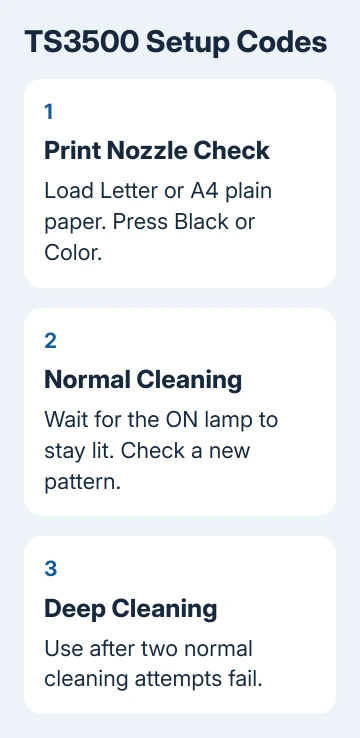
Missing lines or white streaks on a Canon nozzle-check sheet call for print-head cleaning. Print the pattern first, then clean normally. TS3500 Setup codes are 1 for the pattern, 2 for cleaning and 3 for deep cleaning.
Those numbers aren't universal Canon commands. Follow the TS3500 steps here only for that series; other PIXMA and MAXIFY printers have their own maintenance menus and ink systems.
In this guide
Check the ink and print a nozzle pattern
Find the printer's full model number before pressing Setup. A TS3500-series machine uses FINE cartridges, which contain ink and the print head together. A refillable-tank Canon has a different maintenance procedure.
Check for low ink or an error message first. Low ink can spoil the nozzle-check pattern, so replace the low FINE cartridge before treating that pattern as a blocked head.
Load one sheet of Letter or A4 plain paper in the rear tray. Turn the printer on, press Setup until 1 appears on the LCD, then press Black or Color. Wait for the sheet to finish printing.
Look for breaks in the printed lines and horizontal white streaks in the color areas. Keep this sheet to compare with the pattern you print after cleaning. A small improvement is easier to see side by side.
If a photo looks wrong despite a complete pattern, check your paper type and print settings. The Canon photo-printing settings cover paper and cropping problems that cleaning won't correct.
I'd start from the printer's buttons rather than a computer utility. That gives you a pattern without needing to sort out a driver or a connection first.
Run normal cleaning from the TS3500 panel
Leave the printer on. Press Setup until 2 appears, then press either Black or Color. The ON lamp flashes while cleaning runs.
Wait until the ON lamp stops flashing and stays lit. The normal cycle takes about a minute. Don't send another job or operate the printer while it works.
Now print another nozzle-check sheet using Setup 1. Compare the same black lines and color areas on both sheets, rather than judging a different document with different content.
If the gaps are gone, the cleaning has worked. Send one ordinary print job and check it before returning to a large batch. Stop maintenance once the pattern prints correctly.
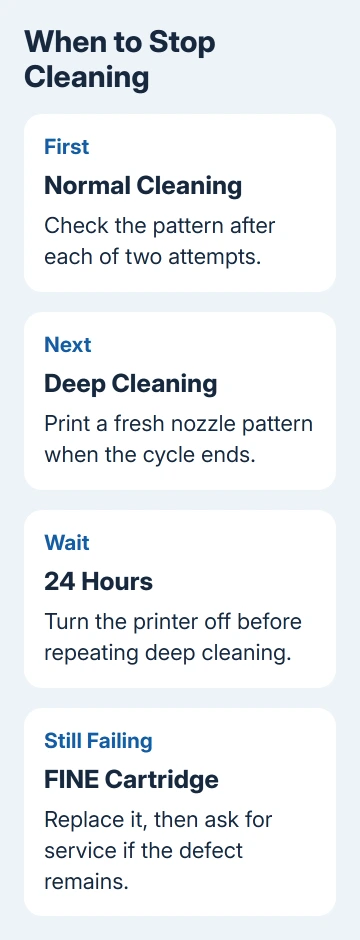
If lines are still missing, repeat normal cleaning once and print another pattern. Canon says to try normal cleaning twice before using the stronger option in its TS3500 maintenance sequence.
Maintenance can use both black and color ink. Pressing Black doesn't mean the printer will use only black ink.
Use the Windows utility when it is already installed
The same TS3500 maintenance functions are available in Canon IJ Printer Assistant Tool on Windows. Open that installed utility and select Cleaning.
In the Print Head Cleaning dialog, choose the ink group that needs attention. Open Initial Check Items, check the listed conditions, then select Start with the printer turned on.
When the confirmation appears, choose OK. The Nozzle Check dialog opens next; select Print Check Pattern to see whether the cleaning helped.
Choose either the utility or the panel. You don't need an extra cleaning cycle just because Windows offers one. Count the cycles already completed at the printer before starting another from Windows.
If you can't find Printer Assistant Tool on a Mac or an AirPrint-only setup, use the TS3500's buttons. The Windows menus won't apply to that setup.
On another Canon model, use its own manual's maintenance section. A touchscreen command called Cleaning may perform the same kind of job, but the button sequence and stopping instructions can differ.
Deep clean only after the two normal attempts
For a TS3500-series printer, press Setup until 3 appears, then press Black or Color. The ON lamp flashes during the deeper cycle and stays lit when it finishes.
Allow about one to two minutes and leave the printer alone during that time. Deep cleaning uses more ink than normal cleaning, which is why it belongs later in this sequence.
Print another nozzle pattern. If it is complete, return to normal printing. If the same gaps remain, stop and turn the printer off rather than immediately repeating the stronger cycle.
The deep-cleaning procedure calls for waiting 24 hours before deep cleaning again. After that second deep clean, print and inspect a fresh pattern.
If you're using the Windows utility instead, choose Deep Cleaning, select the ink group, review Initial Check Items, then select Start and confirm OK. Finish with Print Check Pattern.
Keep to one method for each attempt. Switching between panel and computer doesn't reset the maintenance sequence or make repeated cleaning use less ink.
Replace the FINE cartridge or arrange repair
If gaps remain after the wait and second deep clean, replace the FINE cartridge on your TS3500. That step applies to this cartridge model, not to a separate print head in a tank printer.
Choose a replacement listed for that printer in your region. The Canon cartridge replacement guide explains how to let the holder reach its replacement position before removing the cartridge.
Stick to the printer's cleaning functions and cartridge replacement. Don't try soaking the head or flushing it with a syringe or solvent.
If a new FINE cartridge doesn't fix the missing lines, ask a Canon service center to examine your printer. Give them the exact model, error code if present, and the nozzle sheets showing the result after each stage.
If the nozzle pattern prints correctly but jobs from your computer fail, check the computer connection next. On Windows, the printing checks address the queue and connection.
The Short Version
TS3500 Setup codes are 1 for the pattern, 2 for normal cleaning and 3 for deep cleaning. Inspect each result. A second deep clean needs a 24-hour wait; persistent defects call for the FINE cartridge or repair route.
Checked November 16, 2026.
 If you have any business, I can build it online






