

A lightly dampened cloth cleans a Surface Pro keyboard without soaking it. Detach the cover, then gently wipe it with a lint-free cloth dampened with five parts water to one part mild soap; treat dirty magnetic connections separately.
Clean each part with the cloth that suits it. Use a white cloth for Alcantara fabric, and a soft cloth lightly dampened with isopropyl alcohol for the spine and magnetic connections.
In this guide
Prepare the detached keyboard and cleaning cloths
Save open documents, then shut the Surface down before cleaning its attached keyboard area. Disconnect the charger and detach the keyboard or Type Cover. Place the cover on a clean, stable surface where you can support it while wiping.
A Flex Keyboard can work while detached, so removing it from the Surface doesn't switch it off. Follow the keyboard's power instructions as well. Keep liquids away from its charging connection and other openings.
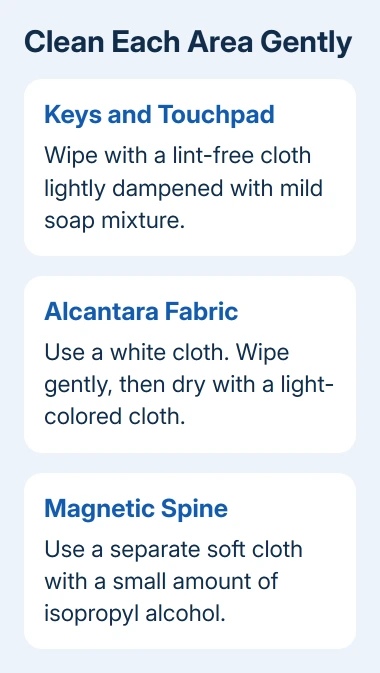
Prepare a soft, lint-free cloth for ordinary cleaning and a clean white cloth for fabric. A separate cloth for the connector prevents dirt collected there from being spread across the keys or the material around them.
Mix five parts water with one part mild soap, such as mild hand soap or dish soap. Dampen the cloth with the mixture and remove excess liquid. It should wipe the surface without leaving drops that can run into openings.
Microsoft says in its Surface care instructions to use that mixture for covers and Alcantara.
Stick with that mild mixture even if a mark is stubborn.
These steps clean the surface. If a drink has run inside the keys or connector, go to the section on internal spills before doing any more cleaning. Don't reconnect a wet keyboard just to see whether it still types.
Wipe the keys and touchpad gently
Start with loose dirt on the surface, lifting it away with the cloth rather than pushing it into gaps. Then gently wipe the keys and touchpad with the lightly dampened lint-free cloth.
Wipe a small patch, then check for remaining moisture. Support the cover as you wipe. You don't need to bend the spine back or push hard on a key to remove ordinary finger marks.
If a key looks glossy, check whether it's oily or whether the finish has worn smooth with use. Repeated heavy rubbing can damage the surface without returning a worn key to its original appearance.
For surface oils or glossy residue on the cover, you can also use a dry melamine sponge or coarse, dry paper towel. I'd start with the gentler cloth method rather than scrub the same patch repeatedly.
Don't pull keycaps off for this cleaning. A mark on top of a key and debris trapped inside its mechanism are different problems. Removing a low-profile key can turn a cleaning task into a repair.
For another Windows laptop with a built-in keyboard, use the laptop keyboard cleaning guide.
You'll prepare a built-in keyboard differently from a detached Surface cover, and the cleaner still needs to suit that laptop's materials.
Clean Alcantara without soaking the fabric
Some Surface keyboards and accessories use Alcantara, a fabric-like covering around the keys or palm rest. Check the product description for your keyboard if you're unsure which material it uses.
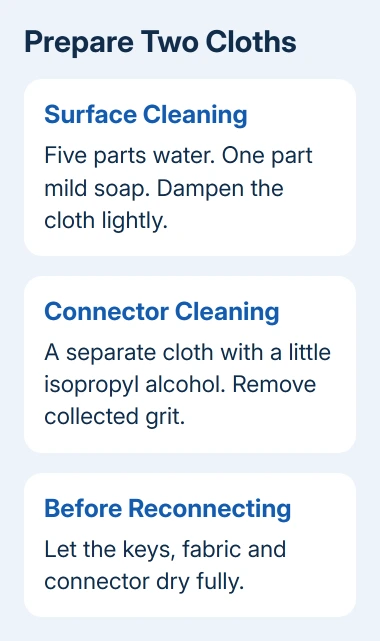
Use a white, lint-free cloth dampened with the same mild soap mixture. Gently clean the fabric with swirling motions, then wipe it dry with a clean, light-colored cloth. Work carefully around the key openings.
For a fresh mark on Alcantara, act promptly. The care instructions recommend cleaning spilled liquid from the fabric within 30 minutes, which can help prevent a lasting stain.
The 30 minutes refers to preventing a fabric stain. Stop using the keyboard if liquid has reached its electronics.
Treat the visible mark without flooding a wider area. A cloth dampened for wiping should not leave the fabric soaked. Let the material dry before judging whether another gentle cleaning pass is needed.
An old stain may remain after safe surface cleaning. Don't keep increasing pressure or detergent strength to chase it. If the covering is lifting, fraying or separating from the keyboard, stop and ask about accessory service instead.
For a plain-surface keyboard without Alcantara, follow the cover cleaning method rather than assuming it needs fabric treatment. Use the care instructions that match your keyboard's model and material.
Give the magnetic connection its own cloth
Inspect the spine and magnetic connection for visible dirt. Magnetic or metallic particles can collect there, so clean these areas separately from the palm rest.
Dampen a soft, lint-free cloth with a small amount of isopropyl alcohol and gently clean the dirty spine or magnetic connection. Apply the liquid to the cloth, not directly to the keyboard or the Surface.
Remove any metal debris collected on the cloth before using it on another area. Better still, use a different clean cloth for the remaining surfaces. This keeps a small piece of grit from being dragged across the cover.
Keep liquid out of openings, and don't use a metal tool to scrape the contacts. If a connector looks bent, loose or damaged, cleaning won't straighten or repair it. Ask support about repairing or replacing a damaged connector.
Once the keyboard is dry, reconnect it evenly to the tablet and check typing and the touchpad. A secure magnetic attachment should hold the cover in its normal position without forcing the connector.
If the keyboard still misses input, use the Surface keyboard connection checks.
Those checks help you tell a connection problem from a fault that also happens outside Windows. Dirt isn't the cause of every typing problem.
Stop routine cleaning when liquid gets inside
For liquid that has entered the keyboard, stop using the cover and disconnect it from the Surface. Keep it disconnected while seeking advice. Cleaning the visible fabric doesn't remove liquid or residue from inside the key mechanism.
Don't use heat to speed up drying. A keyboard that looks dry on top can still have moisture in an opening, so a quick wipe isn't a reason to resume use immediately.
For routine cleaning, allow the cover, connector and fabric to dry fully before reattaching or folding it closed. Use a clean dry cloth to remove remaining surface moisture, then leave the cover where air can circulate.
After reconnecting, check several keys and the touchpad. If just one key sticks, note the key's name and whether a spill started the trouble. If the whole cover is silent, report that separately from a single sticky key.
Open Help & support in the Surface app and use Get Help for an accessory problem. Tell support the keyboard model, its material, whether anything spilled on it and whether cleaning helped.
Discuss replacement or repair options before taking a key apart.
The Short Version
Detach the keyboard, gently wipe it with the five-to-one water and mild soap mixture, and use a white cloth on Alcantara. Clean the magnetic spine separately with a little isopropyl alcohol on a cloth.
Let everything dry; internal spills and damaged keys need service advice.
Checked November 15, 2026.
 If you have any business, I can build it online






