Clipchamp still supports the latest desktop Google Chrome. An unavailable or unsupported-browser message can point to your browser, device, or graphics support. It doesn't mean Chrome support has ended.
Update Chrome first and reopen Clipchamp in a normal desktop tab.
Chrome on an Android phone or iPhone is different: the desktop editor isn't supported in mobile browsers. A project that opens but won't load its media also needs different checks from an editor that refuses to start.
In this guide
1. Use desktop Chrome on a supported computer
Open Clipchamp on a Windows, Mac, or Linux desktop or laptop, or a Chromebook.
Microsoft's browser support page lists desktop Chrome and Edge for personal, work, and school accounts.
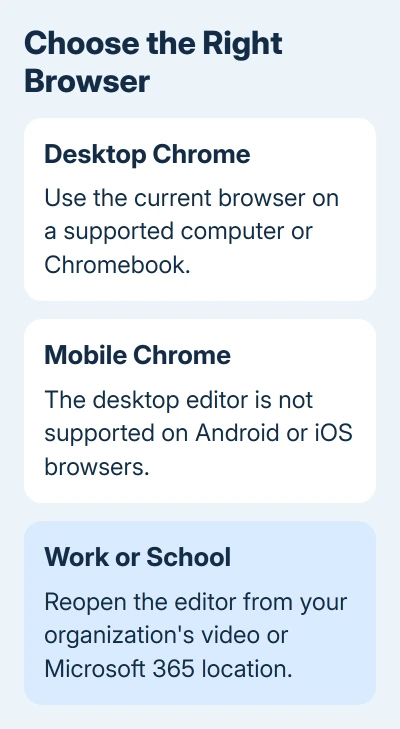
For a personal account, use app.clipchamp.com. For work or school, reopen the video or editor from your organization's Microsoft 365, OneDrive, or SharePoint location.
Your work or school editor may use a different address from the personal editor.
On Android or iOS, requesting a desktop site in Chrome doesn't make the mobile browser a supported editing platform. Move the job to a computer instead of repeatedly changing that phone's browser settings.
If you're using Brave or another browser built on Chromium, compare it with actual Chrome or Edge. They share the software that displays web pages, but their privacy controls and graphics features can behave differently.
If Clipchamp opens after this change, keep using the supported desktop route. If it still reports an old browser or unsupported hardware, update the browser and operating system before trying project-specific repairs.
2. Install Chrome updates and restart the browser
In Chrome, open More > Help > About Google Chrome. Wait for the update check, then use Relaunch when it appears. Wait for active uploads or exports to finish and for editing changes to save before restarting.
Reopen Clipchamp and read the exact message. An outdated-browser warning needs a different response than a project stuck at a loading percentage. Keep that distinction when deciding which step to try next.
IT may manage Chrome updates for school and work devices. Ask IT to check the installed Chrome version and update policy if the About page won't update. Reinstalling the same managed version won't remove that restriction.
A Chromebook gets its Chrome browser updates through ChromeOS. Open Settings > About ChromeOS > Check for updates, then restart when prompted. A device that can't receive a needed update may require a newer supported computer.
Try Edge on the same computer if Chrome remains blocked. If Edge works with the same account, you have a practical editing route and a useful comparison for support. Chrome may still need fixing, even if you can keep editing in Edge.
3. Check an extension that blocks the editor
Privacy tools, ad blockers, and translation extensions can interfere with Clipchamp loading. Start with a site-specific exception in the suspected extension, rather than switching off protection across every website you visit.
For a personal project, use the exception for the actual Clipchamp site. For work or school, read the editor tab's web address: work projects may open on your organization's SharePoint site.
An exception for a different address won't test the same problem.
If a site exception isn't available, open More > Extensions > Manage extensions. Temporarily turn off one suspected extension, reload Clipchamp, and try opening the editor. Turn it back on after the comparison.
Changing an extension's permission to read site data isn't the same as telling an ad blocker to allow that website. Use the extension's own pause or allow control when it provides one.
I'd change one extension at a time. If the editor starts after a particular change, that identifies the extension to adjust. On a managed browser, ask IT to make the test if those switches are locked.
4. Repair a stuck project without deleting its sources
If the editor opens but the project or media doesn't load, close other browser tabs and applications. Keep Clipchamp open in just one tab, and leave that tab visible so the computer can give it memory and graphics power.
Check free space on the computer's internal drive. The editor needs temporary working space during processing and export; the available space should exceed the size of the video files in the project.
Keep the original video, audio, and image files outside Clipchamp before clearing browser data. A project can ask you to relink media afterward. Don't remove the source folder while trying to free working space.
Open More > Delete browsing data, choose All time, and select Cached images and files. Leave other categories unselected for this check, then delete that cache and restart Chrome.
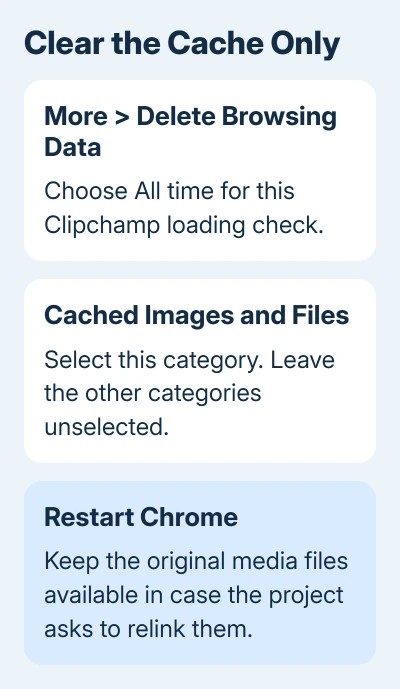
Reopen the project and relink an original file if prompted. A successful load tells you the project can use its media again.
If just one file stays stuck, the loading instructions also suggest converting a copy to MP4.
For a sideways recording that loads normally, use the video rotation workflow after access is restored. Rotation settings won't fix a browser rejection.
5. Follow the unsupported-hardware message
An unsupported-hardware message can mean your computer's graphics can't run the editor, even though Chrome itself is supported.
Update the operating system and check the computer maker's graphics-driver updates, particularly when both supported browsers reject the editor.
The hardware guidance calls for a minimum 8 GB of RAM, preferably 16 GB or more. It also calls for a 64-bit system and browser, plus recent graphics hardware capable of running the editor.
An older computer may open the editor but still freeze or crash while processing video.
I wouldn't start by changing an experimental graphics flag in Chrome. The hardware article warns that bypassing Chrome's graphics-driver blocklist can make the browser unstable.
Try another supported computer if the original machine can't run the editor reliably.
For Chrome that crashes outside Clipchamp too, the Chrome freezing checks address the wider browser problem.
For a Clipchamp-only failure, use Help > Support chat in the personal editor; work or school users should contact IT first.
If the editor won't open far enough to reach chat, use the Clipchamp support routes.
Include the message, Chrome version, operating system, account type, and whether Edge opens the same project.
The Short Version
Current desktop Chrome remains supported. Use a computer, update and relaunch Chrome, check the extension blocking the editor, then repair project cache or hardware issues according to the message.
Mobile Chrome doesn't support the desktop editor.
Checked November 13, 2026.
 If you have any business, I can build it online