In Safari on an iPad, open the Tabs overview to close individual pages. To empty the current Tab Group, open that overview, touch and hold Done, then choose Close All with the tab count shown in the menu.
Other groups and Private Browsing have their own tabs, so one Close All command doesn't necessarily empty everything. Chrome has different controls for closing its iPad tabs.
In this guide
Remove one Safari page from its group
Open Safari, then tap the Tabs button to display the page previews. Find the page you want to remove and tap its Close control in the preview's upper-right corner.
Check the page title or preview before closing it. Two tabs can belong to the same website while containing different work, such as a search results page and a form you've started filling in.
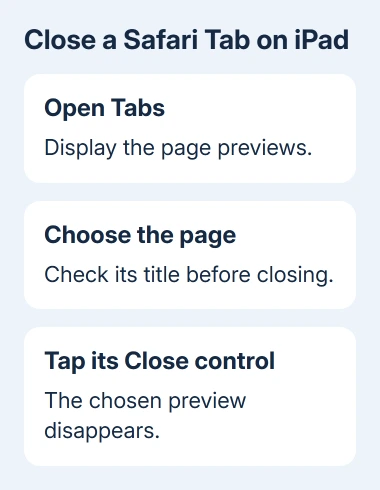
That page's preview should disappear while the others stay open. Tap a remaining page to return to browsing. If you meant to keep the closed page, use the recently closed option described later.
Both the current iPad guide and the iPadOS 26 guide give these steps for closing a tab from the overview. A Compact Tab Bar layout can arrange controls differently, so find the Tabs control rather than copying an iPhone's button positions.
Closing a Safari window or dismissing the app isn't how you remove a page from its group. Use the page's Close control when you want that tab removed from its group.
Close every tab in the current Safari group
From the Tabs overview, touch and hold Done instead of tapping it briefly. Choose Close All [number of] Tabs. The number in your menu reflects that group's open pages.
Read that count before confirming the choice. That count helps you tell whether you're clearing the small group you intended or a larger collection you still need.
Apple says the bulk close command applies to the current Tab Group. Check any other groups separately when you want to empty those too.
After closing them, return to the overview and check that the group no longer contains those page previews. If other tabs still appear, confirm which group you're viewing before repeating the command.
Save any page you need before closing a whole group, especially if it contains unfinished work. Reopening it later might not restore text you entered in a form.
If you're also clearing another device, the iPhone Safari closure steps explain that phone's controls. Its layout doesn't always match the iPad sidebar and tab bar.
Select a batch of tabs in the iPad sidebar
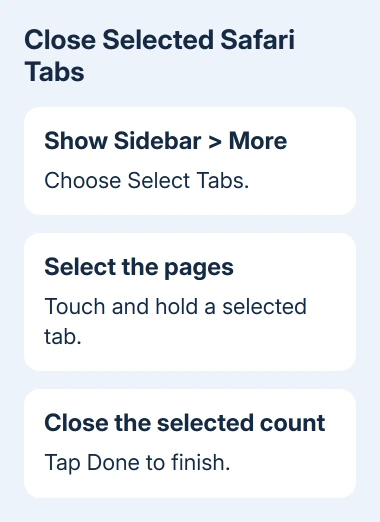
To close several pages without closing the whole group, tap Show Sidebar, then the sidebar's More button. Choose Select Tabs and select the pages you intend to close.
Touch and hold one of those selected tabs. Choose Close [number of] Tabs, then tap Done to finish. Leave the pages you want to keep unselected.
The sidebar multi-tab procedure also offers copying, duplicating and moving the selected tabs. Read the action name so you close the pages rather than moving them into another group or window.
Check which pages remain in the sidebar afterward. Use this selection route to keep your reference pages and remove a batch of finished searches.
If the sidebar is showing a different group, choose the intended group before making the selection. The command closes the pages you've selected in that group. Tabs open elsewhere stay open.
Check Private Browsing separately
Open Safari's sidebar and select Private to inspect its private tabs. Return to the Tabs overview and close the intended pages there, using the individual or current-group controls.
Switching to a regular group leaves those private pages open. After closing them, return to regular iPad browsing when you want the normal tab group.
A private tab stays on the iPad where you opened it. It won't appear in Safari's tab list on your Mac or iPhone.
Closing tabs doesn't require deleting your browser's history or site information. Stick to the tab controls for this task, rather than those Settings controls.
Reopen a Safari tab closed by mistake
In Safari, touch and hold New Tab, then choose the page from the recently closed list. This is different from tapping New Tab once, which starts a fresh page.
Look through the list for a page you recognize before opening several possible matches. When the title isn't enough to identify it, open the likely page and check its contents.
Don't depend on this as storage for important work. Bookmark a reference page you want to keep, and save information entered into a website before closing its tab.
Use the recently closed list for a page you just closed. If pages are still open in another group, choose that group in the sidebar instead of reopening separate copies.
Close Chrome tabs with Chrome's controls
In Chrome on iPad, find the tab along the tab strip and tap its Close control in the upper-right corner. Check that the tab you meant to close disappears. Simply selecting a different tab leaves the first one open.
With an external keyboard, press Command + W for the current Chrome tab. To close them all, open Switch tabs first and use Shift + Command + W in its Tab Grid. The second shortcut closes all tabs in that grid.
If the touch control doesn't respond, try another Chrome tab and check whether touch works elsewhere on the iPad. A frozen app or unresponsive screen is a separate problem from finding the tab control.
If Safari still won't close tabs, tell Apple Support your model, iPadOS version and which controls you see. If only Chrome has trouble, give Chrome Help the app version and whether its keyboard shortcut worked.
The Short Version
Use Safari's Tabs overview for one page, hold Done to clear the current group, or select several pages in its sidebar. Check Private separately. In Chrome, use the tab's Close control or the appropriate external-keyboard shortcut.
Checked November 13, 2026.
 If you have any business, I can build it online