

FaceTime can reject a contact card when its selected number or email isn't enabled for calls. Ask the person which address is enabled in their FaceTime settings, then call it directly.
If every contact fails, check FaceTime on your own device. If just one person fails, start with their saved details and receiving settings.
In this guide
1. Call the address the other person actually uses
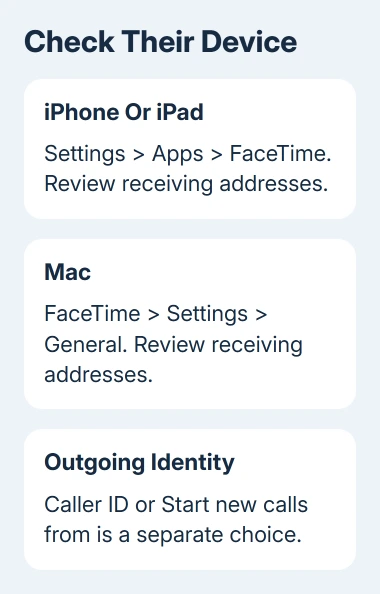
Have the other person check Settings > Apps > FaceTime on their iPhone or iPad. Ask them which numbers or email addresses are selected for receiving calls.
On older software without the Apps section, FaceTime is directly in Settings. The important part is the receiving-address list, wherever the FaceTime menu appears.
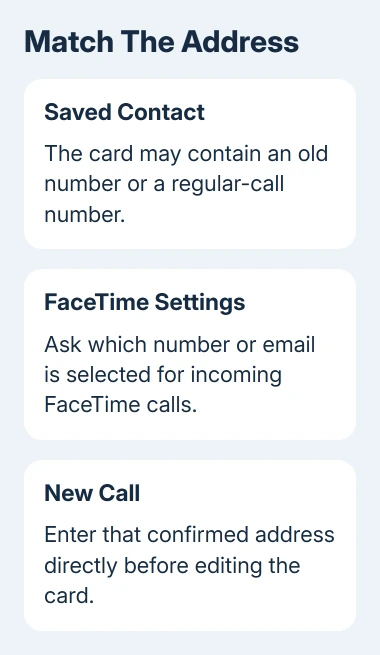
Open FaceTime on your own device and start a New Call. Older versions can label this New FaceTime. Enter the exact enabled number or email the person has confirmed, then tap the FaceTime call button.
For a phone number, check the country code as well as the remaining digits. For an email address, check the complete spelling. A familiar contact name doesn't tell you which of its saved addresses the app selected.
Apple says to check the correct number or email in its FaceTime call-failure steps. Check it before camera or microphone settings, since the call hasn't connected.
If the email works while the phone number fails, you can call them at that email. Keep using that enabled address while the other person checks their phone-number setup. Erasing your phone won't activate the other person's number.
2. Correct the saved contact without deleting it
When a directly entered address works, open Contacts, select the person, and tap Edit. Add the working email or correct the phone number, then tap Done.
Return to the contact and choose the FaceTime option for the working address if several are offered. A card containing an old work number, a landline and a current mobile number can present several choices.
I'd add the confirmed address before removing anything. That keeps useful ordinary calling details intact while you check that FaceTime works with the address you added.
The contact can still need an address that isn't registered for FaceTime. A home telephone number may be useful for regular calls, so removing it from the entire card isn't necessary just because a video call can't use it.
Try the updated card once. If the directly entered address works but the contact route still fails, use the working entry in your FaceTime call history for now, and tell support that direct entry works but the contact card doesn't.
Avoid deleting the entire contact or switching all contact accounts off as a first repair. Keep changes limited to the calling address, because syncing can delete the contact from your other devices too.
3. Check the receiving person's phone-number activation
A number saved in Contacts doesn't automatically become a FaceTime address. The receiving person needs that number set up and selected for FaceTime on their own device.
Have them check Settings > Apps > FaceTime again. If the intended number is missing, unchecked or waiting to activate, treat that as a setup problem at their end rather than changing your copy of the contact repeatedly.
Setting up a number for Messages and FaceTime requires an active SIM or eSIM that uses that number. A new phone, replacement SIM or changed number can make the address in an older contact card unusable.
The phone-number setup instructions cover selecting the number on the iPhone and making it available on other devices. Use the same Apple Account on devices sharing that person's number.
For a waiting activation message, follow the FaceTime activation checks. An unchecked number that won't activate needs that process; correcting the caller's contact card alone won't register it.
Use an already selected email for calls while the number is being sorted out. Don't assume an ordinary cellular call succeeding means the number is also ready for FaceTime.
4. Match the address to the iPad or Mac receiving it
Someone who uses FaceTime on an iPad or Mac may answer through an Apple Account email rather than their mobile number. Ask about the device they want to receive the call on, especially if their phone is no longer nearby.
On an iPad, check the addresses selected to receive calls in Settings > Apps > FaceTime. A phone number shared from an iPhone must be set up through that iPhone first; typing it into a contact doesn't add it to the iPad.
On a Mac, open FaceTime > Settings > General. Review the selected numbers and email addresses used to receive calls. Older macOS versions can call the menu Preferences rather than Settings.
Call an address selected on that receiving device. If a call reaches the person's iPhone but their Mac stays silent, use the Mac FaceTime checks for that device's receiving setup.
Don't confuse Caller ID or Start new calls from with the list of addresses selected to receive calls. That setting chooses the number or email shown when they call someone. It doesn't enable the address you're trying to reach.
5. Check your device when several contacts fail
Start a FaceTime call to another person whose address is known to work. Ask whether that person receives it. That tells you whether the problem affects one contact or FaceTime calls more generally.
If several calls fail, open a webpage to check your connection. On iPhone, review Settings > Cellular and allow FaceTime to use cellular data if calls fail away from Wi-Fi. The menu wording differs by region.
Check that FaceTime is enabled in Settings > Apps > FaceTime. Restart the device and install an available system update through Settings > General > Software Update, then retry with a confirmed address.
Check the other person's connection too if the call begins but won't connect properly. A reachable address and a working internet connection are both needed; changing the saved contact doesn't repair their network.
If the person uses Android, you can't call their number as a native FaceTime account. They need an invitation link from an Apple device to join a supported browser call. Use a shared calling app if you need direct app-to-app calls instead.
Give support the failed address comparison
Contact Apple Support if a confirmed, selected address still produces the error. Report the exact message, the two device models, system versions, and whether direct entry works while the saved card fails.
Ask the other person to contact their carrier if their own number can't complete activation. Keep screenshots of the message free of private contact details before sharing them in a public discussion.
The Short Version
Call the number or email selected in the recipient's FaceTime settings. Update the saved card after a direct call works. A missing phone number needs activation help; calls failing to several people need connection and device checks.
Checked November 11, 2026.
 If you have any business, I can build it online






