A Windows update removed the Copilot app from some PCs and unpinned it from the taskbar. That's why it vanished overnight, with nothing in Settings to switch back on.
The fix takes a few minutes: reinstall the free Copilot app from the Microsoft Store, then pin it again. Several owners got it back that way, and reinstalling an app doesn't touch your files.
In this guide
Why it vanished, and why Settings shows nothing
The best-known case is the March 11, 2025 security update, KB5053598 for Windows 11 version 24H2. It uninstalled the Copilot app on some PCs and took it off the taskbar, and Windows 10 got the same bug from KB5053606 on the same day.
Microsoft's own update notes say the bug is fixed and affected PCs are being put back the way they were, so yours may get Copilot back by itself. I wouldn't wait for that when the reinstall is so quick.
Settings looks empty because the app itself is gone. One owner noticed a gray square where the taskbar icon had been and no Copilot entry under installed apps, which is exactly what an uninstalled app leaves behind.
If yours disappeared after a more recent update, the same steps apply. Copilot is an ordinary app now, so it comes back the way any other app does.
1. Look for it in Start first
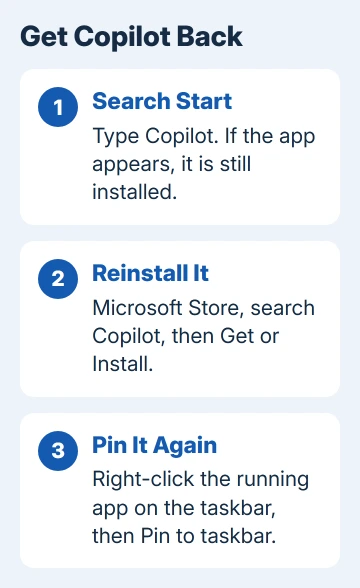
Open Start and type Copilot. If the Copilot app shows up, it's still installed and has only lost its taskbar pin.
Right-click it and choose Pin to taskbar. On Windows 10 the option can sit under More in that menu.
The Store can also claim Copilot is installed when nothing on the PC seems to open it. One owner hit that, and a reinstall didn't help. Try opening it from the Start search instead, then pin the running app from its taskbar button.
2. Reinstall Copilot from the Microsoft Store
Open the Microsoft Store app, search for Copilot and pick the free Copilot app published by Microsoft. Select Get or Install, wait for it to finish, then select Open.
While it's running, right-click the Copilot button on the taskbar and pick Pin to taskbar. One Windows 10 owner wrote that the Store reinstall "fixed the issue (at least until the next update)". Windows 11 owners said the same.
You can also open the same listing in your browser at apps.microsoft.com/detail/9nht9rb2f4hd. Choosing Get there hands you over to the Store app to finish.
If Copilot asks you to sign in when it opens, I'd use the account you had before, so your earlier conversations show up where you left them.
3. Don't mistake Microsoft 365 Copilot for it
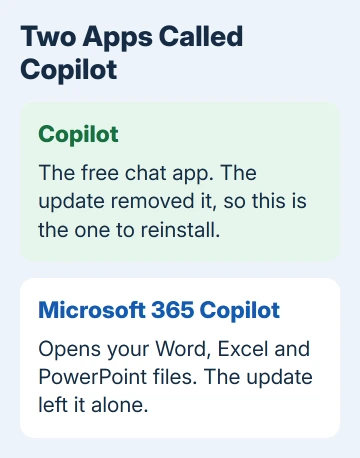
A Start search after the update often turns up Microsoft 365 Copilot instead. That's a different app, the one that opens your Word, Excel and PowerPoint files, and the update bug left it alone.
One owner clicked it and got a prompt to subscribe, which looks a lot like Copilot going paid. It hasn't. Copilot itself is a free download in the Store, and that's the app you lost.
4. Point the Copilot key back at Copilot
On laptops with a Copilot key, the key can stop doing anything useful once the app is gone. One Copilot+ PC owner found the key did nothing after the update, and only the Microsoft 365 version was left.
Reinstall the app first, then press the key. Still opens something else? Check Settings > Bluetooth & devices > Keyboard on newer Windows 11 builds, where the key can be set to work as a different key.
If someone changed that option, the key won't open Copilot until you change it back. Our page on remapping the Copilot key shows that screen and its choices.
5. When the Store won't install it
If the Store itself fails to open or download, fix that first. Our guide to the Microsoft Store crashing covers the usual repair, and after that you can try the Copilot install again.
In the meantime, Copilot works in the browser at copilot.microsoft.com. One owner suggested opening it in Edge and installing it as an app, which also suits work PCs where the Store is blocked.
In Edge, open Settings and more (the three dots), go to Apps and pick the option that installs the current page. Copilot then runs in its own window and pins like any other app.
6. Managed PC? Ask IT first
Organizations can remove Copilot or block it with an AppLocker policy, a Windows feature that controls which apps can run. With that policy on, Copilot can't be installed, and a copy that's already there won't open.
If an employer or school runs your PC, check with IT that Copilot is allowed at all before you try anything here. They can also pin it to the taskbar for every user.
If it disappears again
An update did this once, and the Windows 10 owner who fixed it half expected the next one to do it again. The same reinstall brings it back, so keep the Store steps in mind.
If the Store install fails with an error code, write the code down and contact Microsoft support through the Get Help app with that code and your Windows version. That's quicker than reinstalling over and over.
The Short Version
A Windows update uninstalled and unpinned the Copilot app on some PCs. Search Start for it. If it's missing, get the free Copilot app back from the Microsoft Store, then pin it. Microsoft 365 Copilot is a different app.
Checked November 19, 2026.