A Download line in Copilot that you can't click means no file was actually made. Copilot wrote the file's name, but nothing is attached to it, and that happens a lot in Edge's Copilot pane. It isn't an Edge setting you can switch on.
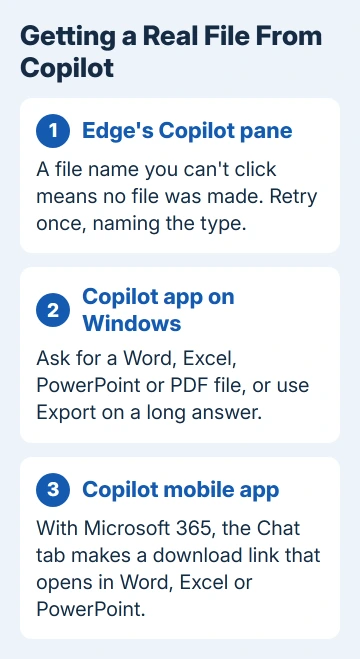
The Copilot app for Windows can create real Word, Excel, PowerPoint and PDF files, so ask there instead. I'd still give the Edge pane one plain retry first, because it takes ten seconds.
In this guide
1. Ask once more, naming the file type
Start a fresh request that names the format, for example Create an Excel file from this table or Export this text to a Word document.
Watch the result as it appears. One owner saw a link flash up while the answer was being written, then vanish as soon as the text finished, leaving the file name as plain words.
In late 2024, one owner found that asking again often fixed it. In early 2026, though, another regenerated the file, asked for it to be saved to OneDrive and still got a dead link.
If one retry doesn't work, more won't either, and step 2 is a better use of your time.
2. Make the file in the Copilot app on Windows
Open the Microsoft Store, find Microsoft Copilot and install it, or select Update if it's already there. If you uninstalled it after deciding you didn't need Copilot on your computer, this is the time to get it back.
Document creation came to the app in version 1.25095.161.0, first for Windows Insiders (people testing early builds) in October 2025. Features like this roll out gradually, so update and check again if yours doesn't have it yet.
To see your version, open Settings > Apps > Installed apps, select the three dots beside Microsoft Copilot and choose Advanced options.
Paste your content or carry on the conversation, then ask for the kind of file you want. Microsoft's announcement says Copilot "will create the file for you" from a request like that, in Word, Excel, PowerPoint or PDF.
Long answers get a shortcut. When a response runs to 600 characters or more, an export button appears with it, so you can send the text straight to Word, PowerPoint, Excel or PDF without another prompt.
A real file turns up as something you can select and open. If you get a file name that won't respond, no file was made, so try the export button on a long answer next.
One owner found this out long before the feature was announced: they moved from the Edge pane to the Copilot app, installed from the Microsoft Store, and files started downloading again.
3. On a phone with Microsoft 365, use the Chat tab
The Copilot mobile app makes files for Microsoft 365 subscribers. Describe the Word, Excel or PowerPoint file you want in the Chat tab, and Copilot creates a download link for it.
Tap that link and the file opens in the matching app, so install Word, Excel or PowerPoint first. The Copilot mobile app's support page explains the change and where files open.
4. Copy the content out yourself
When you just need the content, skip the file. Use the copy button under Copilot's answer and paste the text into Word. Tables usually paste into Excel with their rows and columns in separate cells, ready to sort.
Charts don't copy as cleanly. Press Windows + Shift + S, drag across the chart and paste the snip into your slide or document. One owner did exactly that when Copilot's chart wouldn't copy.
I'd save the Word or Excel file straight away, in OneDrive or Documents. Copilot's chat history isn't a filing cabinet, and digging one answer out weeks later is slow.
5. Copilot in your Office apps? Start there
If your Microsoft 365 plan, at home or at work, includes Copilot in Word, Excel and PowerPoint, open a blank document, workbook or deck, select Copilot on the ribbon and ask for the content there.
The file exists from the start, so there isn't a download link to break. Store it in OneDrive or SharePoint as usual, and share it from the app.
6. Don't chase it in Edge's settings
Clearing Edge's cache, resetting the browser or changing download settings won't produce the file. One owner got the same plain-text link in Safari and Chrome, so the browser isn't what's failing.
Copilot in Edge is built mainly to answer questions about the page you're reading, summarize it and help you research. For files, the Windows app and the Microsoft 365 apps are where you'll actually get something to download.
When no route gives you a file
Use the thumbs-down button under the answer and note that the link didn't work. It's the most direct way to tell the Copilot team about that exact answer.
Microsoft 365 subscribers can also ask Microsoft directly. Open the Get Help app from Start, describe the Download line that never turns into a file, and give the Copilot app version you checked in step 2.
If Copilot won't load or answer at all, rather than failing at files, that's a different fault, and the Copilot not working checks start with a sign-out test.
The Short Version
A Download line you can't click means Copilot didn't create the file. Retry once with the file type named, then use the Copilot app on Windows, version 1.25095.161.0 or later.
That app makes Word, Excel, PowerPoint and PDF files and has an export button. Otherwise copy the content out yourself.
Checked November 19, 2026.