Dark Souls 3 can freeze repeatedly on PC because of the controller or how the game handles devices, even when the graphics card runs it comfortably. Try a short session without the controller before lowering every graphics setting.
A pause every minute and a pause lasting a full minute aren't quite the same fault. Check whether Windows still responds during the pause. A frozen desktop or a restart needs system troubleshooting as well as game checks.
In this guide
1. Disconnect the controller and compare the same area
Quit the game normally, unplug the controller and launch again using the keyboard and mouse. Return to an area where the pauses were easy to reproduce. Leave the graphics settings alone for this comparison.
One owner in a controller-related freeze report said unplugging the pad stopped the pauses immediately. Trying other USB ports, updating the graphics driver and switching Steam Input hadn't helped.
If the pauses stop, start with the controller connection and how the game handles it. For the next session, plug the pad into the computer itself, bypassing its USB hub. Compare a different cable if yours is removable.
A clean keyboard session doesn't tell you the controller itself is broken. The same pad can work in other games while this game pauses. That distinction matters before you pay for a replacement.
If the freeze remains without the pad, check the installation. For pauses that follow the pad, try the temporary processor setting next, before adjusting Windows elsewhere.
2. Try the processor-affinity workaround carefully
The owner in that controller thread later reported that changing processor affinity and immediately changing it back fixed the freezing.
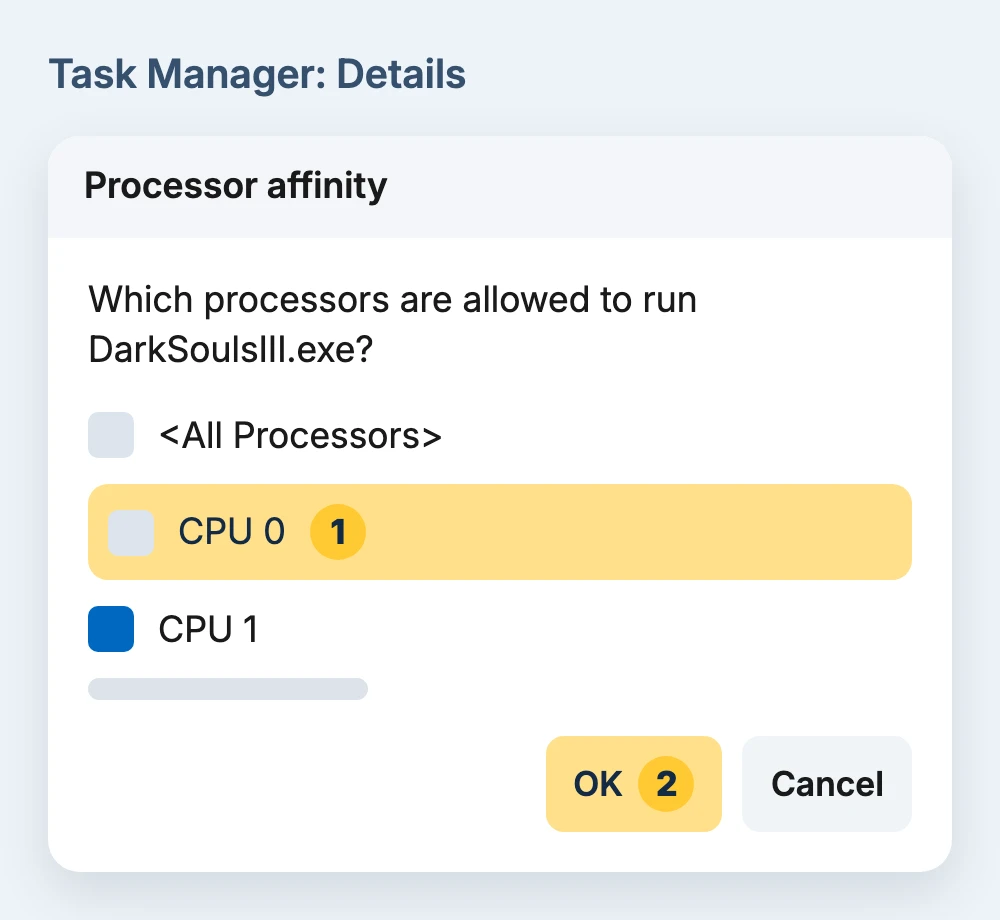
Affinity controls which of the CPU's logical processors a program can use. Windows lists these as separate CPU boxes.
I'd try this reversible change before disabling system devices. Keep Dark Souls 3 running at a safe stopping point, then use Ctrl+Shift+Esc for Task Manager.
On Windows 11, select Details in the side navigation. On Windows 10, select More details if needed, then the Details tab. Find DarkSoulsIII.exe, right-click it and choose Set affinity.
Record which CPU boxes are checked. Clear CPU 0, leave at least one other processor selected, and choose OK. Open Set affinity again, restore the original checked boxes and select OK once more.
Resume play in the area you used for comparison. This briefly changes which processors the game can use, then puts the selection back as it was. It doesn't replace a driver or permanently repair the controller.
The posted commands used the masks 254 and 255, which address the first eight logical processors. Don't paste those numbers onto a different PC. The dialog lets you restore your own machine's original selection instead.
If access is denied, stop that attempt rather than changing permissions. Closing the game also ends this temporary change. A fresh launch is the right time to check whether the improvement lasts or needs repeating.
3. Repair the installed game files
For pauses that remain with the controller disconnected, quit Dark Souls 3. Open the Steam library, right-click the game and select Properties > Installed Files > Verify integrity of game files.
Wait for verification to finish, including any replacement download. Then start the game again. This checks the installation against Steam's files, which is useful after an interrupted update or a damaged download.
It doesn't repair a Windows USB problem. If verification finishes cleanly and the same controller test still changes the result, keep checking the controller connection rather than repeatedly downloading the game.
On a laptop, connect its normal power adapter while comparing performance. A low frame rate throughout an area is different from the whole game stopping and resuming. Describe the stop itself when asking for help.
If several games started failing after the same Windows change, check the update-related crash pattern rather than treating every title as a separate damaged installation.
4. Compare one offline session
Some owners in a separate periodic freezing discussion stopped the stutters by launching Steam in Offline Mode. Treat that as a comparison and a possible workaround for solo play.
Finish any downloads and make sure the game has already launched successfully while online. Keep Remember me checked at Steam sign-in so its credentials are saved.
In Steam, use Steam > Go Offline, follow the confirmation, then start Dark Souls 3 and test the same area.
Co-op, invasions and other online features won't be available in that session. If the pauses stop offline, record that result. It gives support a more useful description than saying the PC isn't fast enough.
Switch Steam back online when you're done comparing. If offline play makes no difference, leave it online and move to the narrower device check. Keep online features available if that change didn't help.
5. Test the named device only when pauses persist
That periodic-freeze thread also includes a successful report for disabling Microsoft Device Association Root Enumerator. That change affects how Windows handles devices; it isn't a general performance boost.
Right-click Start, choose Device Manager, then expand Software devices. If that exact entry exists, right-click it and select Disable device, then confirm and try the game.
Leave other devices alone. This component supports device association, so restore it if peripherals behave differently or the game doesn't improve. Right-click the same entry and choose Enable device to reverse the test.
If the entry isn't listed, skip this step. Don't remove unrelated USB controllers, uninstall a root enumerator or disable every service with a similar name. Those changes can create a second problem.
A network reset helped one poster only temporarily before their freezes returned. That's why it isn't a routine step here. Changing several unrelated Windows settings makes a temporary improvement harder to explain.
When the whole PC freezes or the pauses continue
For a game-only problem, send Bandai Namco support the game version, Windows version, CPU, GPU and controller model. Include whether unplugging the controller, restoring affinity and offline play changed the pauses.
For Windows freezes, Microsoft recommends a clean boot to compare without third-party startup software.
If a Windows service fails after playing several games, check the recorded error. Check GameInput service crashes when that is the error actually recorded, rather than disabling it just because a controller is connected.
The Short Version
Compare keyboard play first. For controller-linked pauses, try changing CPU 0 affinity and restoring the original selection. Verify the game, compare offline play, then consider the exact device-enumerator workaround if needed.
Checked November 27, 2026.
 If you have any business, I can build it online