GameInput errors after gaming can come from an old installation conflicting with another copy of the service. Removing Microsoft GameInput through Installed apps and restarting stopped one owner's unexpected shutdowns.
Try that fix when your service details match the case. A black screen, a blue screen and only the game disappearing need different follow-up checks, even when Event Viewer lists GameInput beside them.
In this guide
1. Check the service behind the error
Press Windows + R, enter eventvwr.msc, and open Windows Logs > System. Select an error near the crash time. Read the General tab for the service name and the full error, rather than counting every red entry.
The older fault showed messages about the service stopping and a compound file produced with a newer storage version. That wording matters because a generic unexpected termination message can appear in other situations.
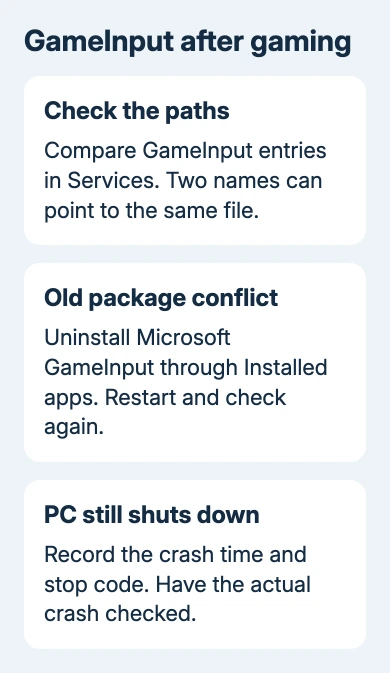
Open Windows + R > services.msc. Find the GameInput entries, open each one's Properties, and compare Path to executable. Record those paths before changing anything.
A similar service name doesn't tell you which installed package it belongs to.
One owner found two services pointing to the same file. Removing the installed GameInput package and restarting left a single service, stopped the critical alerts and ended their shutdowns.
That owner didn't need to delete a DLL by hand.
A service error logged after the machine has already stopped responding might be part of the aftermath. Compare the timestamps with the actual freeze.
If the GameInput wording doesn't match, save the details and continue with section 4 to check the crash.
2. Remove the installed package when the old conflict fits
Save your game and close its launcher. On Windows 11, open Settings > Apps > Installed apps, search for Microsoft GameInput, open its three-dot menu, and select Uninstall. Confirm the removal, then restart Windows.
On Windows 10, the equivalent list is Settings > Apps > Apps & features. Select the package and choose Uninstall. Don't remove Gaming Services or Xbox apps simply because their names also mention games.
I'd use the normal uninstaller before touching service entries. Windows can then remove the package registrations together, rather than leaving a service pointing at a file you've moved.
After restarting, return to Services and compare the entries with the paths you recorded. Then launch the same game, play normally, close it, and allow time for the after-gaming crash to recur.
Since the fault happens after gaming, opening the game successfully isn't enough to check the repair.
The original GameInput failure should stop appearing in new System events. Keep the time of this check so you don't mistake yesterday's errors for fresh ones. Event Viewer retains old records after a successful repair.
If the package isn't listed, stop this removal route. Don't delete files from System32, take ownership of Windows folders or copy someone else's registry deletion.
That older conflict doesn't justify removing parts of a current installation by hand.
3. Restore GameInput if a game now needs it
GameInput supplies input support that some games use. Removing an old package can clear a conflict, but a game that needs the runtime still needs a working version installed. Check controller input as well as whether the game opens.
Microsoft's current GameInput installation guidance provides a Windows Package Manager command for installing the latest package.
Right-click Start, open Terminal (Admin), approve the prompt, and run:
winget install Microsoft.GameInputCheck the package name and read the installer prompts before accepting. If Windows reports that an installed package has no applicable update, save that result; repeatedly entering the same command won't repair an unrelated crash.
If winget isn't recognized, use the game's launcher repair or its publisher's support instructions for the required runtime. Avoid download sites offering individual GameInput DLLs.
Those files aren't a replacement for the package installer.
If prompted, restart after installation. Check both the game and its controller input. A controller working in menus but failing in a particular game is a different symptom from Windows rebooting after the game closes.
For Dark Souls 3 pauses during play, check the controller-linked freezing pattern separately from GameInput errors after closing a game.
If Windows stays stable but a game remains open invisibly, the game process troubleshooting steps address that stuck-launch case.
Use those steps if the game stays open in the background; use the crash checks next if Windows still shuts down.
4. Follow the crash that remains
Another owner still had crashes after deleting a duplicate file: the crash returned a few days later. Treat continuing shutdowns as an unresolved crash, even if the GameInput messages have disappeared.
Press Windows + R, enter perfmon /rel, and select the failure date in Reliability Monitor. Open the relevant critical event and note whether it describes Windows stopping, a hardware error or only the game failing.
For a blue screen, record the stop code and check C:\Windows\Minidump in File Explorer. If dump files exist, copy them into a separate folder for the PC maker or a support adviser to analyze. Don't publish them in an unrestricted link.
A sudden loss of power without a dump needs a different conversation with the PC maker: describe whether fans stay on, whether the display alone goes black, and whether the power supply must be switched off before the PC starts again.
If the timing began with a particular Windows update, compare it with the separate update-related gaming fault.
Its affected driver and update details must match before using that repair.
When service cleanup doesn't stop the shutdowns
Give the computer manufacturer your Windows build from winver, the game name, the two service paths if present, when the crash happened, plus any stop code shown.
Ask them to review the crash dump or power-loss symptoms, rather than treating a GameInput log entry as the diagnosis.
A newly built desktop that still cuts power needs the builder or repair shop to check its hardware. Deleting more services won't fix a power-supply, memory or graphics fault. Ask them to diagnose the shutdown itself.
The Short Version
Compare the GameInput service paths first. For the old duplicate-installation pattern, uninstall Microsoft GameInput normally and restart.
Restore the current runtime if a game needs it, and have any remaining Windows crash diagnosed separately.
Checked November 27, 2026.
 If you have any business, I can build it online